

Skip to content
View in the app

A better way to browse. Learn more.

Enpass Discussion Forum

A full-screen app on your home screen with push notifications, badges and more.

To install this app on iOS and iPadOS
  1. Tap the Share icon in Safari
  2. Scroll the menu and tap Add to Home Screen.
  3. Tap Add in the top-right corner.
To install this app on Android
  1. Tap the 3-dot menu (⋮) in the top-right corner of the browser.
  2. Tap Add to Home screen or Install app.
  3. Confirm by tapping Install.

Felixx

Members
  • Joined

  • Last visited

  1. Felixx posted a topic in Windows
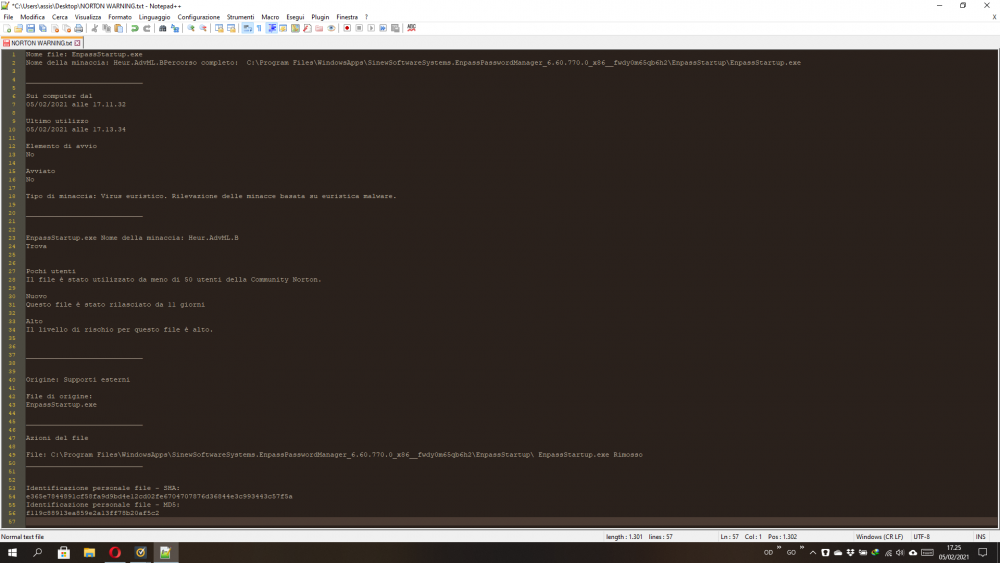
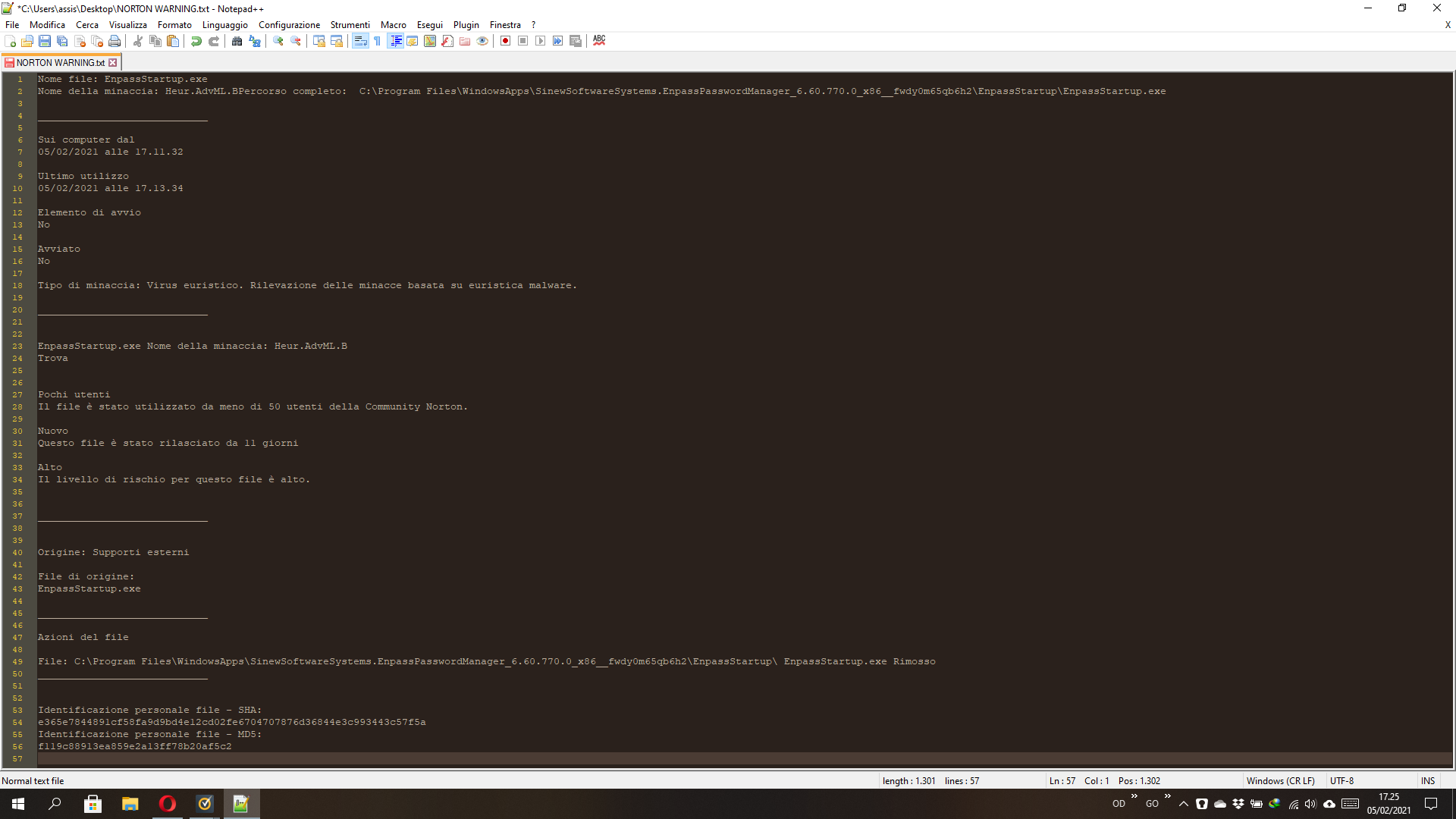
    I attach the norton warning that I received after last enpass update as an image because I tried to paste it in this message but your clean talk did not agree. Felix
  2. On my android I fill the wifi password field, Enpass asks me to save it and I do it, but just the name field is saved all others fields are blank. When I asks to autofill the field for this wifi, Empass finds the right name and it fills the field, but it is empty. If I fill by myself the missing informations when I ask to autofill Enpass does it. I use Android 9 and Android 8.1.
  3. I use my laptop with display at 125% and enpass style and formatting are ruined. Restoring display at 100% and restarting enpass the app is shown in the right way
Account

Navigation

Search

Search

Configure browser push notifications

Chrome (Android)
  1. Tap the lock icon next to the address bar.
  2. Tap Permissions → Notifications.
  3. Adjust your preference.
Chrome (Desktop)
  1. Click the padlock icon in the address bar.
  2. Select Site settings.
  3. Find Notifications and adjust your preference.