finsarg
Members
-
Joined
-
Last visited
-
Just installed the latest version from the windows store and the issues I was having with the UI are all fixed. Thanks for the hard work guys. I'm sure you're doing everything you can to make everything right!
-
-
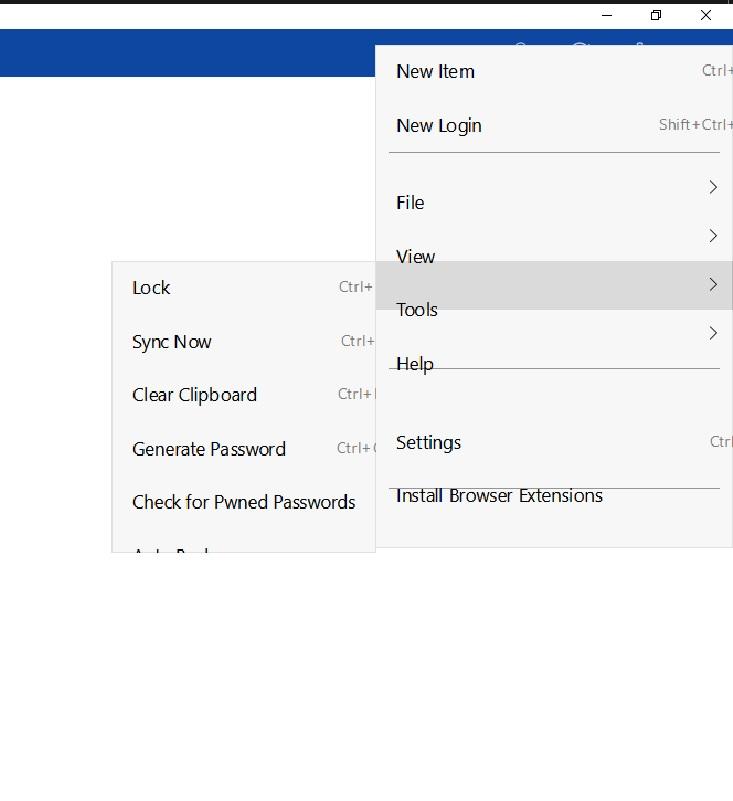
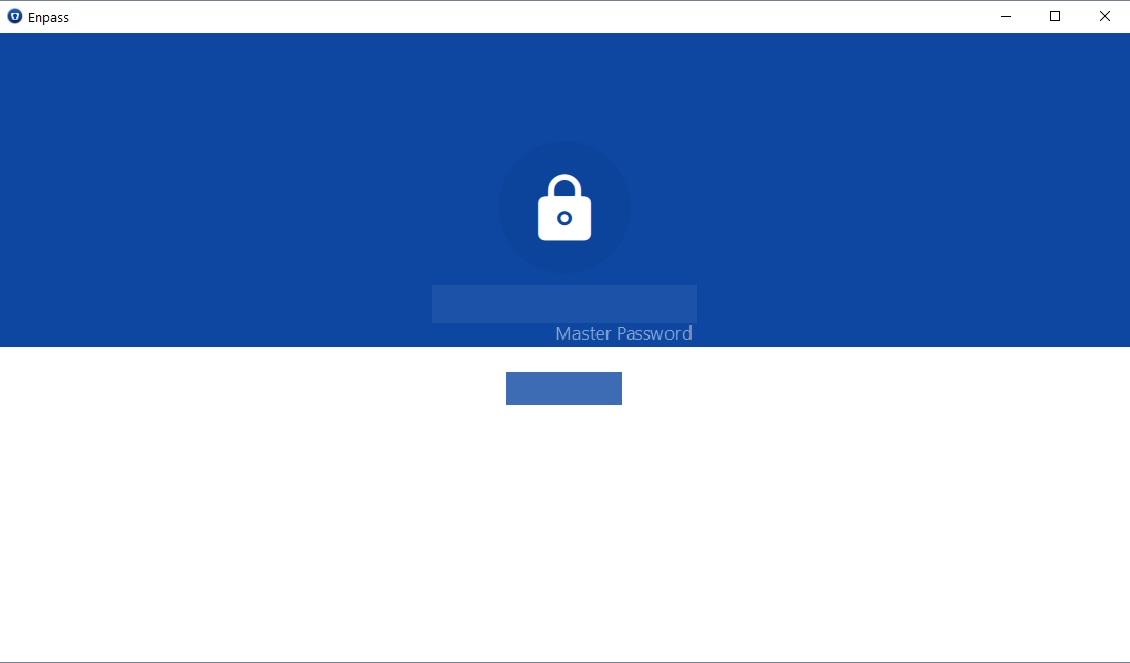
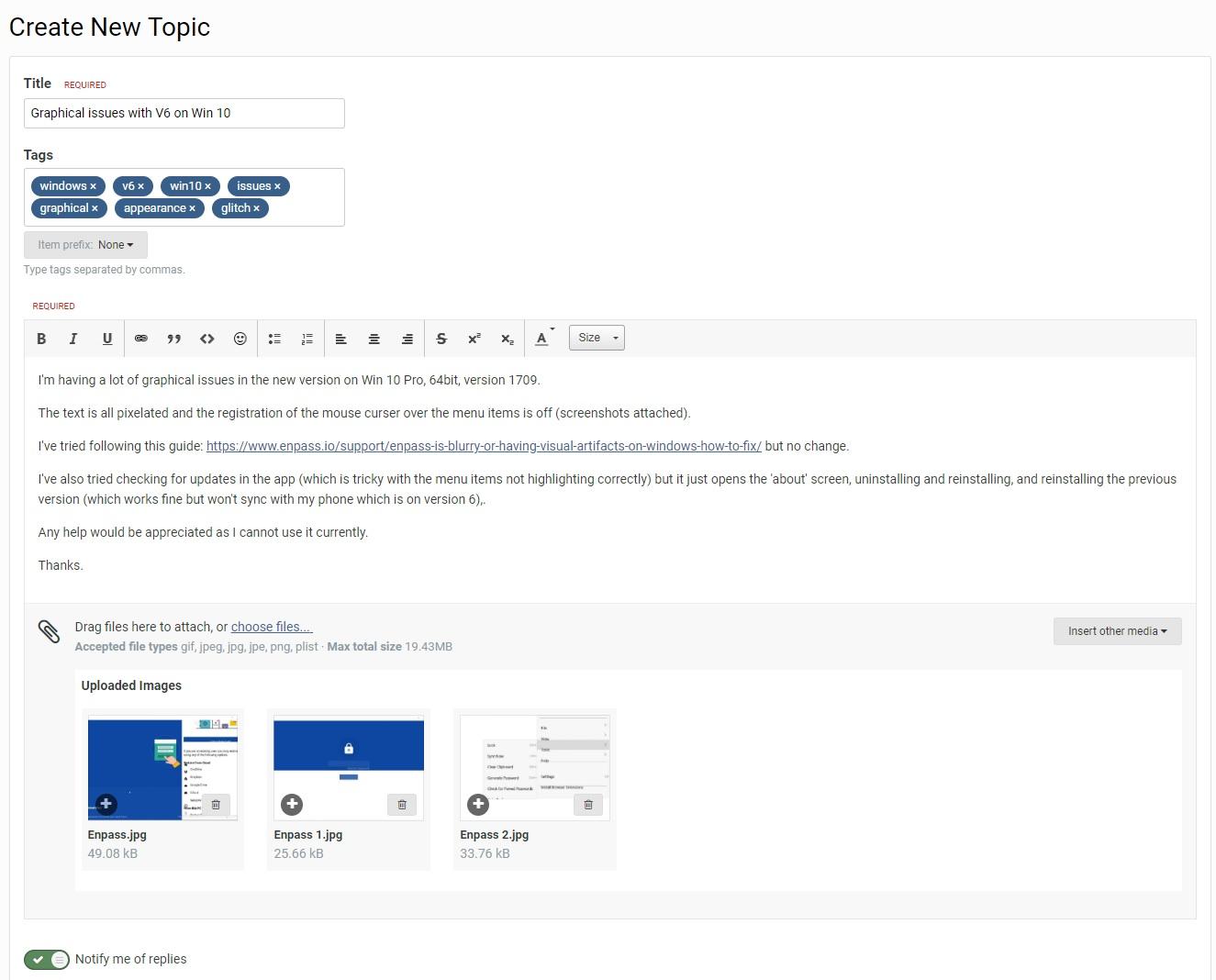
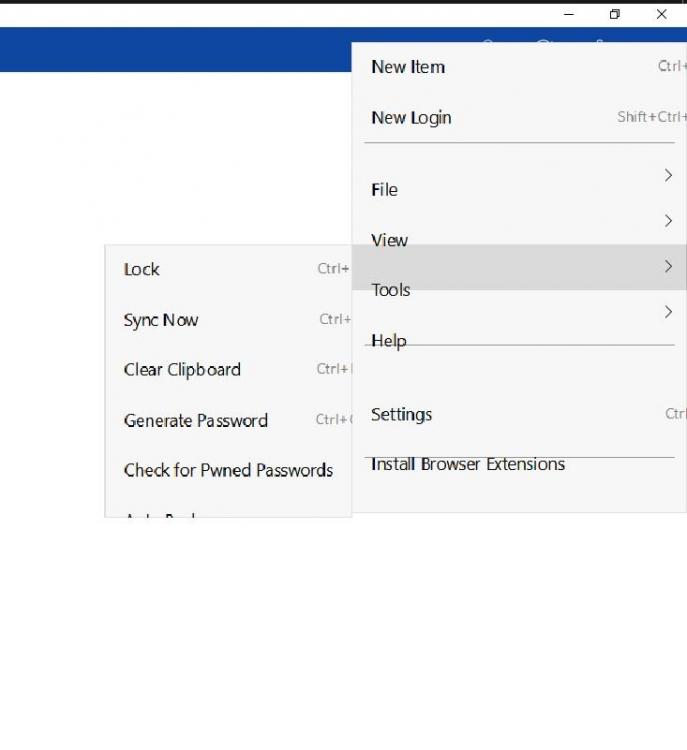
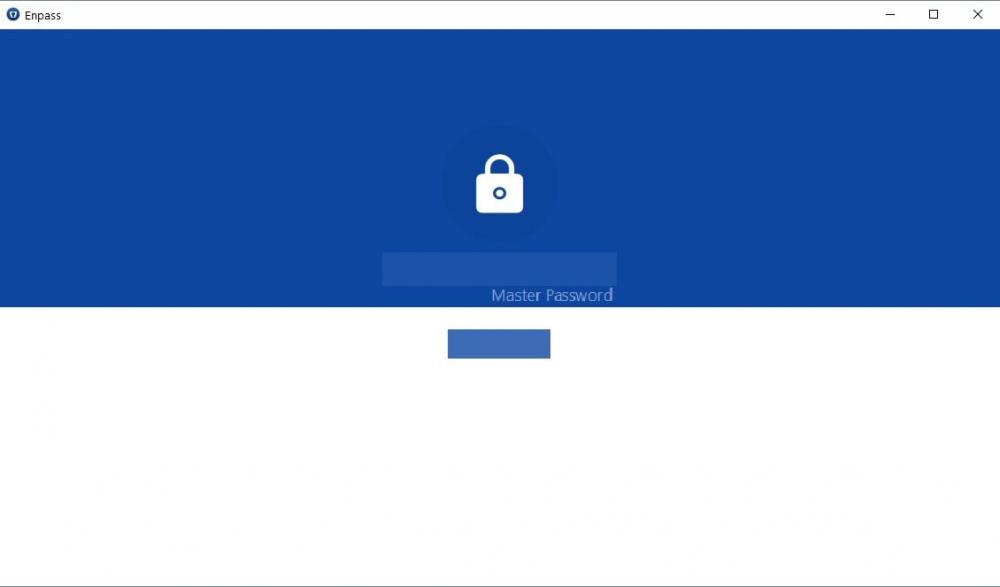
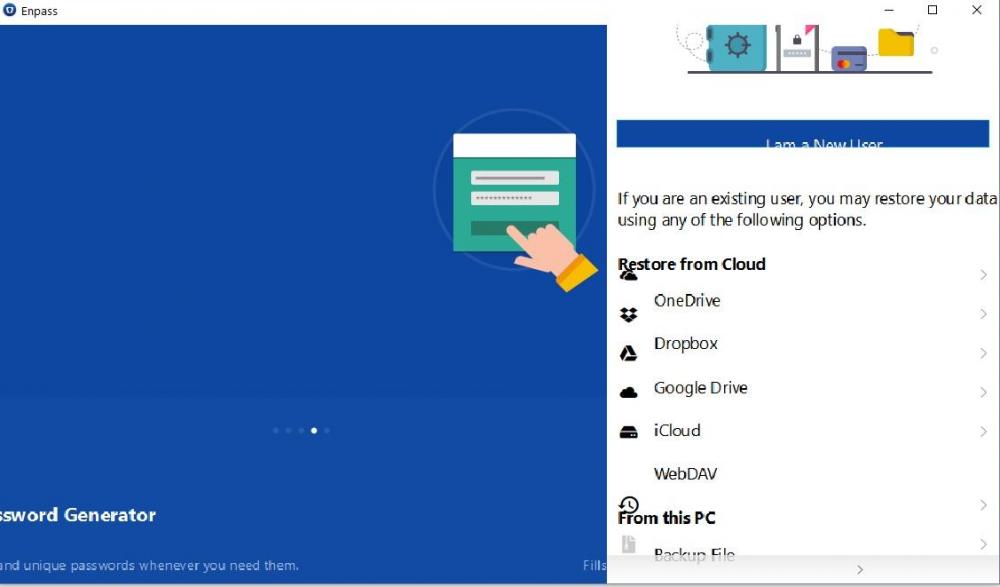
I'm having a lot of graphical issues in the new version on Win 10 Pro, 64bit, version 1709. The text is all pixelated and the registration of the mouse curser over the menu items is off (screenshots attached). I've tried following this guide: https://www.enpass.io/support/enpass-is-blurry-or-having-visual-artifacts-on-windows-how-to-fix/ but no change. I've also tried checking for updates in the app (which is tricky with the menu items not highlighting correctly) but it just opens the 'about' screen, uninstalling and reinstalling, and reinstalling the previous version (which works fine but won't sync with my phone which is on version 6),. Any help would be appreciated as I cannot use it currently. Thanks.
-
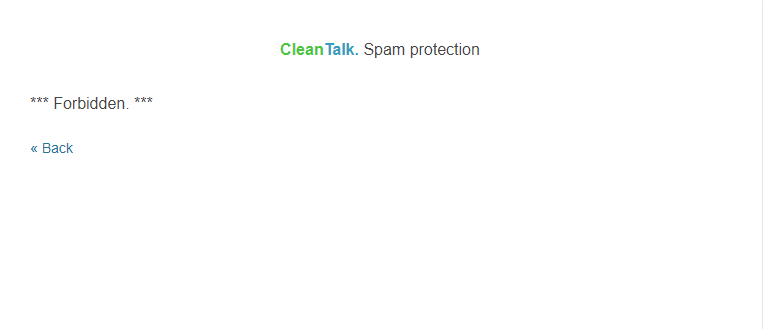
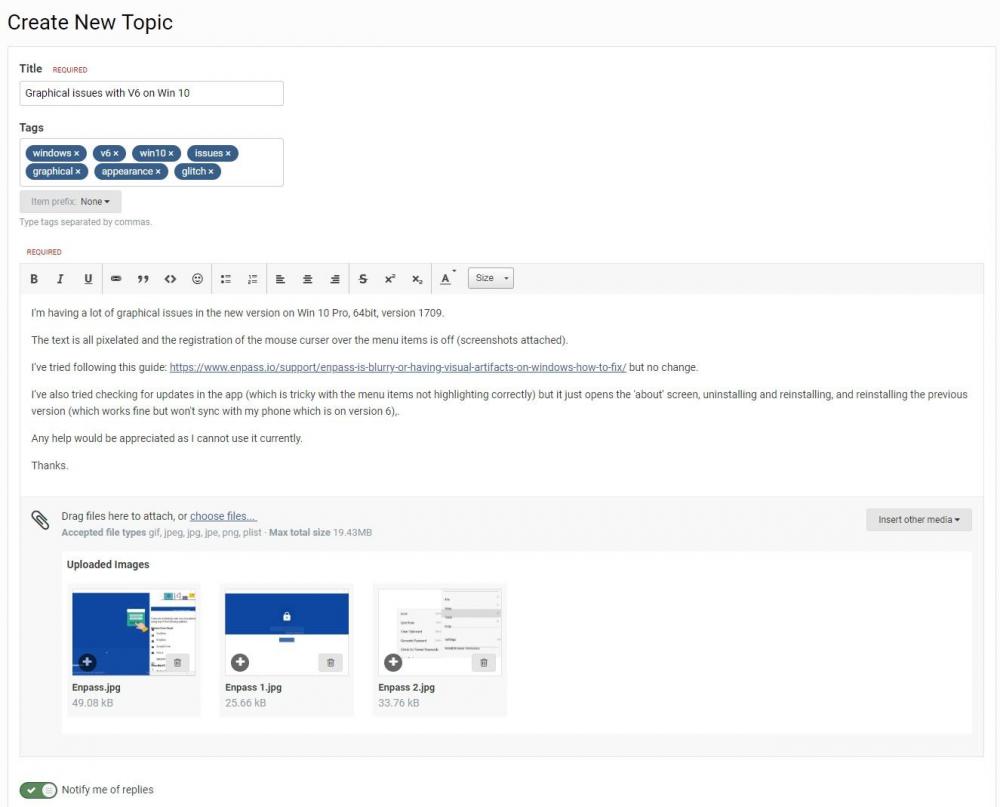
So I managed to post this on but couldn't post the one I wanted to. Is there a list of forum rules somewhere? Here's a screenshot of what I was trying to post in case anyone can see what I'm missing:
-