luisamumu
Members
-
Joined
-
Last visited
-
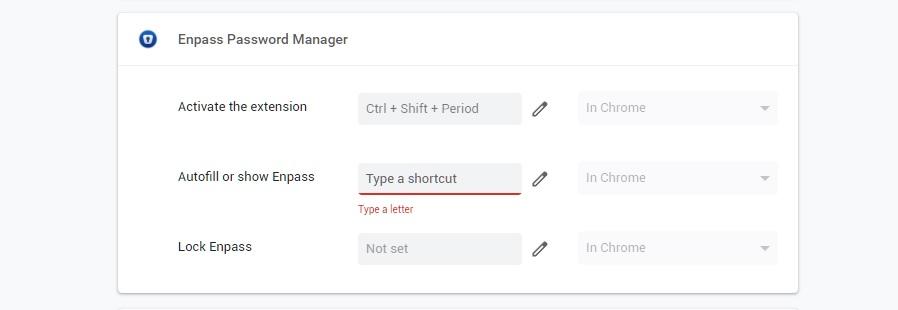
The problem is simple: I used to be able to set my shortcut as "ctrl+\". Now the browser control keyboard shortcuts natively and I can no longer do that, see my screenshot: This is NOT "a better autofill experience", it's a BUG.
-
I can't tell if it's browser or enpass extension issue, but I've been using ctrl + \ since the first day, now I can't set that after browser extension update.
-
I don't see the options, my chrome extension and app are all updated to latest. What's wrong with your design and testing. It's driving me crazy, please fix it.
-
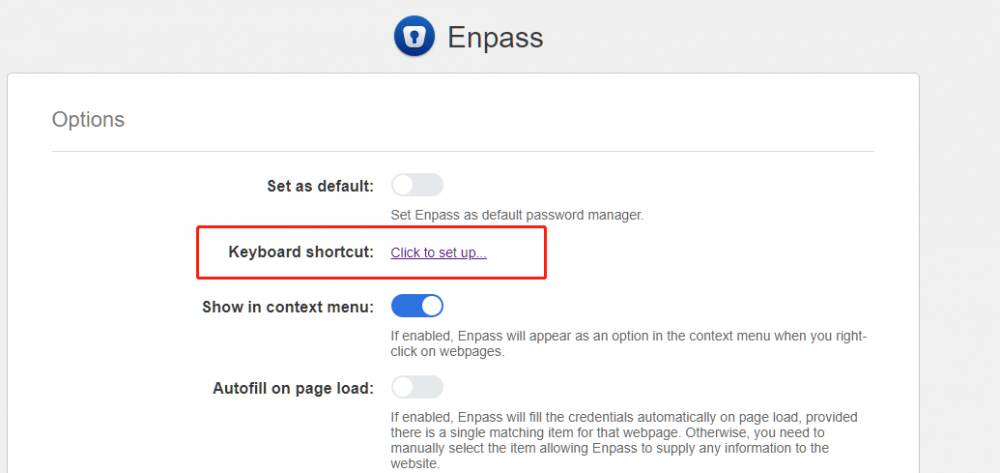
looks like the issue is fixed in the new version
-
I didn't check this setting, but I can confirm that the browser autofilling somehow worked as it was working in enpass 5 after I checked this box. However I don't think it is the way it's supposed to be. It is designed for url matching for sub domains I think. Maybe by checking this setting it bypasses the bug. Also, item filtering by url in extension and main app still doesn't work. I guess the it prevent from searching by url and other properties other than just item title. Auto-fill and manual filtering probably rely on searching so they don't work.
-
I have the same issue in both browser extension(Chrome) and main program(Mac version). I used to be able to filter with url or other field properties in enpass 5, now in enpass 6, I can only filter with item title. I'm not sure about this change, is it a bug?