Skip to content
View in the app

A better way to browse. Learn more.

Enpass Discussion Forum

A full-screen app on your home screen with push notifications, badges and more.

To install this app on iOS and iPadOS
  1. Tap the Share icon in Safari
  2. Scroll the menu and tap Add to Home Screen.
  3. Tap Add in the top-right corner.
To install this app on Android
  1. Tap the 3-dot menu (⋮) in the top-right corner of the browser.
  2. Tap Add to Home screen or Install app.
  3. Confirm by tapping Install.

marcel

Members
  • Joined

  • Last visited

  1. marcel replied to marcel's topic in Windows
    thanks, I had indeed both versions. Removed them both and only installed the 'windows store' version, and now everything works ok now.
  2. marcel replied to marcel's topic in Windows
    is there a way to fix the chrome browser extension as well? I've reinstalled that, but it continues to have the same issue
  3. marcel replied to marcel's topic in Windows
    thank you! This happend after an in-app update. Had to go to the windows store to download the latest version and it seems ok now!
  4. marcel posted a topic in Windows
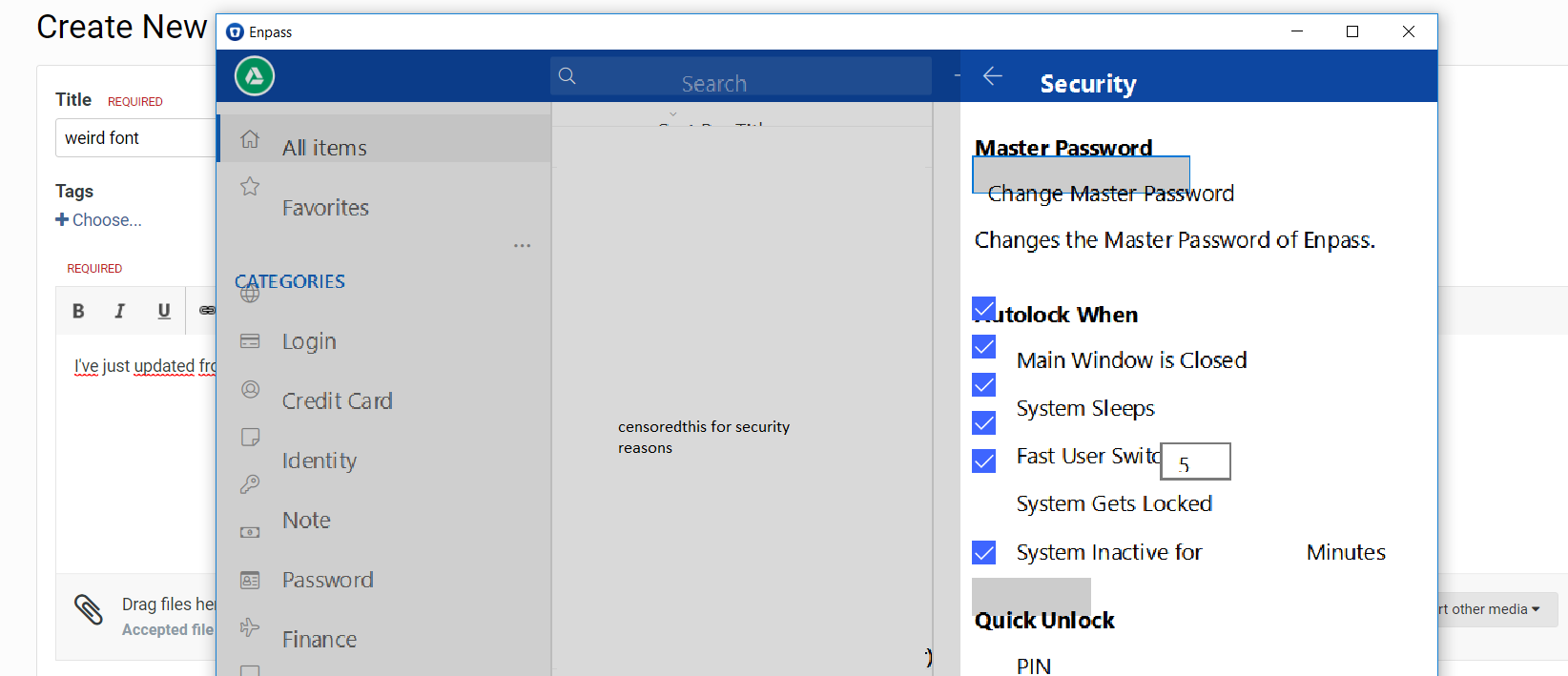
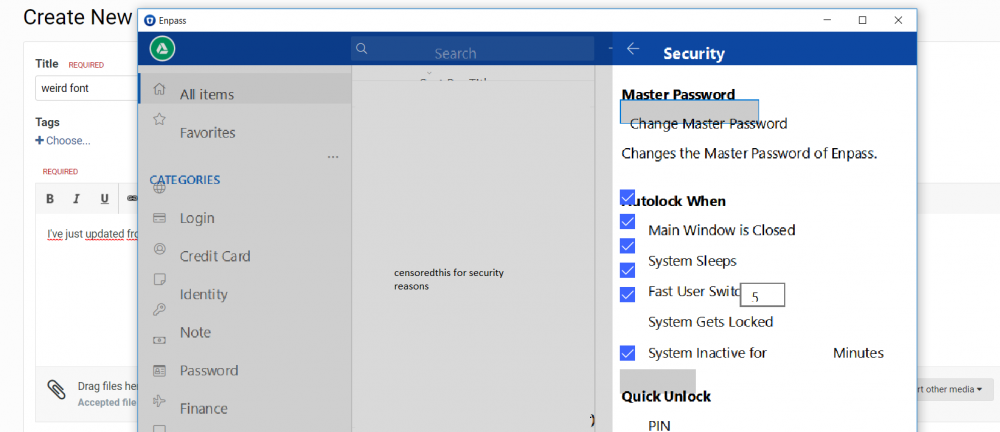
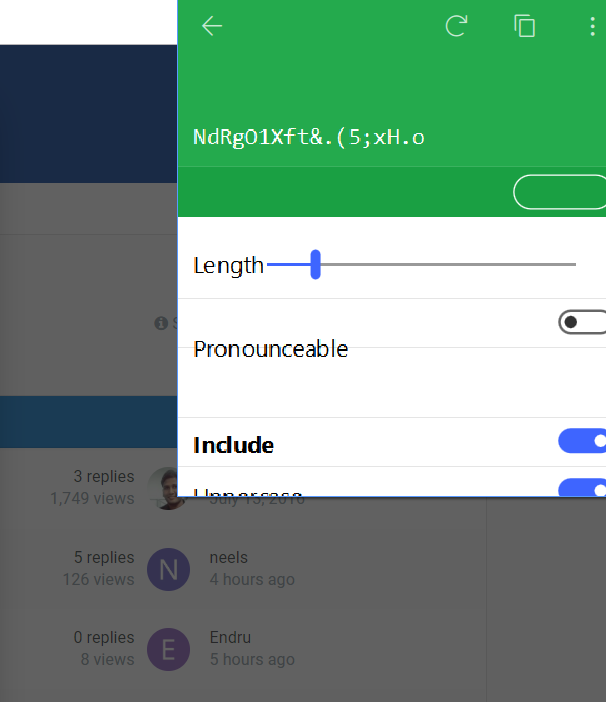
    I've just updated from enpass v6 to i think 6.0.1. Now the font's and screens are all messed up, everything is pretty much unusable as you can see in the screenshots. Please fix this.
Account

Navigation

Search

Search

Configure browser push notifications

Chrome (Android)
  1. Tap the lock icon next to the address bar.
  2. Tap Permissions → Notifications.
  3. Adjust your preference.
Chrome (Desktop)
  1. Click the padlock icon in the address bar.
  2. Select Site settings.
  3. Find Notifications and adjust your preference.