Skip to content
View in the app

A better way to browse. Learn more.

Enpass Discussion Forum

A full-screen app on your home screen with push notifications, badges and more.

To install this app on iOS and iPadOS
  1. Tap the Share icon in Safari
  2. Scroll the menu and tap Add to Home Screen.
  3. Tap Add in the top-right corner.
To install this app on Android
  1. Tap the 3-dot menu (⋮) in the top-right corner of the browser.
  2. Tap Add to Home screen or Install app.
  3. Confirm by tapping Install.

Yevhen Kushnir

Members
  • Joined

  • Last visited

  1. It works like a charm! Thank you!
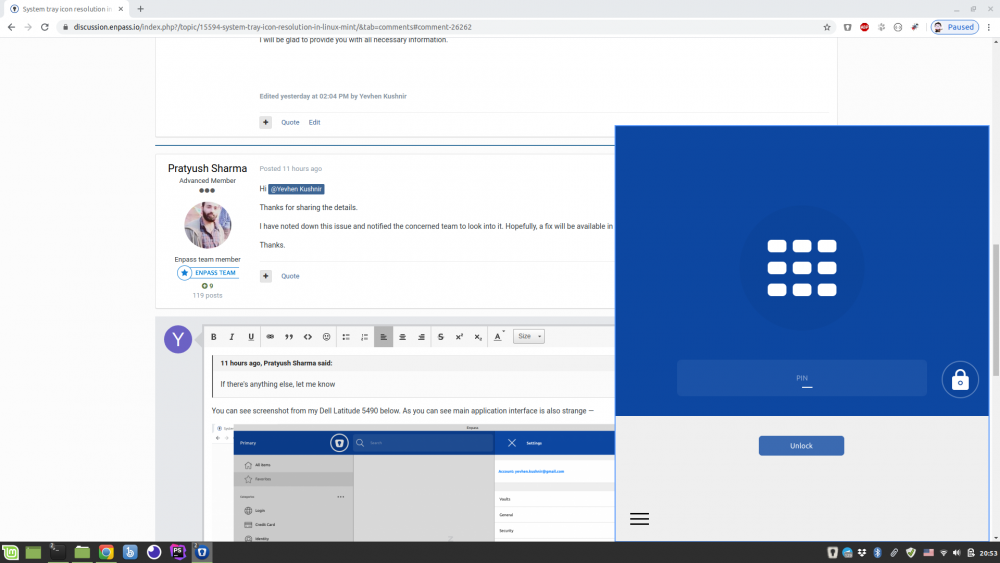
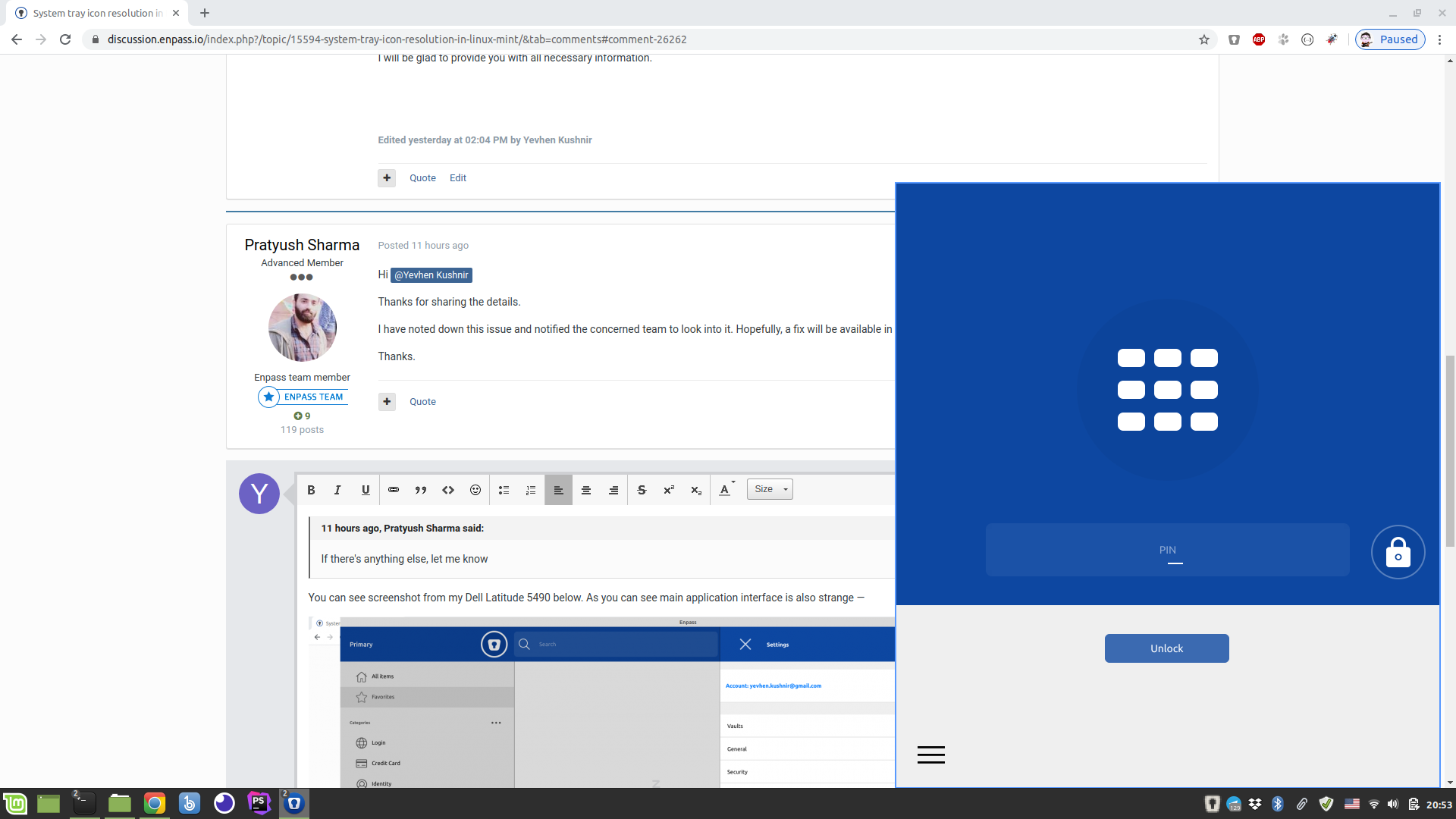
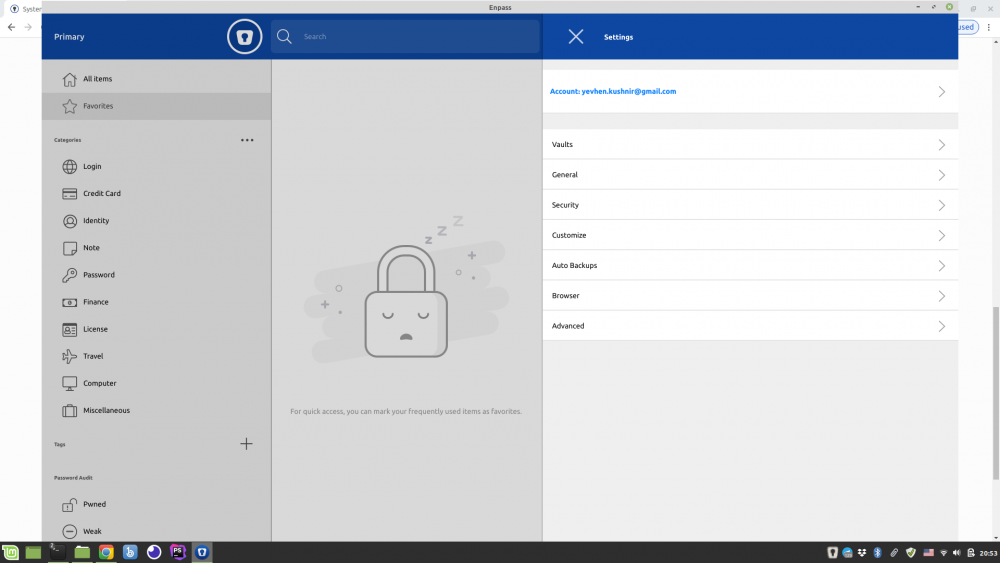
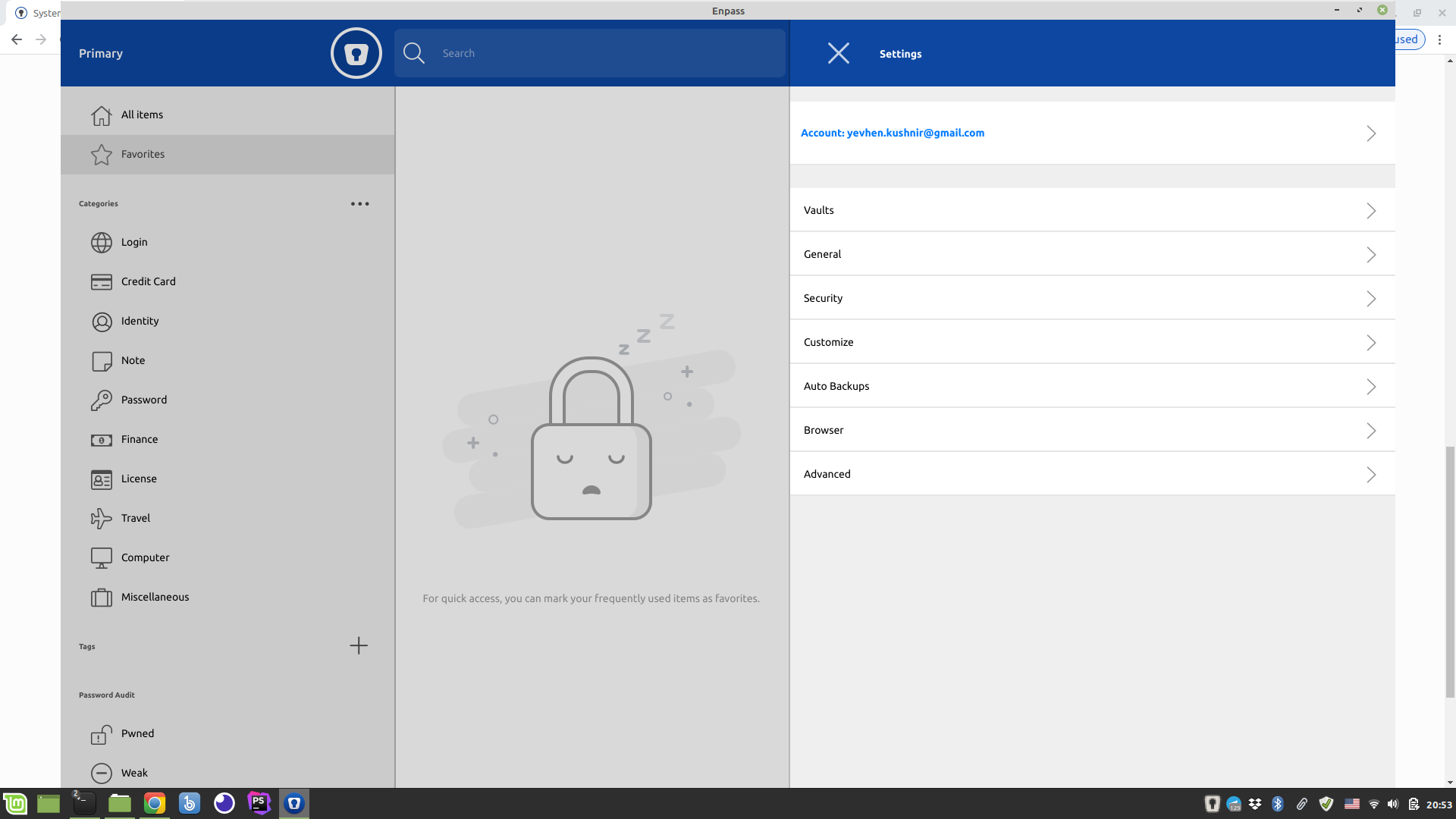
  2. You can see screenshot from my Dell Latitude 5490 below. As you can see main application interface is extremely big — I believe it is related to icon size issue. UPDATE: I use latest 6.3.3.601 version. .
  3. I have similar issues on all my laptops Dell Latitude 5490, 14", 1920x1080 Dell XPS 9560, 15", 3840x2160 But at the same time it looks ok on my HP 250 G6 on its internal display and external monitor as well — 15", 1920x1080 All three laptops has Linux Mint 19.3 with all updates installed. I have been using enpass almost for a year:-) I will be glad to provide you with all necessary information.

  4. Hi! Could you please update system tray icon size according to display resolution? It looks really ugly now.

Account

Navigation

Search

Search

Configure browser push notifications

Chrome (Android)
  1. Tap the lock icon next to the address bar.
  2. Tap Permissions → Notifications.
  3. Adjust your preference.
Chrome (Desktop)
  1. Click the padlock icon in the address bar.
  2. Select Site settings.
  3. Find Notifications and adjust your preference.