gavu
Members
-
Joined
-
Last visited
Everything posted by gavu
-
Are you using the same database on other devices? If yes, please share the device name and it's OS version? iOS 12.1.4 Which cloud services are you using to syncing the vault having these items? WebDAV How many vaults do you have in Enpass? 2 Did you move these items from one vault to others? No Have you created these items in Enpass 5 or any previous one? Yes Have you moved these items to Trash/Archive folder and lately restore it again? No Do these items displayed in the main app when you select 'All items' in the sidebar? The "empty" ones no, the correct ones yes Hope this helps with your debugging. Unfortunately, those are customer details which I cannot share with you.
-
Hi @Anshu kumar macOS Mojave 10.14.3 enpass 6.0.5 (306) Thanks
-
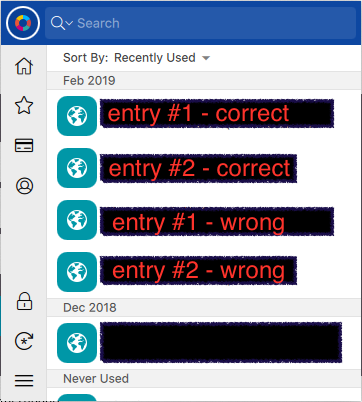
Hi, I am trying to clean up my vaults as I seem to have some issues with the "recently used" function. this happens only when using the browser addons (see Screenshot 2019-02-28 at 09.29.51.png), not when using the global hotkey to search for passwords for non-browser apps. As a workaround, when using the browser addon, I have to manually search the password I need and use that one, once done, the entry is then added on top of the recently used list but the faulty one is still visible (see Screenshot 2019-02-28 at 09.35.37.png) Is it possible to clear the vault history or export/import everything to reset the data? Thanks!