jncolin
Members
-
Joined
-
Last visited
-
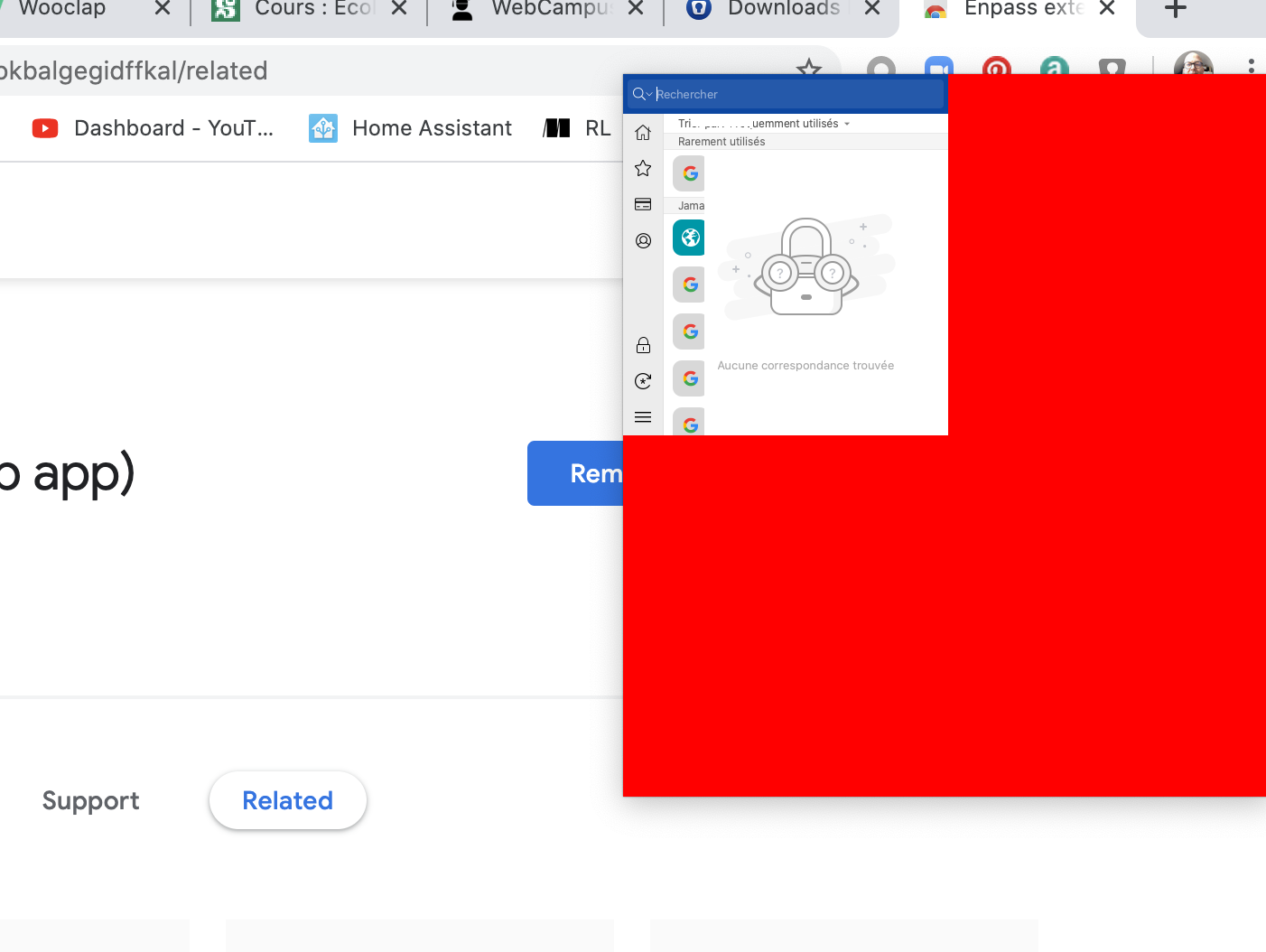
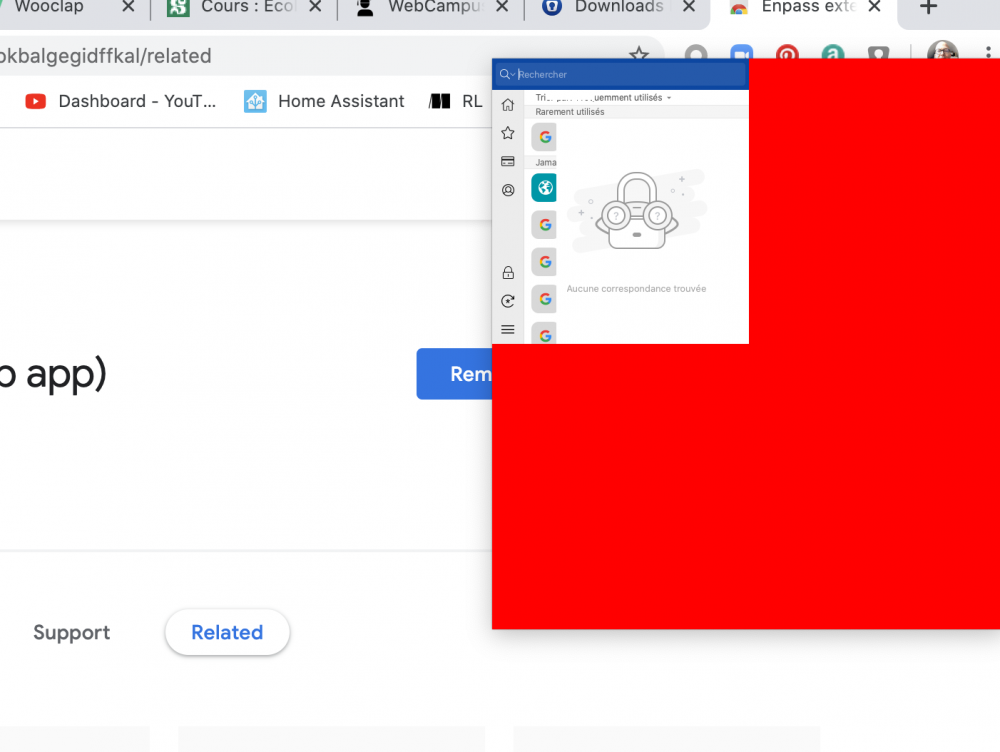
Hi, For the last 2 days, the extension on Chrome is unusable (see attachment); I’m running Enpass 6.4.1 (642) on a Mac, using chrome 81.0.4044.129 (Build officiel) en the Enpass extension 6.4.0 I tried uninstalling and reinstalling it, restarting chrome, nothing changes How can this be fixed? Best Jean-Noël
-
Hi I would like to clean up the database; for instance, for every item that has both a location and a website, only keep one of the two. Is there any way to run a script to achieve such thing? Best
-
I'm running the chrome extension v6.2.1 on Chrome 79.0.3945.130 on a Mac. It does not detect a new login when connecting to https://app.wooclap.com/auth/login
-
Hi I confirm that when I copy the information, I get the 'copied to clipboard message'; there is no clipboard manager app installed, and I can't paste the content in any application, whether it's Note, Safari or any other app. THanks for your help
-
Hi, I'm running Enpass 6.0.6(234) on iOS 12.2 and I can't copy anything from enpass to browser or any other app (I tried note, message...) Clipboard always seems to be empty. I checked the settings and clipboard is set to be empty after 5 minutes. So what's wrong? The only workaround I have found is to open the entry in 'edit' mode, and then, I can copy/paste Thanks for your help Jean-Noël