


plerzelwupp
Members
-
Joined
-
Last visited
-
Sorry, I would have explained it - but I have the german version. OK, I try it: Only if you have activated the feature "keyfile" (which is also a bit hidden on the bottom of preferences where you change the Master-password), you'll get a new entry in the vault menu under preferences (3 points - see screenshot) - behind these 3 points you'll get the barcode. I think it's difficult to find - I searched through the web and found nothing. Would be better, to find it in the tools-menu - or under vault-info, where the information is, if you have chosen the keyfile (f.e.). Sorry for my bad english - I hope you understand ;-)
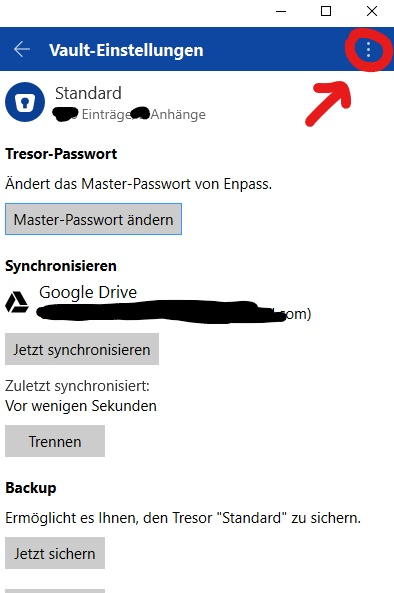
-
One hour later - I found it. I wonder why this rather hidden feature is not documented anywhere - not in the manual and not in the knowledgebase. Anyway - thanks a lot - I love Enpass - good work!
-
Hello :-) On the desktop-version you have the posibility to generate a keyfile in addition to the master-password. On Android you can scan the QR-Code from this keyfile.Just a stupid question, I wasn't able to find the solution. How can I generate the QR-Code from the keyfile on Windows - to scan it for Android? Thanks in advance and many greetings :-) Oliver
