DodgyBlater
Members
-
Joined
-
Last visited
-
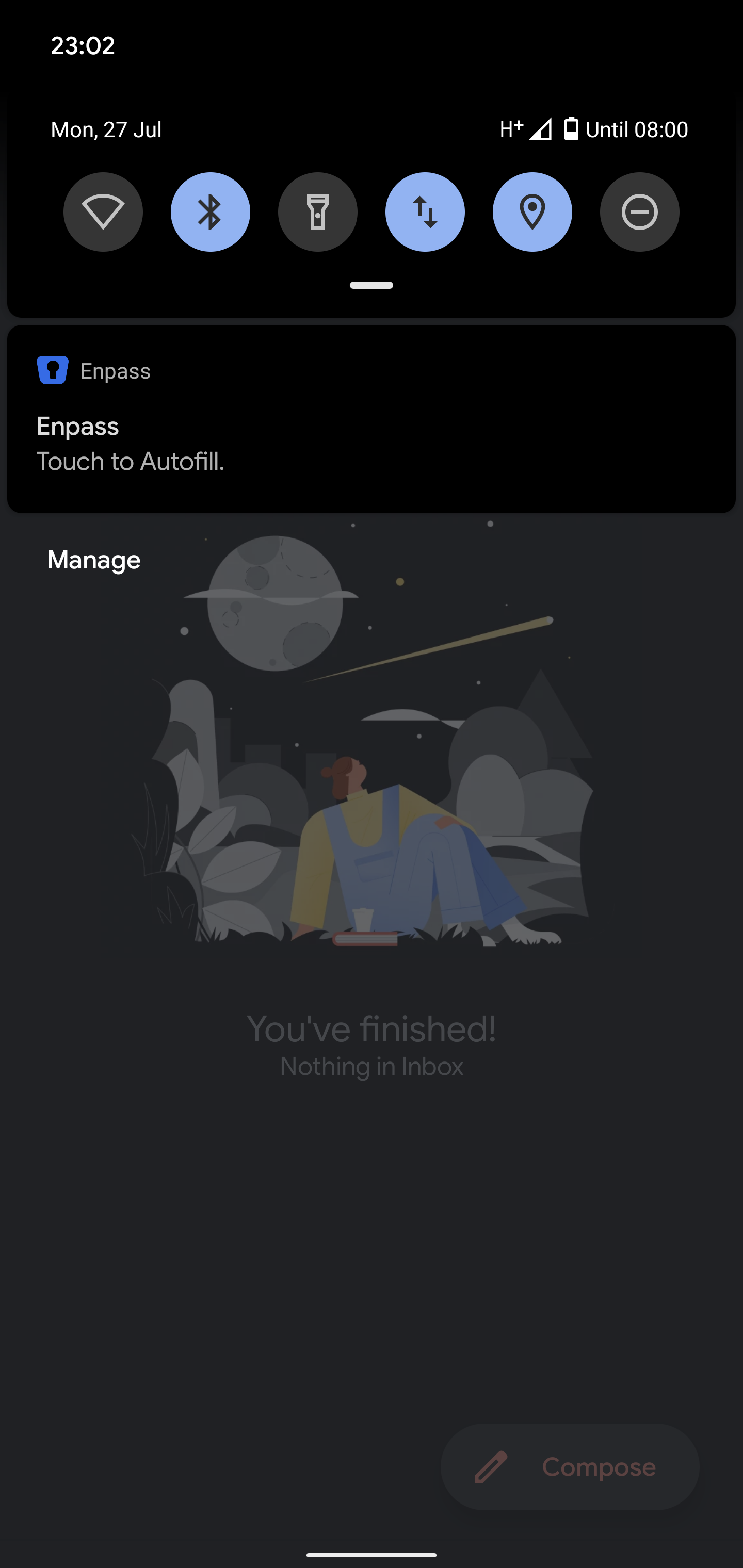
Hello, I'm getting this issue too. It's by no means a showstopper. It's just a bit of an irritating distraction. Pixel 4XL Android 10 Enpass version 6.5.0.380 Thanks.
-
Hello @Kashish, That works great! My only feedback would be: The label for the bio-metric says 'fingerprint' in the Enpass settings. When you unlock Enpass with Face Unlock, you are greeted with a confirm prompt. Upon where you have to tap a button on the screen. After which, Enpass opens. With trying to make things a little bit zippier: I would suggest a 'skip confirmation step' toggle be added to the Enpass settings. If such a thing can be done. I see there's an option in the Face Unlock settings on the phone to 'Always require confirmation'. So maybe this confirmation step can be configured within apps too. Please forgive my ignorance here, if this isn't viable, or opens up vulnerabilities I'm too blind to see. I'm just sharing my thoughts. Thanks again for you efforts.
-
DodgyBlater joined the community
-
I received my 4XL this morning. And, sadly I can report face unlock doesn't appear to be supported.