

Skip to content
View in the app

A better way to browse. Learn more.

Enpass Discussion Forum

A full-screen app on your home screen with push notifications, badges and more.

To install this app on iOS and iPadOS
  1. Tap the Share icon in Safari
  2. Scroll the menu and tap Add to Home Screen.
  3. Tap Add in the top-right corner.
To install this app on Android
  1. Tap the 3-dot menu (⋮) in the top-right corner of the browser.
  2. Tap Add to Home screen or Install app.
  3. Confirm by tapping Install.

morkfromork

Members
  • Joined

  • Last visited

Everything posted by morkfromork

  1. The wipe of the data folders worked!
  2. Thanks for the reply. did a backup and I executed those commands. When I ran Enpass again it did not run as a first run. It asked me for my master password. I was expecting with a purge that it would have erased the database. I'll attempt the commands again and will wipe the data folders in between.
  3. Sorry for the lack of info. OS - Ubuntu 16.04 Enpass Desktop Version - 6.2.0 (537)
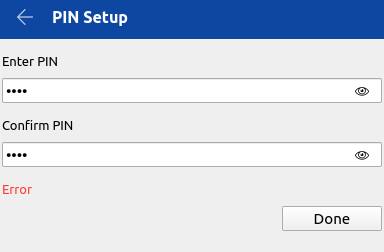
  4. I am attempting to add a PIN for Quick Unlock but I am receiving the word Error in red when I click the Done button. I have enabled the logs and retried but it states there is no content after I reproduce the error. Attached is a screenshot. I am positive the two match as I clicked on the eye icon to see them.
Account

Navigation

Search

Search

Configure browser push notifications

Chrome (Android)
  1. Tap the lock icon next to the address bar.
  2. Tap Permissions → Notifications.
  3. Adjust your preference.
Chrome (Desktop)
  1. Click the padlock icon in the address bar.
  2. Select Site settings.
  3. Find Notifications and adjust your preference.