stieve
Members
-
Joined
-
Last visited
-
Hi, I'm using the correct master password. i have written it in notepad and pasted it into the password field. If i reveal the password in the password box it is correct. Windows 10 / 1 device version 6.3.3 / dropbox / nope only _ & - / i don't use it on, any other devices
-
-
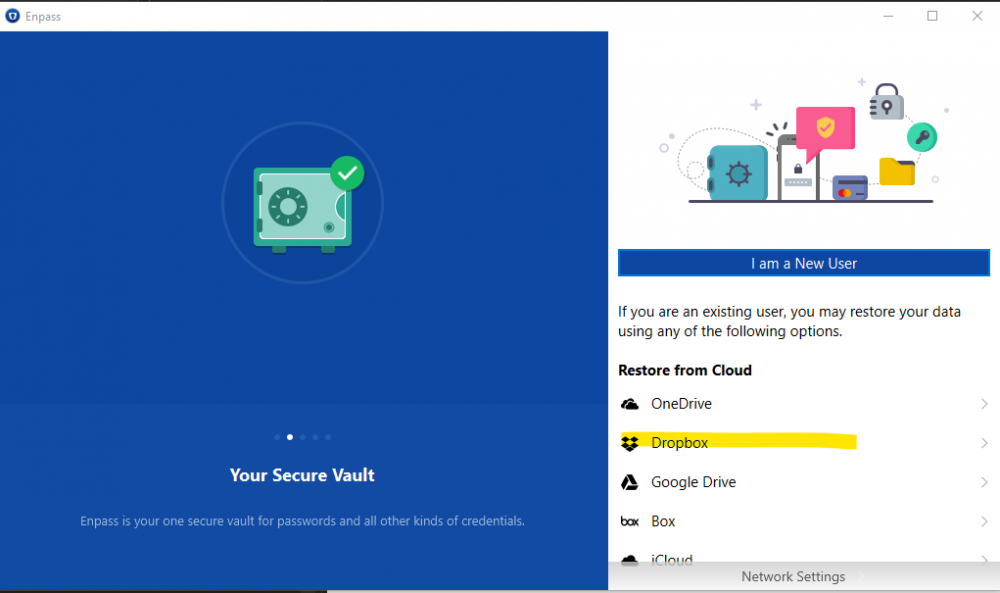
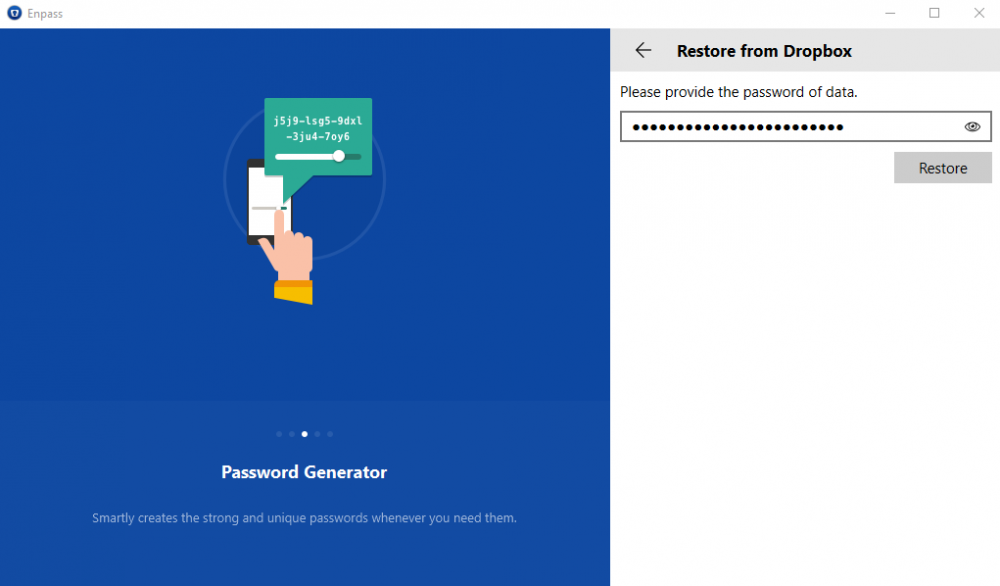
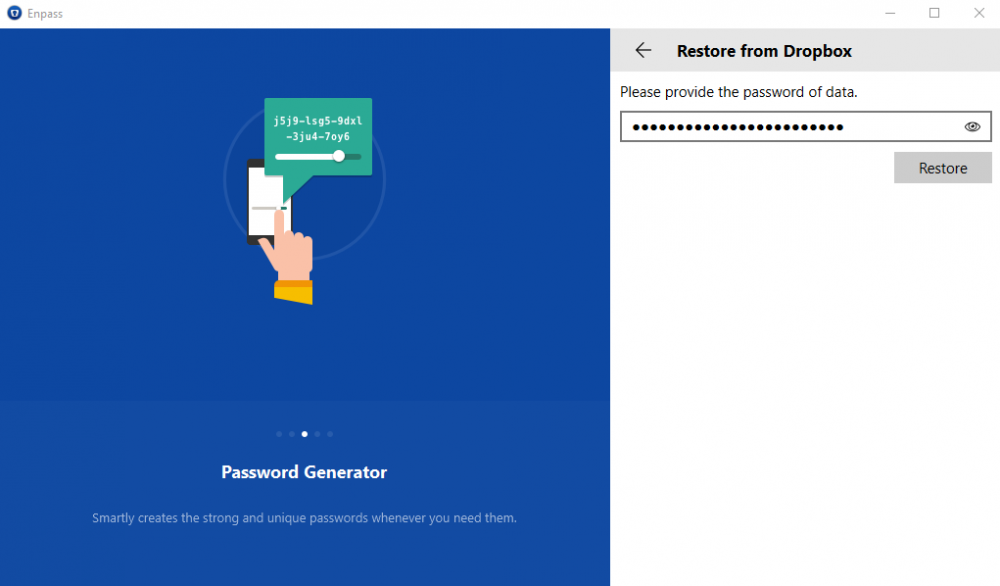
Hi @Kashish so some screenshots i deinstalled the software and have the vault on dropbox
-
Hi, Done all of that. There are no special characters in the password. also with deinstalling it and then getting the backup from dropbox you have the possibility show the password that has been entered. I have been using it for 4 months now, with the same password, without issue... Thanks
-
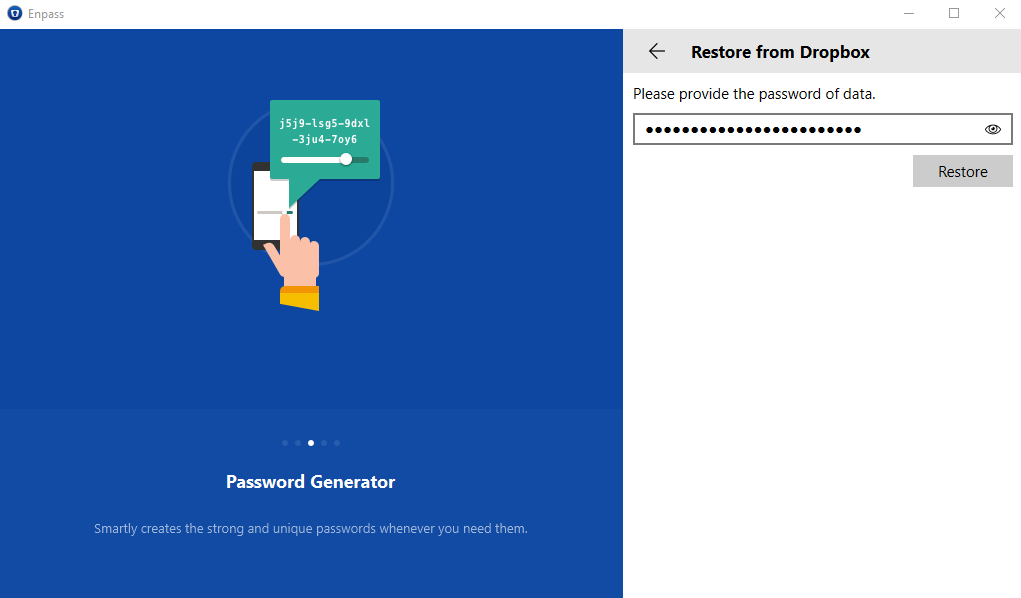
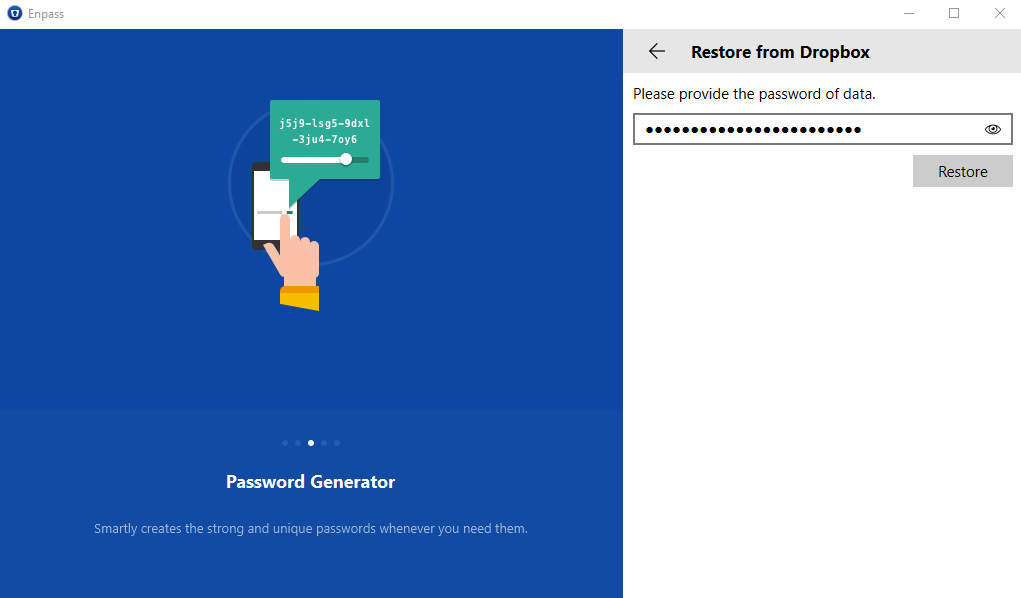
Hi, Since this morning my password that has been working up to friday is no longer accepted. i de-installed Enpass this morning end reinstalled it and tried to open the backup file from my dropbox, where i can visualise the password that i enter and it is correct. Has there been an update or something that changed the software? any suggestions?