Skip to content
View in the app

A better way to browse. Learn more.

Enpass Discussion Forum

A full-screen app on your home screen with push notifications, badges and more.

To install this app on iOS and iPadOS
  1. Tap the Share icon in Safari
  2. Scroll the menu and tap Add to Home Screen.
  3. Tap Add in the top-right corner.
To install this app on Android
  1. Tap the 3-dot menu (⋮) in the top-right corner of the browser.
  2. Tap Add to Home screen or Install app.
  3. Confirm by tapping Install.

Simon555

Members
  • Joined

  • Last visited

  1. Yes, it does generate 'excellent' passwords, such as "flatus-pad-numeral-crisply-mustang-jawed-daze-poncho" which is a bit too long for me to type, especially on a mobile phone, or "KC#os~0eH>1Ze8v3~Wk~B:Wc/7W(Wf79" which is impossible to type. EDIT: I've noticed that including any real words, even ones like th!5, cause a poor rating unless the string is very very long. I'm going through all my passwords now and changing the field from 'password' to 'text' so I can remove the warning labels.
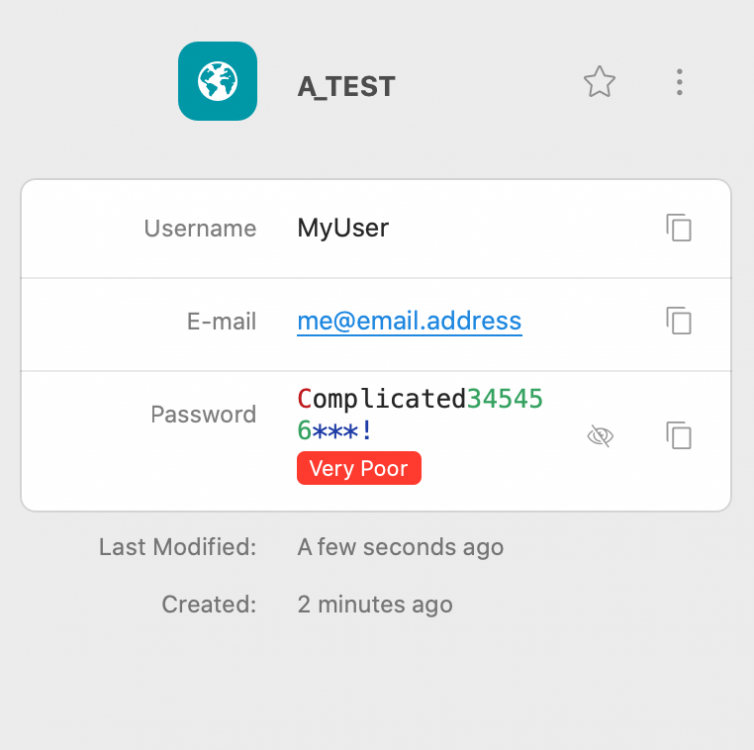
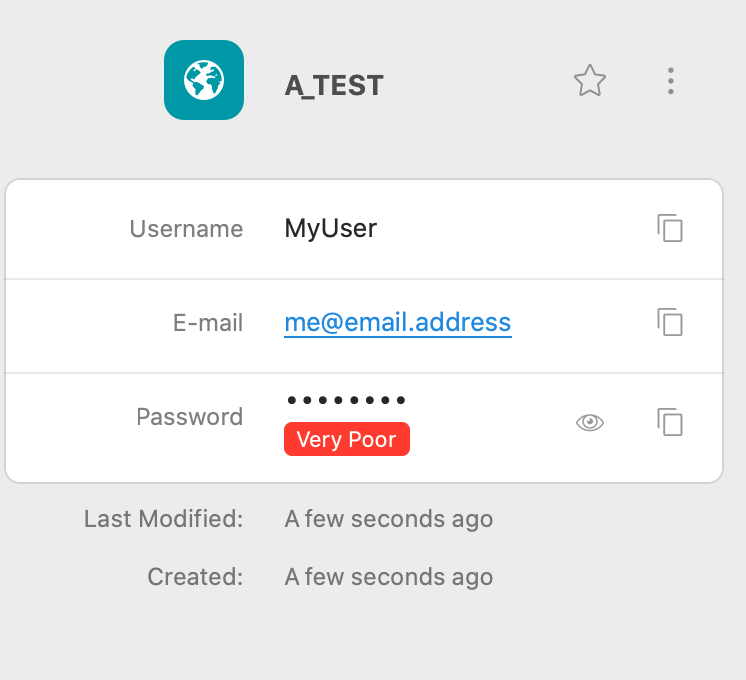
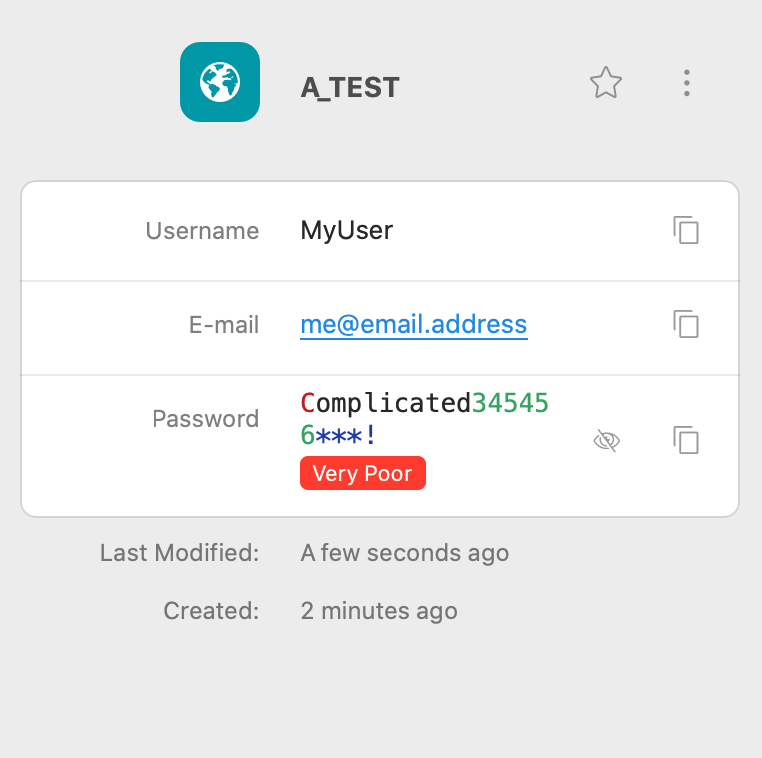
  2. PASSWORD BELOW IS 'VERY POOR'. Every Item in my list is very poor or weak.
  3. Simon555 joined the community
  4. All my passwords have warnings on them. Ev3n0nesTh4tL00kL1keThis666***** Is there any way to remove these warnings so I am not admonished every time I use your app? Many thanks
Account

Navigation

Search

Search

Configure browser push notifications

Chrome (Android)
  1. Tap the lock icon next to the address bar.
  2. Tap Permissions → Notifications.
  3. Adjust your preference.
Chrome (Desktop)
  1. Click the padlock icon in the address bar.
  2. Select Site settings.
  3. Find Notifications and adjust your preference.