floriano27
-
Posts
3 -
Joined
-
Last visited
floriano27's Achievements

Newbie (1/14)
1
Reputation
-
Hello Pratyush, i actually solved the problem by uninstalling the app and re-installing it. The issue appeared on its own but can't confirm if after an update or not. Also i am only using 1 4K monitor. I will keep you updated if this will occur again and i will provide all the info if that happens. Thank you for trying to help. Best regards, Florin
-
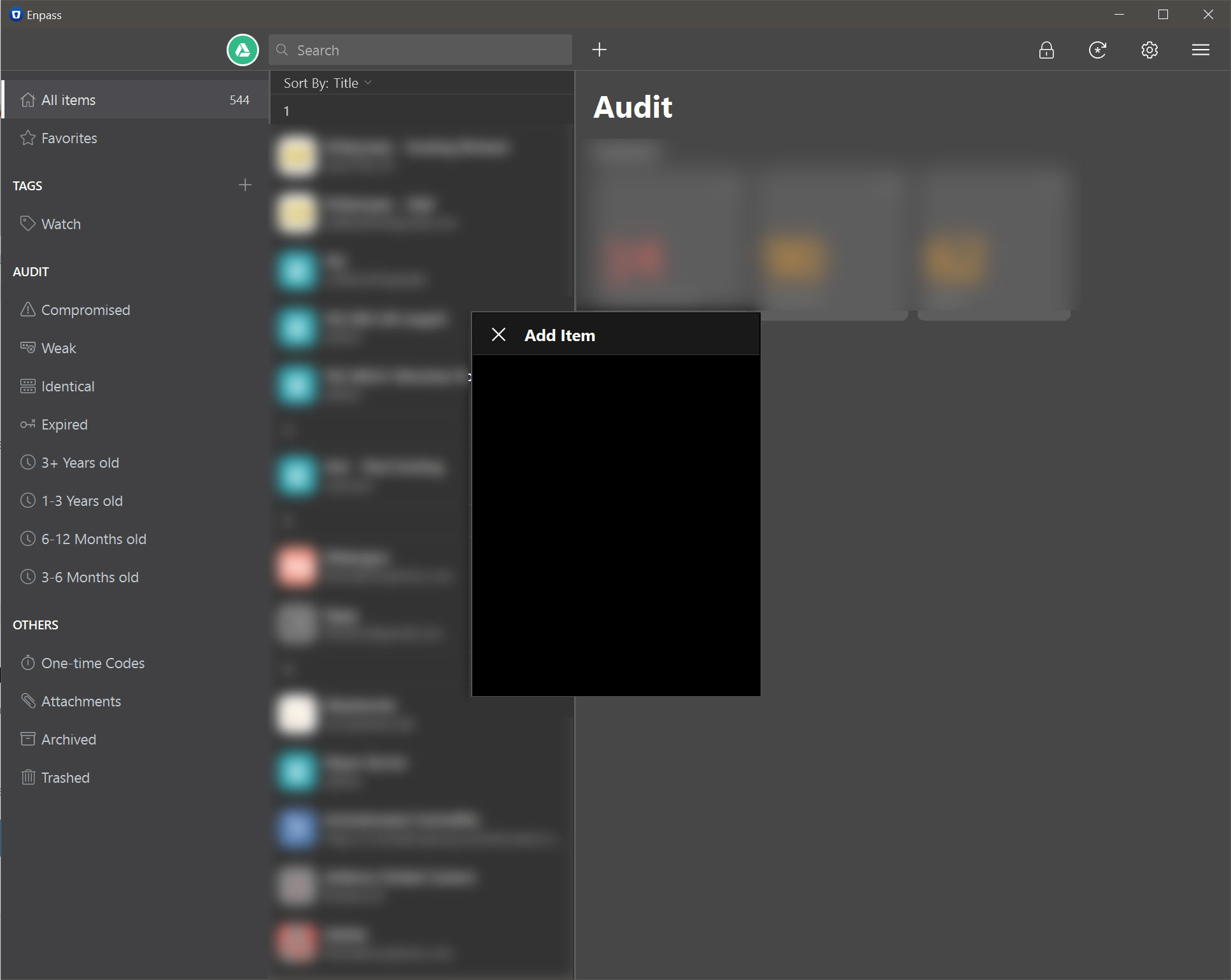
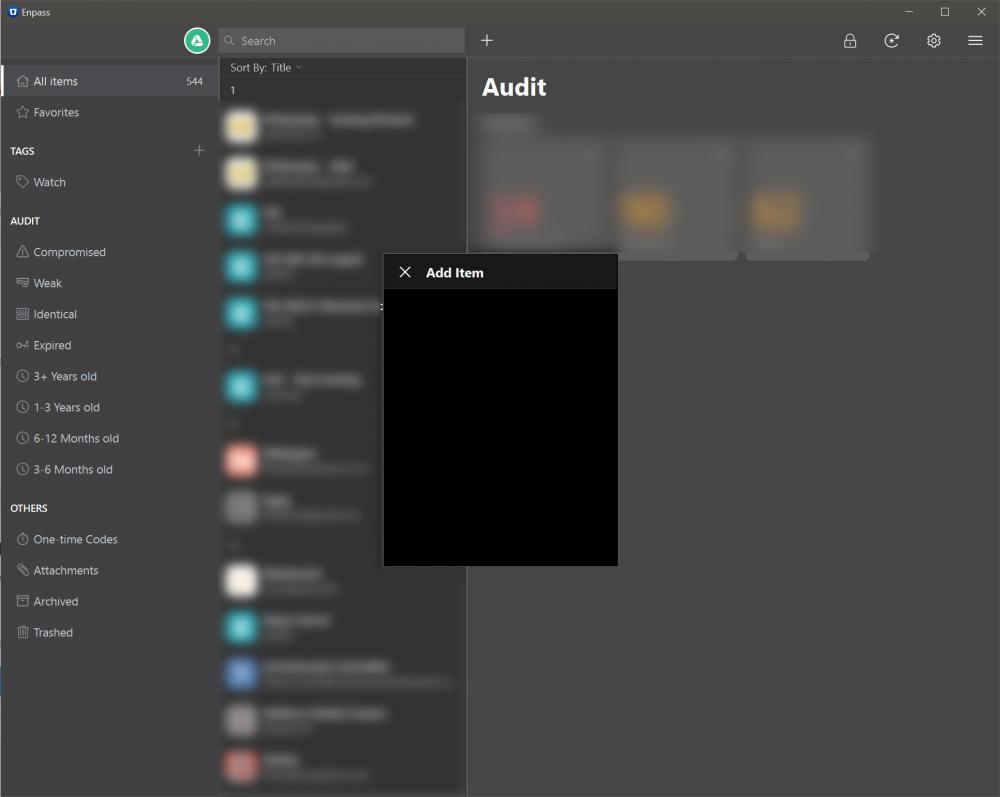
Hello, i have somehow of a similar problem but my problem is that i don't see anything in the Add Item window as you can see in my attachment. I tried maximizing the Enpass windows but the smaller window is not resizable. Also, this is the manual process of adding an item but the automatic save of credentials doesn't work either, i am not being prompted to save any of the new credentials i create. Any thoughts?
-
Hello all, i just got my touch bar macbook pro and definitely the most wanted feature for me is integration with the touch ID on this computer. It works flawlessly on my phone so to have that on the computer would make using Enpass even better experience than now. I am waiting for your update on this. Thanks in advance.