mdlc
-
Posts
4 -
Joined
-
Last visited
mdlc's Achievements

Newbie (1/14)
0
Reputation
-
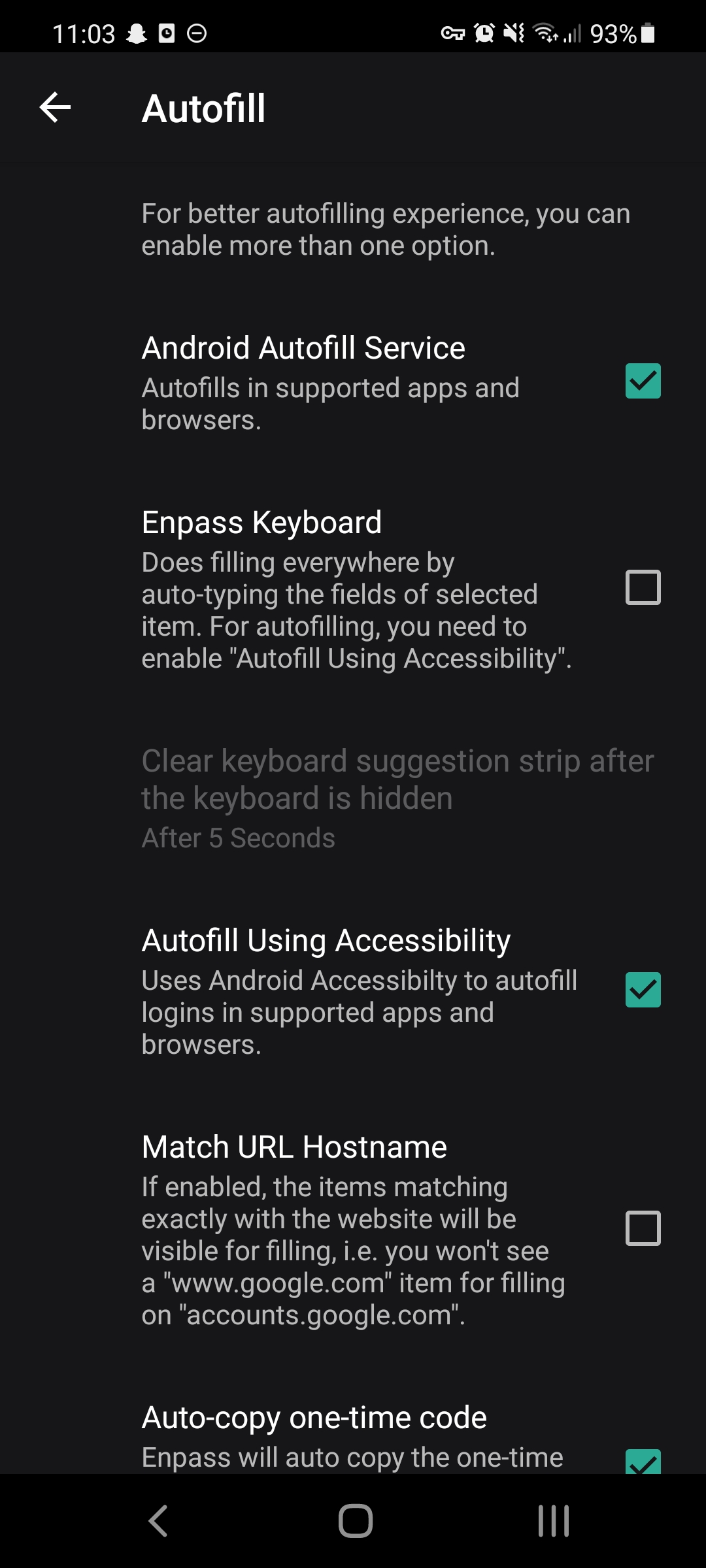
Hi! I tried this, but it only makes things worse, since it disables the autofill for native forms, but it still doesn't work in the browser as described.
-
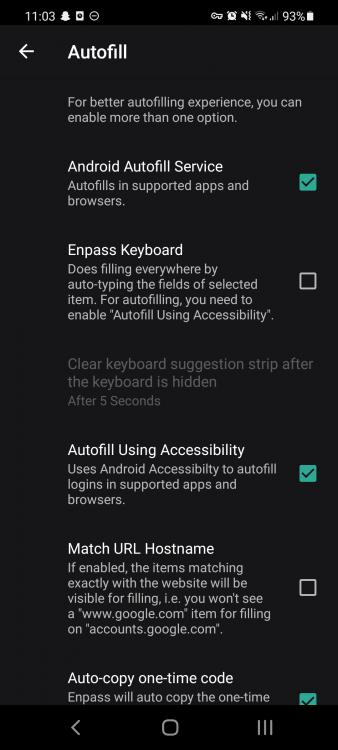
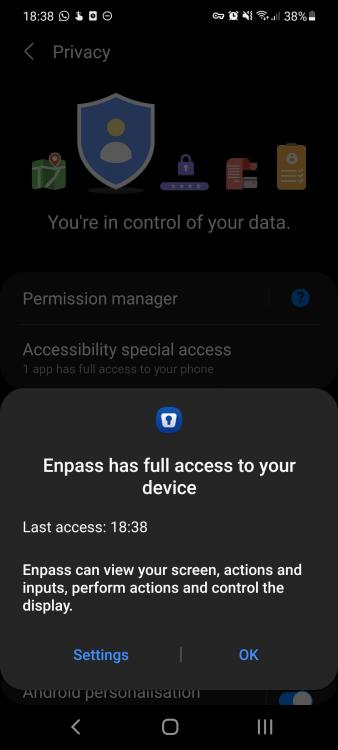
As you requested
-
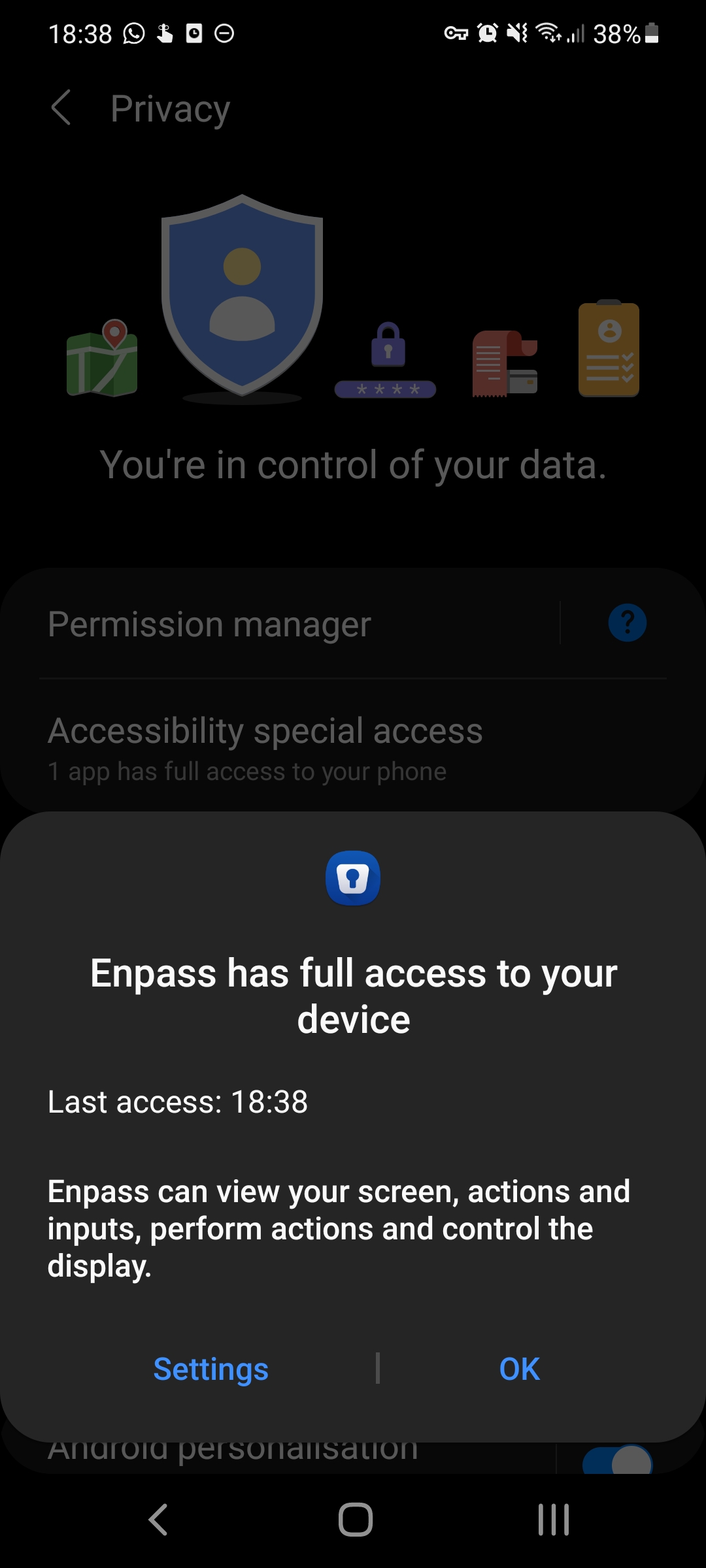
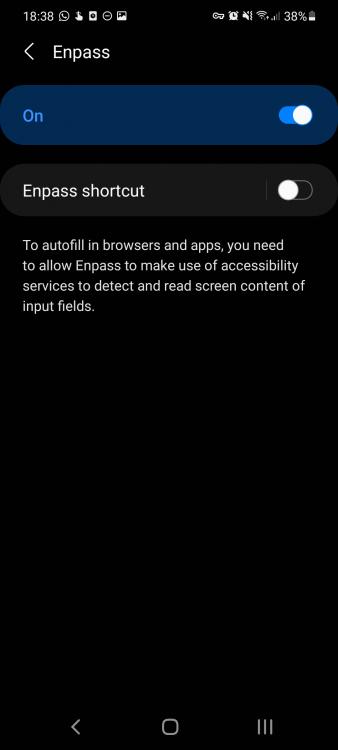
Enpass: 6.6.1.449 OS: Android (11), OneUI 3.1 Can't take screenshots within Enpass, but can take screenshots of the system accessibility settings
-
mdlc joined the community
-
Hi! Enpass was always working on my Galaxy S8 with Android 9. Yesterday, I installed enpass on my new S21 with Android 11, and suddenly the accessibility autofill service is no longer working. This happens with any site, for instance whe logging in to amazon.com in Chrome. I see the the Touch to Autofill notification in the adressbar, I can click it, and select Amazon, but it doesn't autofill. This happens on any site, and any app. I can see the notification, but the credentials are never filled. It only applies to the accessibility service, the regular autofill for apps that support it works. But for those that don't have this api, such as spotify, it doesn't work. I tried disabling enabling it tens of times. I reinstalled the app a few times. Also, I ensured that enpass was not part of any battery saving measures on the device. Tdlr; autofill by accessibility is working on older Android versions, but for the same sites and apps, doesn't work on Android 11 (OneUi 3.1)