Hiroshi
-
Posts
3 -
Joined
-
Last visited
-
Days Won
1
Hiroshi's Achievements




-
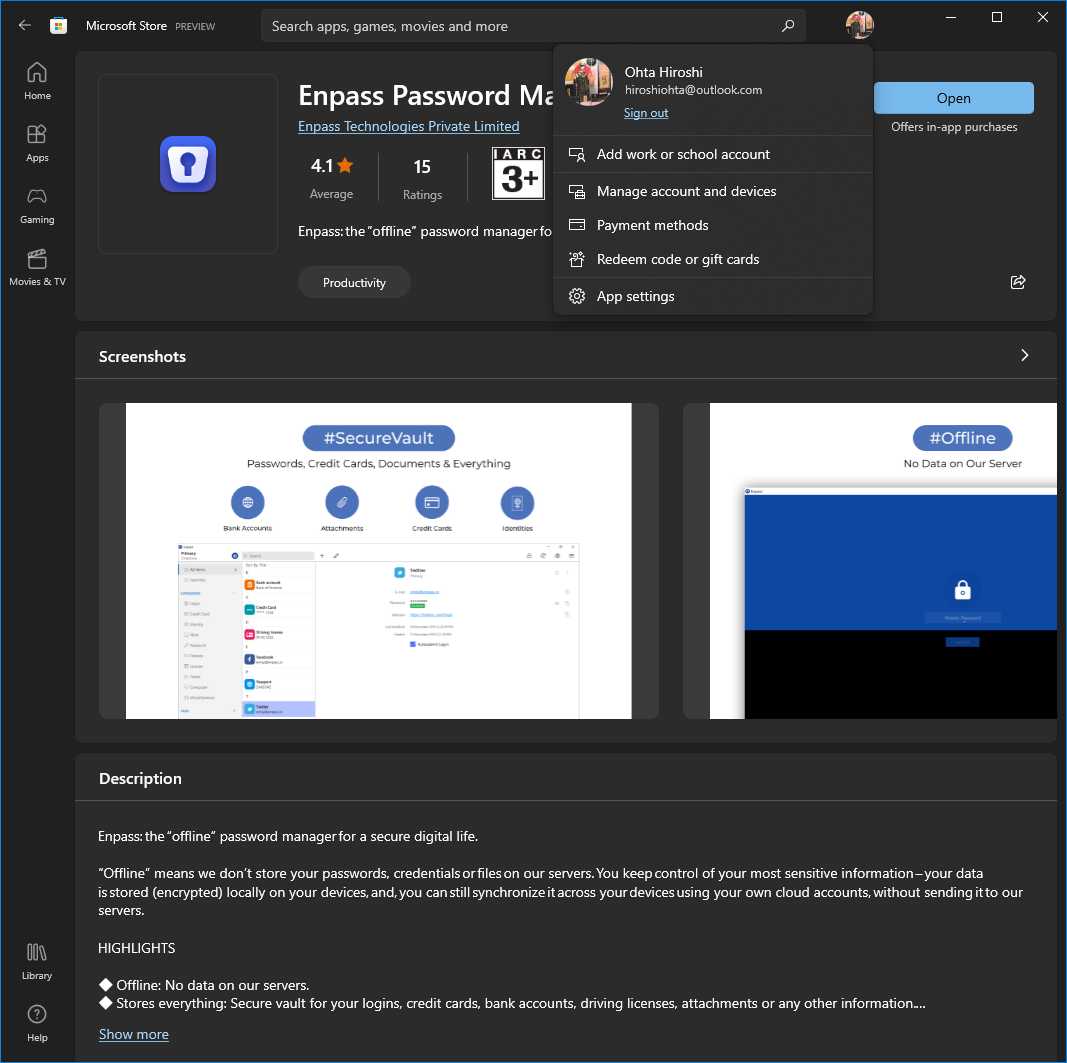
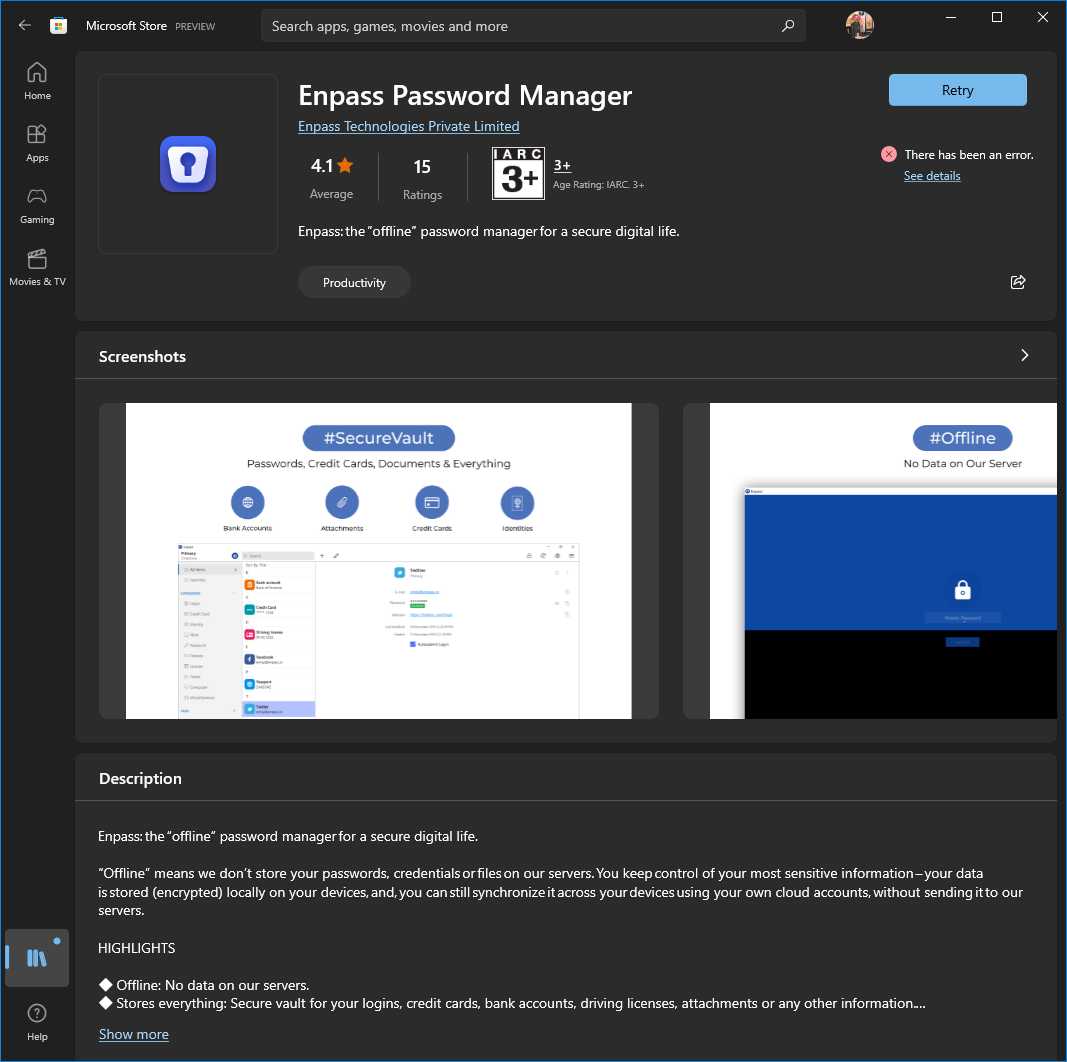
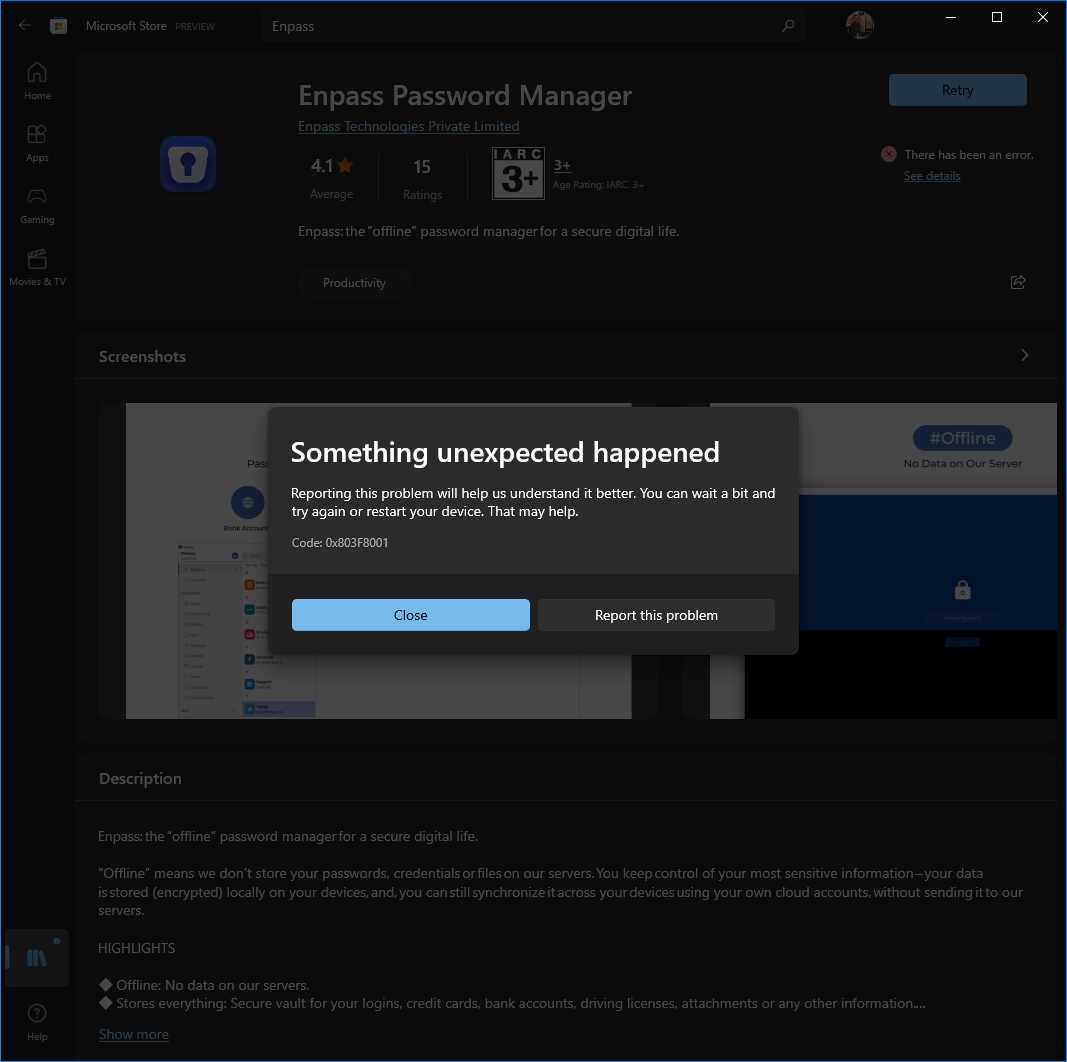
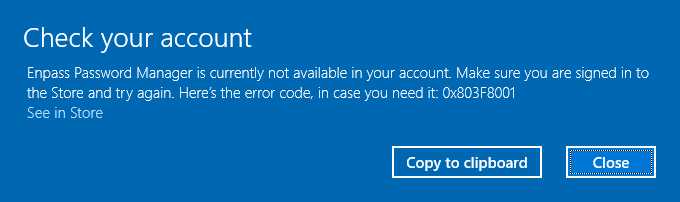
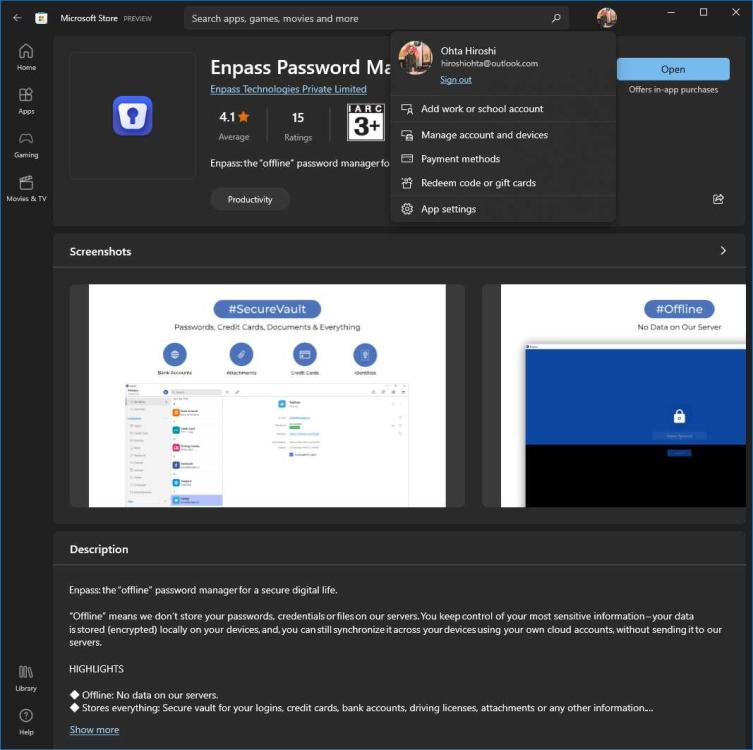
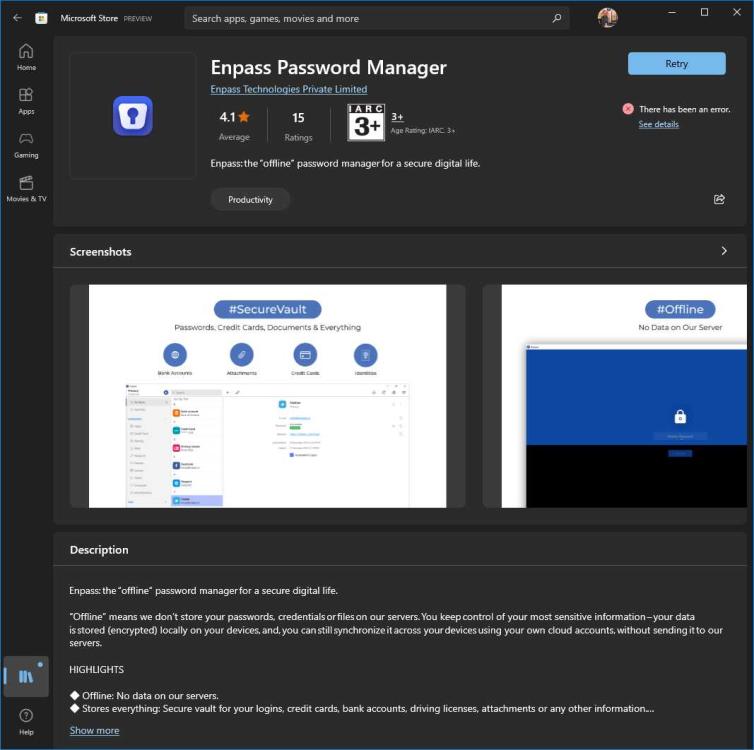
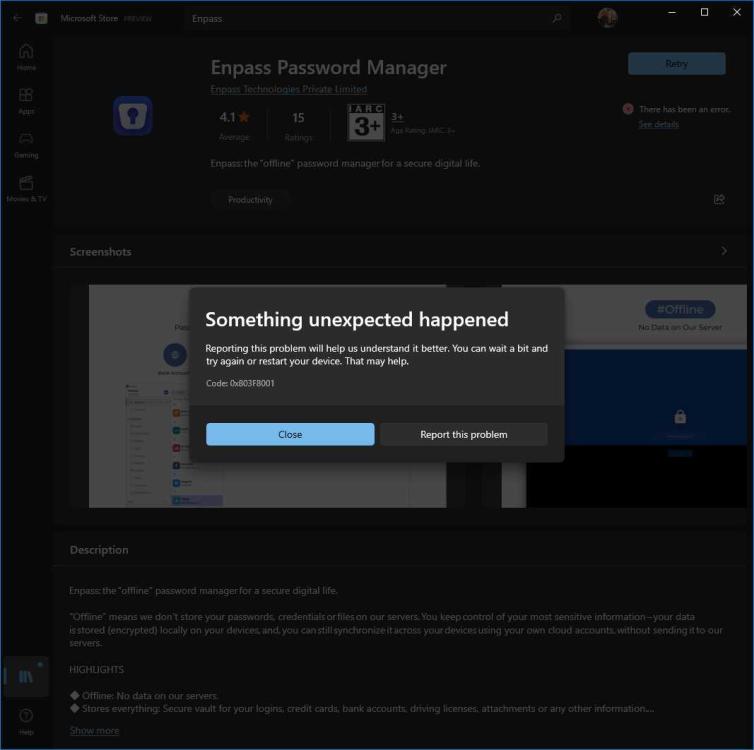
Enpass Password Manager is currently not available in your account. Make sure you are signed in to the Store and try again. Here’s the error code, in case you need it: 0x803F8001 Enpass Password Manager - Code: 0x803F8001 Enpass Password Manager shows the following message: "Check your account - Enpass Password Manager is currently not available in your account. Make sure you are signed in to the Store and try again. Here’s the error code, in case you need it: 0x803F8001 - See in Store" Open Store - Enpass Password Manager, but the only option is "OPEN". I uninstalled the Enpass Password Manager and tried to reinstall it by Store, but I got "There has been an error. See details", but "details" is "Something unexpected happened - Reporting this problem will help us understantd it better. You can wait a bit and try again or restart your device. That may help Code: 0x803f8001". There is no help waiting a lot of "a bit" or restarting my desktop PC! I am signed in to the Store! The windows is the latest version: Edition Windows 10 Pro Version 22H2 Installed on 2020/05/05 OS build 19045.2193 Experience Windows Feature Experience Pack 120.2212.3920.0
-
What is the difference between Pro and Premium versions?
Hiroshi replied to Hiroshi's topic in Registration and Purchases
Thank you for your response. The price on link you sent to me is for new license purchase, there is no price for the upgrade from Pro to Premium. -
I have a Lifetime Pro license, why I need to buy a Premium license? Is the Premium a Lifetime license if I buy it?