Search the Community
Showing results for tags '508403'.
Found 1 result
-
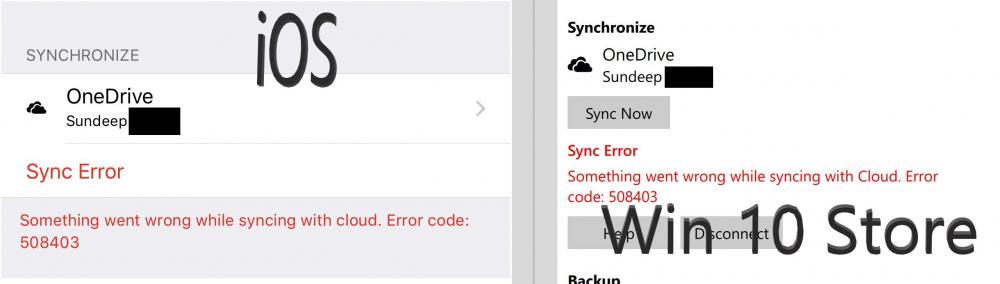
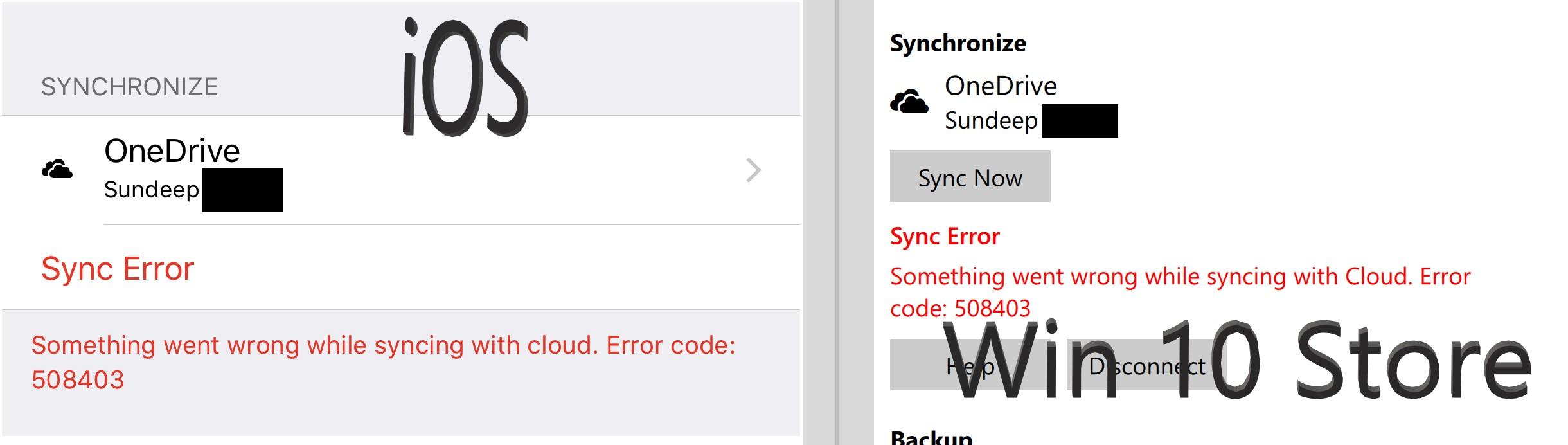
 The recent Enpass 6 update broke the OneDrive Cloud Syncing on All Systems. I first notice the sync error on my iPhone then my OMEN Laptop and lastly, my Surface Book. All the systems presented with the same Sync Error: 508403 and directs the user to the following page: Sync Error Help Page The OneDrive Cloud sync system was working before the recent update and now the update has broken the sync system. I would appreciate it if you can patch and fix the issue. Thanks. If you need any information on resolving the issue, I can provide that information to you. Details: iPhone 8 Plus: iOS 12.1.2 (16C101); Enpass App 6.0.0 (196) HP OMEN Laptop: Windows 10 Pro Version 1809; Enpass App 6.0.0 (218) - Windows Store App MS SurfaceBook: Windows 10 Pro Version 1809; Enpass App 6.0.0 (218) - Windows Store App MS Surface 3: Windows 10 Pro Version 1809; Enpass App 6.0.0 (218) - Windows Store App