Leaderboard
-
SirHaxalot
Members1Points6Posts -

zyghom
Members1Points99Posts -
Anshu kumar
Enpass team member1Points2062Posts -
mdovey
Members1Points39Posts




Popular Content
Showing content with the highest reputation on 12/12/18 in all areas
-
Indeed, I had been using Enpass 5.6.9 quite happily without issues with Sophos (or using the workaround). Matthew1 point
-
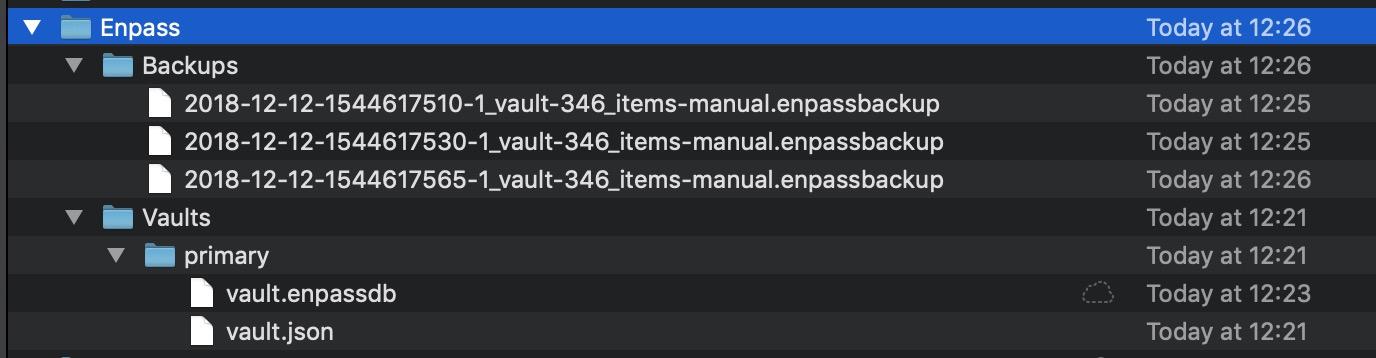
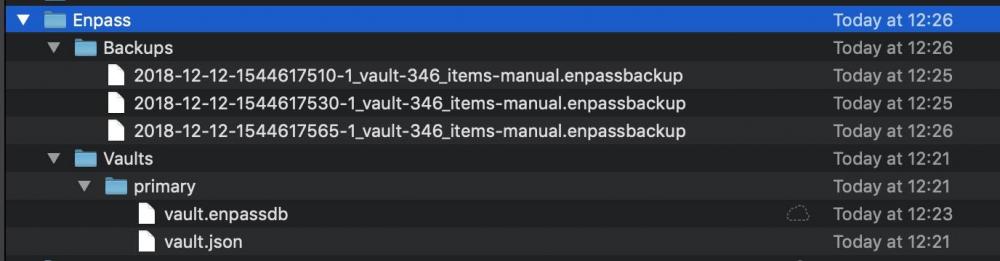
thank you Anshu, appologies accepted - backup works much nicer way ;-) So I am testing 6.0 on macOS (on Android already some time back) and the things are: - previously timeout for entering password/pin/touch was counted since last usage of Enpass - now it is counted since you stop using your computer - is this only me who realised this or this is as per design - a new feature? and probably this way is even better - the timer does not start as long as you work (maybe this could be configurable?) - on Firefox - no issues, great job - on Safari - cannot install it - newest Safari is 12.xx and your extension is till 11.xx only - what now? see the pictures attached - THAT IS A NO GO for using it on MacOS. IT IS WORKING
 1 point
 -
1 pointHey @Fernando Schiavon This is the default behavior for testing the in-app purchases distributed through TestFlight, and you will be asked to purchase again (even if you have purchased the pro) but you won't be charged again. It will be a free purchase! Thanks!1 point
-
Yea, the currently released versions is not in sync, which makes it impossible to use Cloud sync, possibly on all providers. The desktop version is currently saving to /Enpass/vault.enpassdbsync, but the Android app is still trying to sync to /Enpass6-Beta/vault.enpassdbsync That there is no way to change the filename doesn't help in the least.1 point