

Skip to content
View in the app

A better way to browse. Learn more.

Enpass Discussion Forum

A full-screen app on your home screen with push notifications, badges and more.

To install this app on iOS and iPadOS
  1. Tap the Share icon in Safari
  2. Scroll the menu and tap Add to Home Screen.
  3. Tap Add in the top-right corner.
To install this app on Android
  1. Tap the 3-dot menu (⋮) in the top-right corner of the browser.
  2. Tap Add to Home screen or Install app.
  3. Confirm by tapping Install.

singularity0821

Members
  • Joined

  • Last visited

  1. Interestingly Bitwarden does support full-time Windows Hello, while Enpass does not. So I'm not sure if it's an issue with our devices.
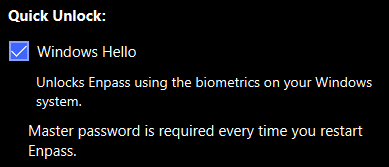
  2. I'm using version 6.6.2 (826) from the Windows store, and Windows Hello login still does not work on launch. I've tried reinstalling the app but it does not work. I still have to enter the master password on launch on my PC. The settings screen also still mentions this:
  3. singularity0821 joined the community
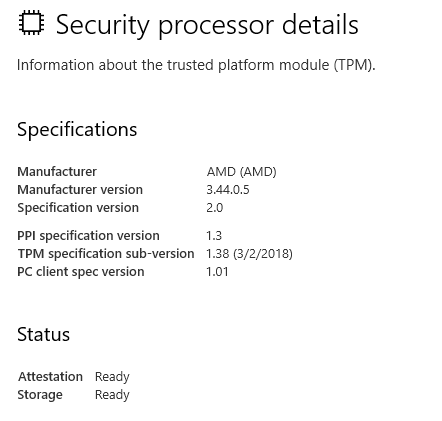
  4. I'm having the same issue. The test app logs the following: 15:04:20.0348384 HelloSupported::True 15:04:20.0448471 KCM::OpenStatus::Success 15:04:20.0448471 KeyRetrievalStatus::Success 15:04:20.0678668 GetAttestationStatus::NotSupported Windows Security Center lists Attestation as "Ready" though:
Account

Navigation

Search

Search

Configure browser push notifications

Chrome (Android)
  1. Tap the lock icon next to the address bar.
  2. Tap Permissions → Notifications.
  3. Adjust your preference.
Chrome (Desktop)
  1. Click the padlock icon in the address bar.
  2. Select Site settings.
  3. Find Notifications and adjust your preference.