Volkx
Members
-
Joined
-
Last visited
Everything posted by Volkx
-
in addition, and possibly unrelated, autofill in android has stopped working properly. I am very close to switching to another app unless these issues can be resolved quickly. Thanks!
-
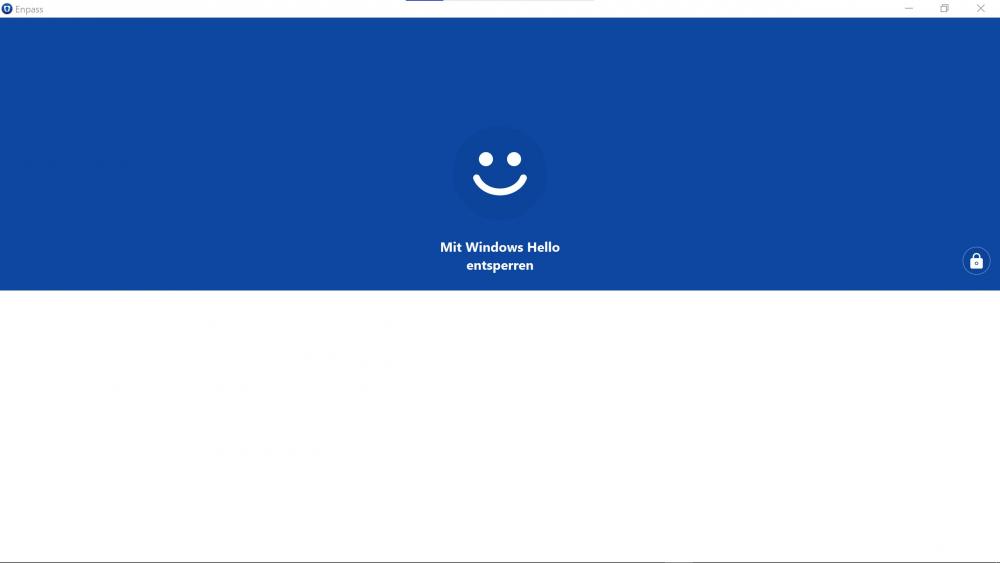
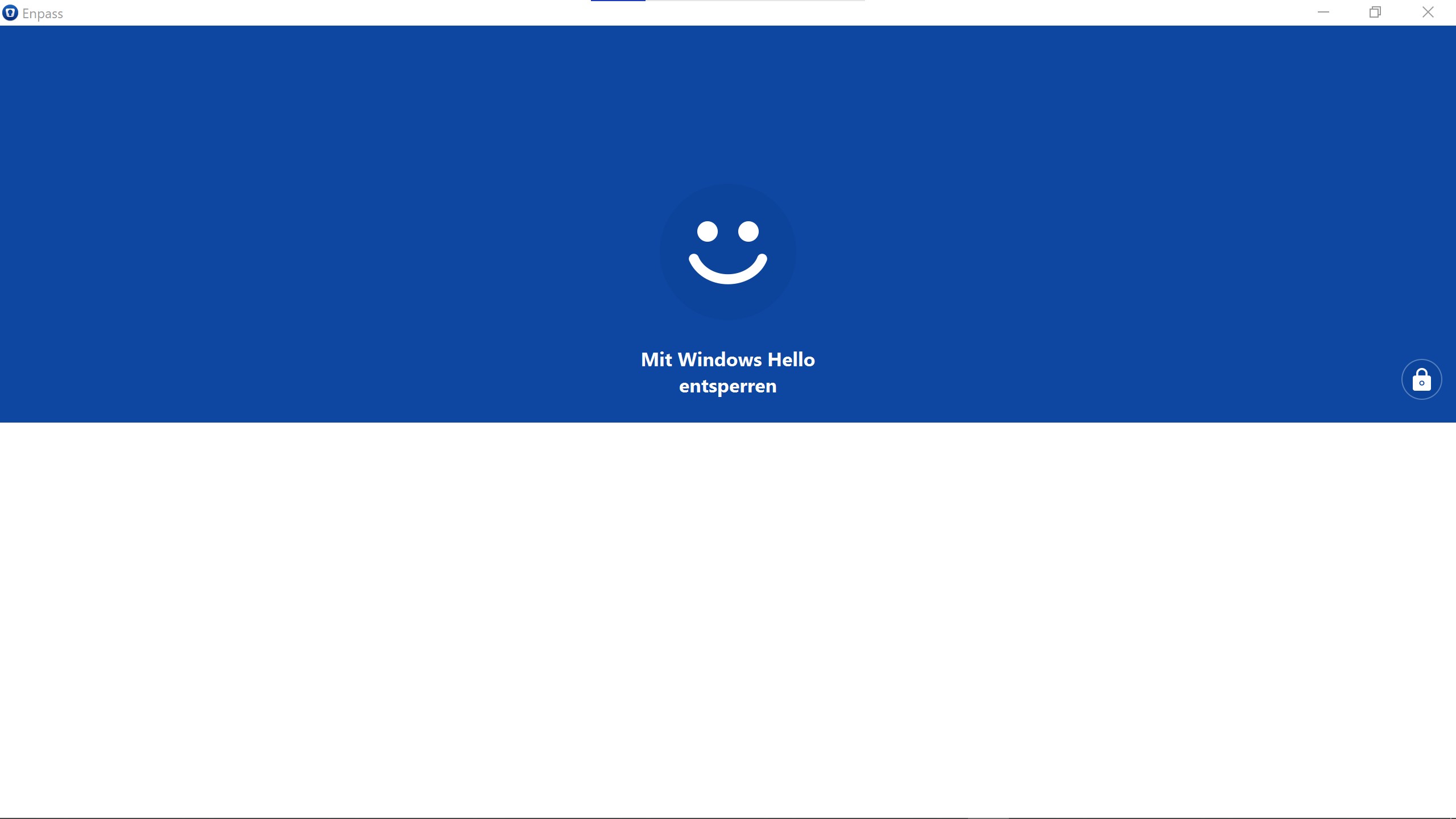
After rebooting Enpass login only works after stopping it via task manager and then restarting Enpass was starting up fine for over a year until about 1 week ago. Now, only after rebooting, Enpass starts up with the 'unlock with windows hello' screen, but without the usual additional prompt to scan my fingerprint. I also do not get any other options to enter the master password instead. My only work around is to go into the Windows Task Manager, stop the Enpass process there and then restart Enpass - then it works as before! I am not aware of any major system updates in the last few days that could have caused this. Grateful for any help on the matter