

Skip to content
View in the app

A better way to browse. Learn more.

Enpass Discussion Forum

A full-screen app on your home screen with push notifications, badges and more.

To install this app on iOS and iPadOS
  1. Tap the Share icon in Safari
  2. Scroll the menu and tap Add to Home Screen.
  3. Tap Add in the top-right corner.
To install this app on Android
  1. Tap the 3-dot menu (⋮) in the top-right corner of the browser.
  2. Tap Add to Home screen or Install app.
  3. Confirm by tapping Install.

Achim

Members
  • Joined

  • Last visited

Everything posted by Achim

  1. Achim replied to Achim's topic in iOS
    Hy and thanks for your reply. I switched to another Password Manager yesterday. So i need no more help. Thanks anyway. Achim
  2. Achim replied to Achim's topic in iOS
    Hy, i use iPhone SE with IOS 10.2.1 and iPad Pro with IOS 10.2.1. Enpass Versions are the newest availables. All Devices have this Problem. I tryed with different Webdav Connections. QNAP-NAS (Local LAN and over Internet) , Western Digital-NAS (Local LAN and over Internet) and Webdavaccount (Provider: Hosteurope)
  3. Achim posted a topic in iOS
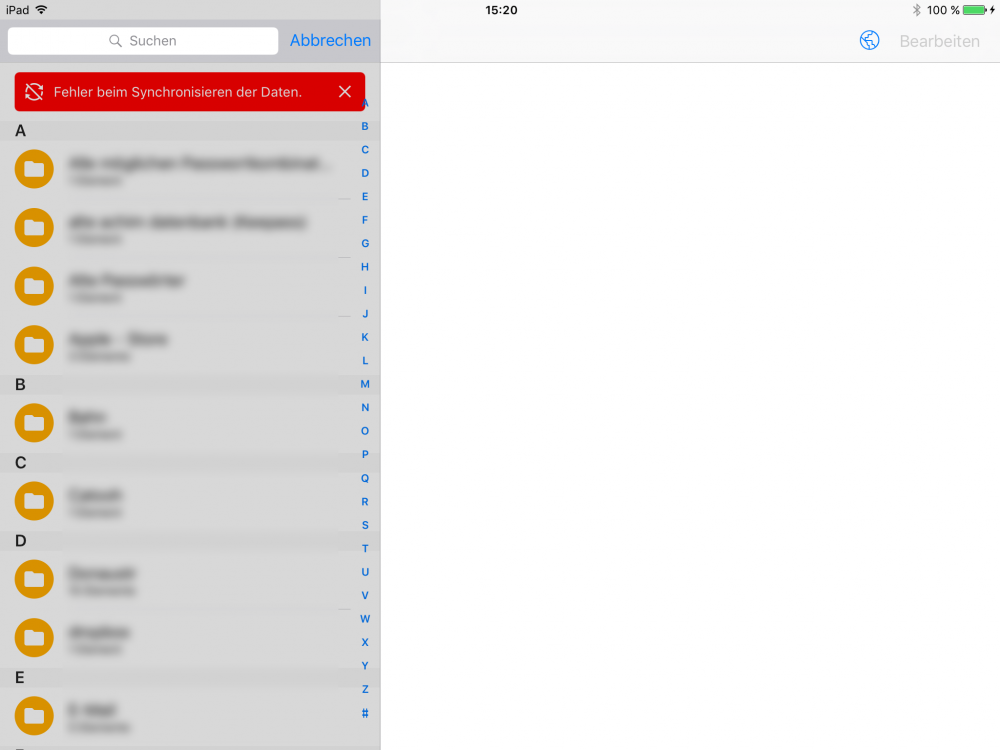
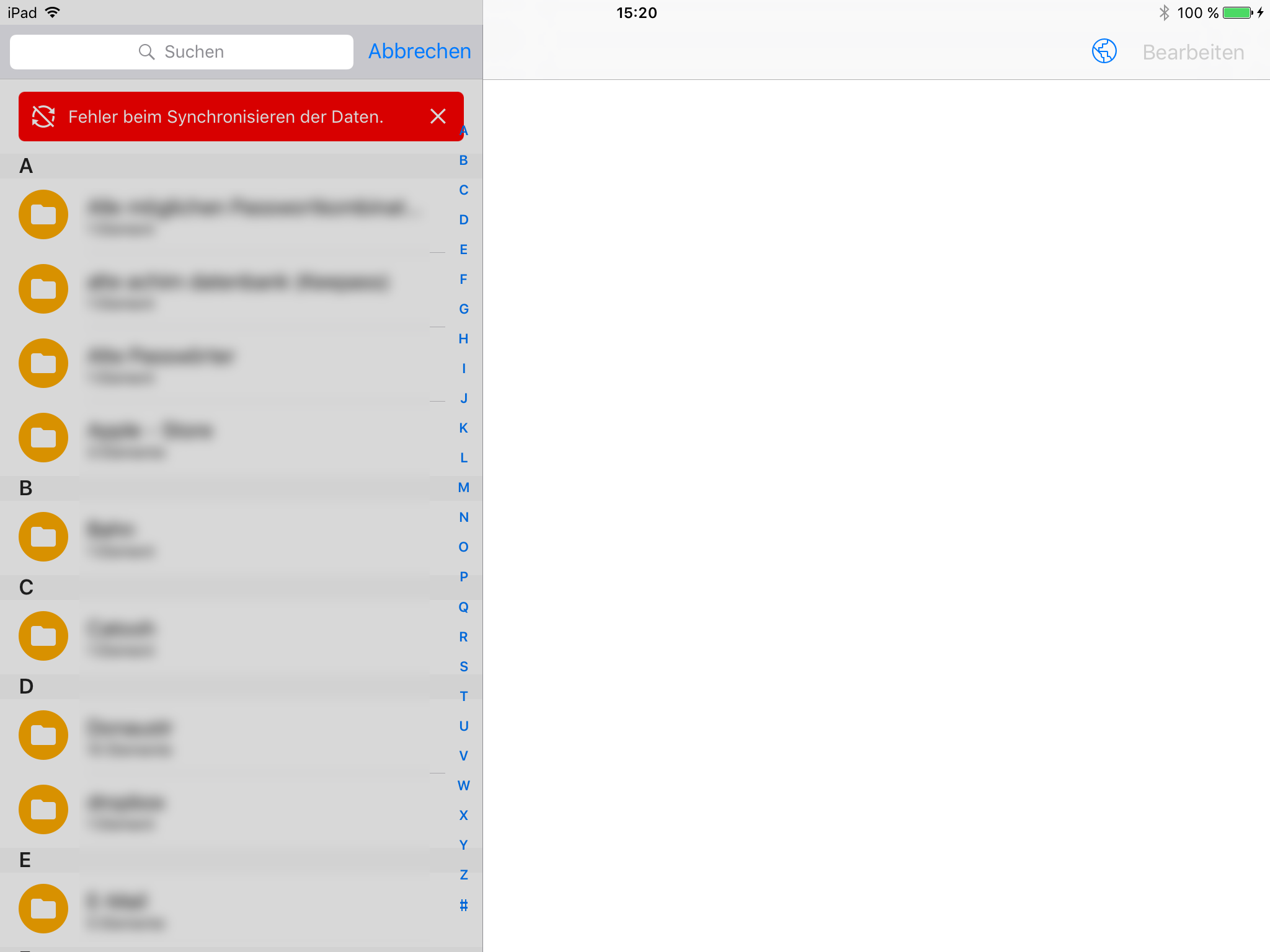
    Hy, Today i started with Enpass on 1 Windows PC, 1 IPAD, 1 Iphone. I Sync via Webdav with my QNAP NAS. Sync is working without Problems on all Devices. But every 60 Seconds i get an Error 120. (See Attachment). I try to sync with varius Webdav Servers. Sync ist always working, but the Message still appears. Regards Achim
Account

Navigation

Search

Search

Configure browser push notifications

Chrome (Android)
  1. Tap the lock icon next to the address bar.
  2. Tap Permissions → Notifications.
  3. Adjust your preference.
Chrome (Desktop)
  1. Click the padlock icon in the address bar.
  2. Select Site settings.
  3. Find Notifications and adjust your preference.