Eddie
Members
-
Joined
-
Last visited
-
Answers: 1) I did not import from another program. I simply created it manually. 2) I changed the type to text and it now works! It no longer shows an error. I have no idea why I would have made a Description field a URL type. Lol I actually think, I somehow changed an item's description field to URL and then since I use duplicate when creating new items, the issue was propagated. Thanks for the help!
-
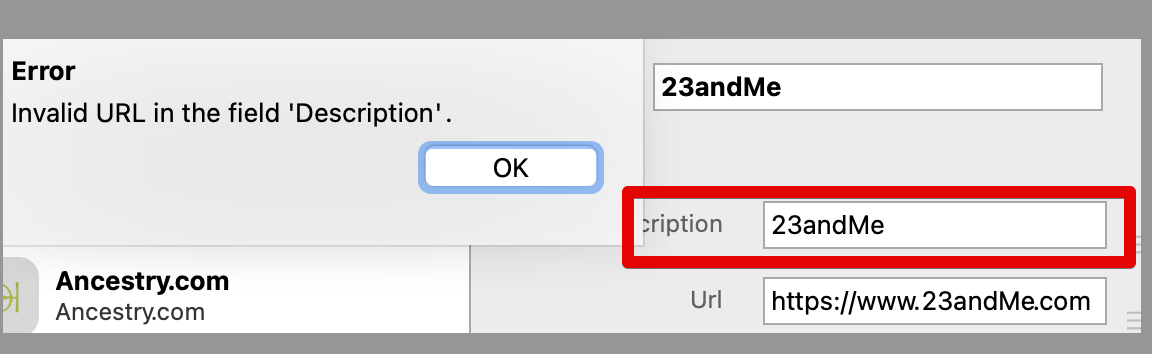
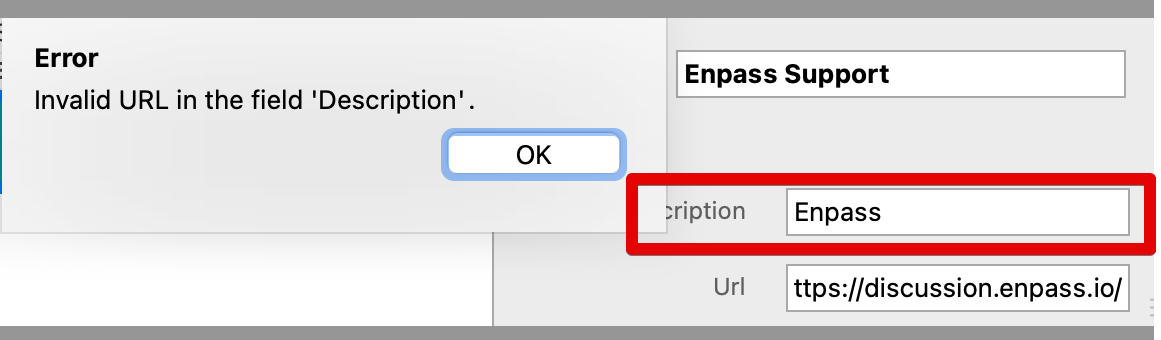
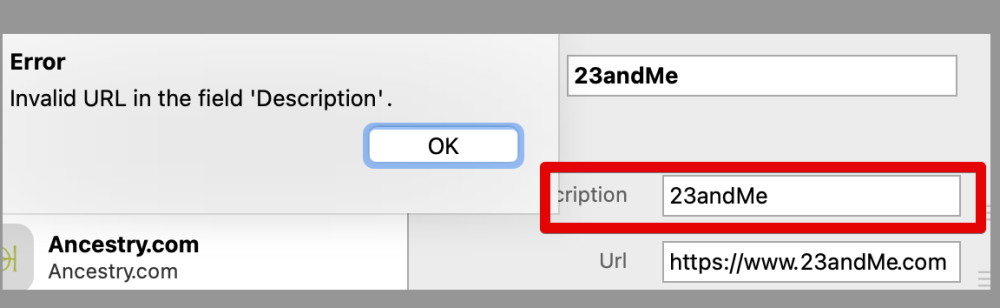
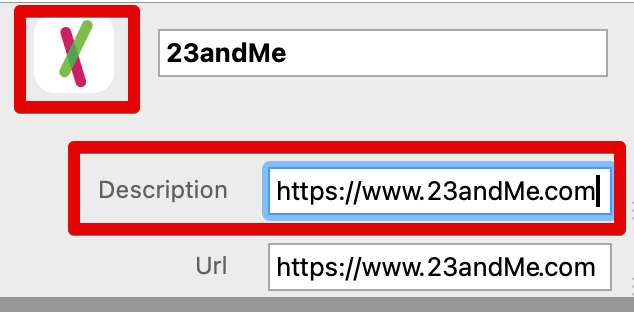
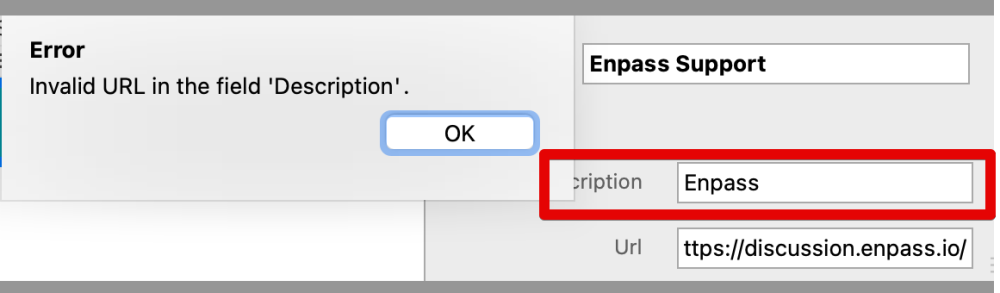
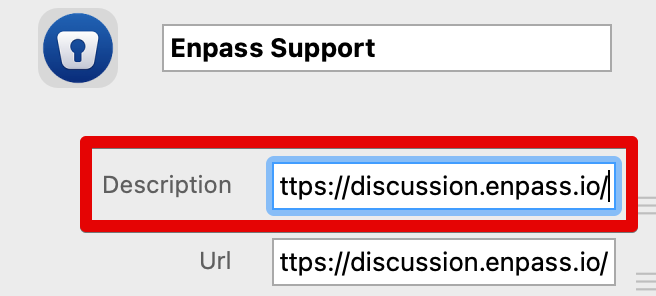
Sure. You will notice in these two examples (there are many more), the 1st picture does not have the URL in the Description field and so you get the error. The second picture has the URL in the Description field and so the Web Icon is downloaded without error. With the error, I cannot retrieve the Web Icon and just get the generic icon until I put the URL in the Description field.
-
When I choose "Use Website Icon", in some cases it finds an icon and displays it. I then save the entry and it defaults back to the generic icon. Is this a bug that is logged to be fixed? In order for the web icon to work I have to post the actual site URL in the Description field. If I do not do this I get the Error: "Invalid URL in Description field". This defeats the purpose of having a "Description" text field to describe the site. I already have a separate field with URL that tells me the URL information. These are just bugs that need to be addressed. Please let me know if you already have these logged and when you think you might be addressing them. System Info. Hardware: Macbook Pro 2020 M1 Chip with 16 GB RAM, OS: macOS Big Sur ver. 11.6, Enpass ver. 6.7.4 (938) Thanks!