michacassola
Members
-
Joined
-
Last visited
Everything posted by michacassola
-
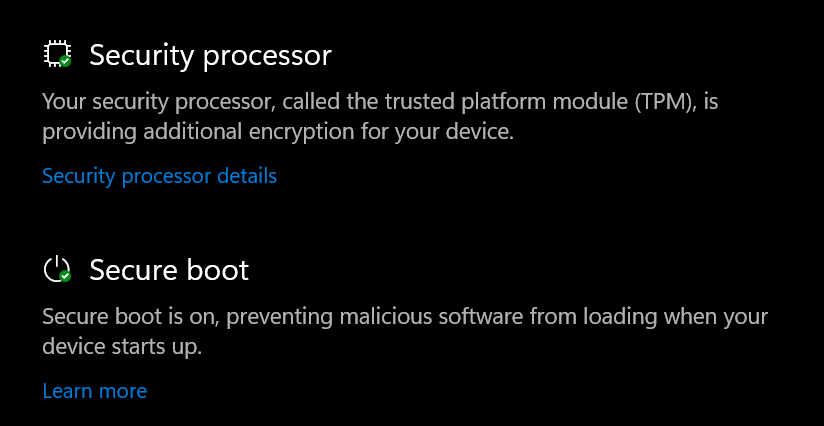
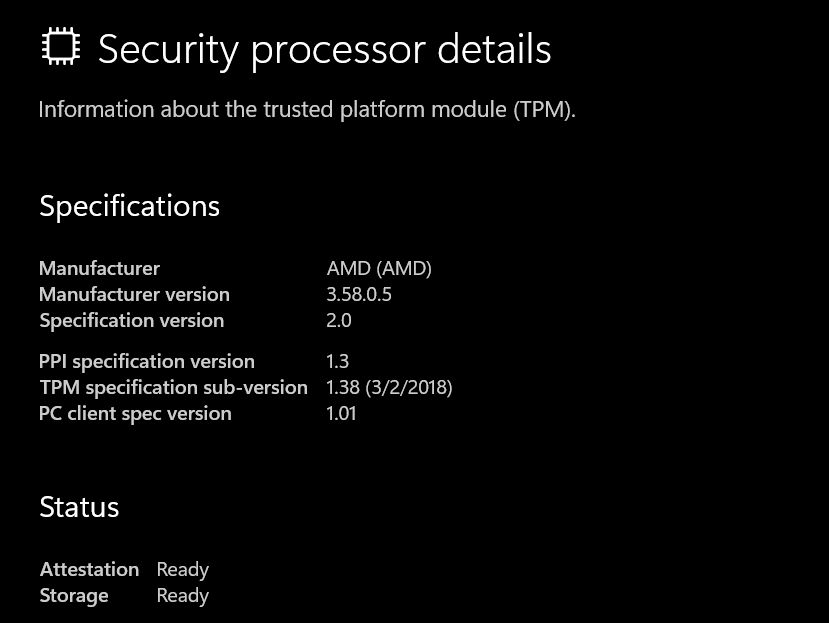
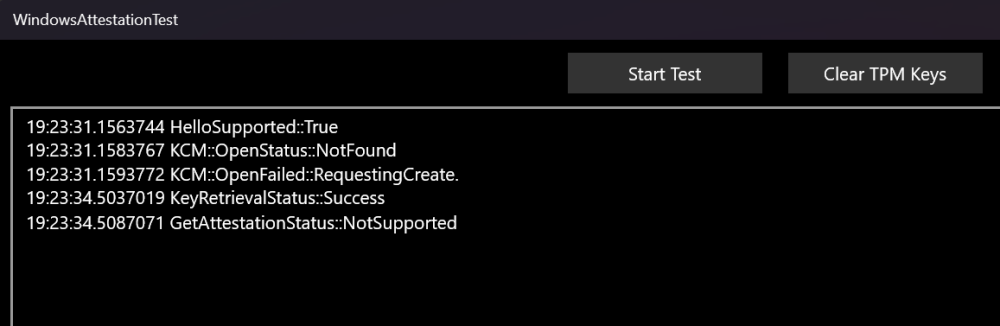
I have an Intel Laptop where it is working well. And on my AMD Desktop Computer it is not working: And the windows test app shows this:
-
Yeah, at this point it would be better to admit not being able to fix it... Will not be able to continue suggesting Enpass to people who will need a password manager until this is fixed.
-
Exact same problem here. This needs to have been fixed immediately, you can only focus on other things after the very basic and important things work!
-
Hey @Tahreem, when using a Desktop I usually do not have a webcam that supports Windows Hello. But PIN is supported always. When I select Windows Hello and set up the PIN it still asks for the master password after restart. On my Laptop where I have facial recognition with Windows Hello enabled it let's me unlock Enpass also after restarts with it. Also the built in PIN option is pretty much useless as I cannot unlock the app with it on first time use after start up. Could you please let people unlock after start up with the built in PIN or the Windows Hello PIN please by making it an option? People know how trustworthy the environment of their PC is and should be able to determine if this is safe or unsafe for them. Thank you very much!