


Stef
Members
-
Joined
-
Last visited
-
Thanks for your reply! Cheers
-
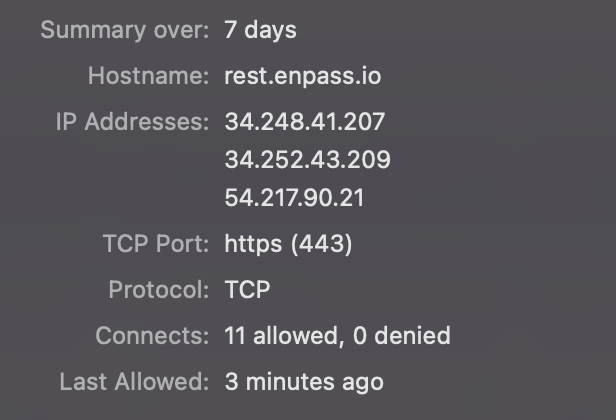
The IP address seems to be resolving to rest.enpass.io. Seems to be a rest api, not sure how it is used but I should not worry about it too much I guess. But perhaps the team can comment on this?
-
Never mind.. I restarted the enpass app en both categories and tags appeared..
-
This is weird. I have Enpass running on my iMac and my MacBook. On my iMac it displays all categories and tags, but not on my MacBook.
-
Hi, I imported my data from 1password into Enpass (iCloud sync) and have all the data in both my mobile (iOS) and desktop app (macOS) and everything syncs up nicely. In the IOS app I see all categories (logins, creditcard, notes, etc) but I do not see this in the desktop app. Categories is enabled in the View menu. I have a subscription via the mobile app and I have registered via the Enpass desktop app. How can I see the categories in the desktop app? Thanks, Stef
