Willem
Members
-
Joined
-
Last visited
-
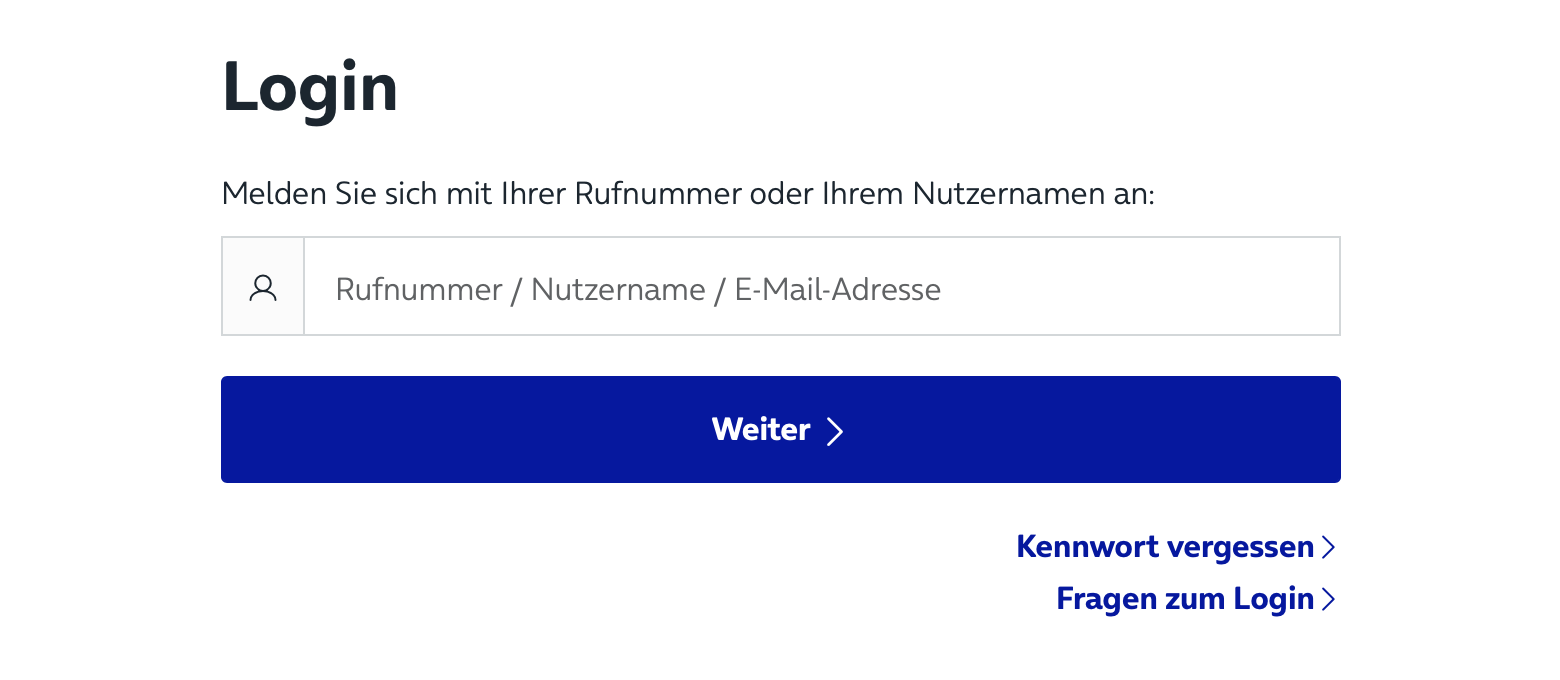
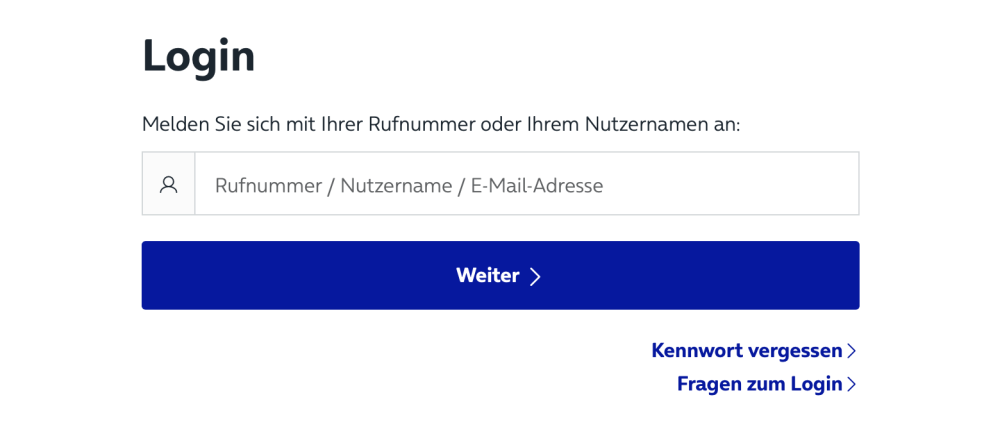
Hi Abhishek, I have the same issue as @hshjezai. I do not get the "Save as Websform" option as, like you write, there is no password field in the webpage. What would be the solution for this? Can this be changed as why does a Webform needs a password? A website (the login for https://www.o2online.de) where the login first shows a page requesting a username (where the username is a phone number). Enpass does not show any enpass icon but recognises the website as when I right click in the username field and choose enpass from the menu it only show the corresponding website. Then I right click the entry and choose copy username and past that in the username field. The next window requests the password and their enpass kicks in and gives me the password automatically. Best regards, Willem
-
I have exact the same issue and running the same versions as Idoki. It is a very annoying bug as it pops up in almost every website I open and needs 3 clicks to get the popup from the screen. I really hope an update with solution is coming soon as else I need to shut down enpass until the fix.