blaaaahblahblah
Members
-
Joined
-
Last visited
-
Same here, I stopped using it because of extremely slow search. It makes everything so inconvenient when updating logins.
-
I am having similar issue. Enpass seems only work with Chrome. Enpass is unable handle autofill in the apps that has built-in browser like Fastmail and Google assistant. I always have to bring LastPass back up to fill out the info. It is quite frustrating. LP is not perfect when it comes to autofill, but Enpass is way behind LP.
-
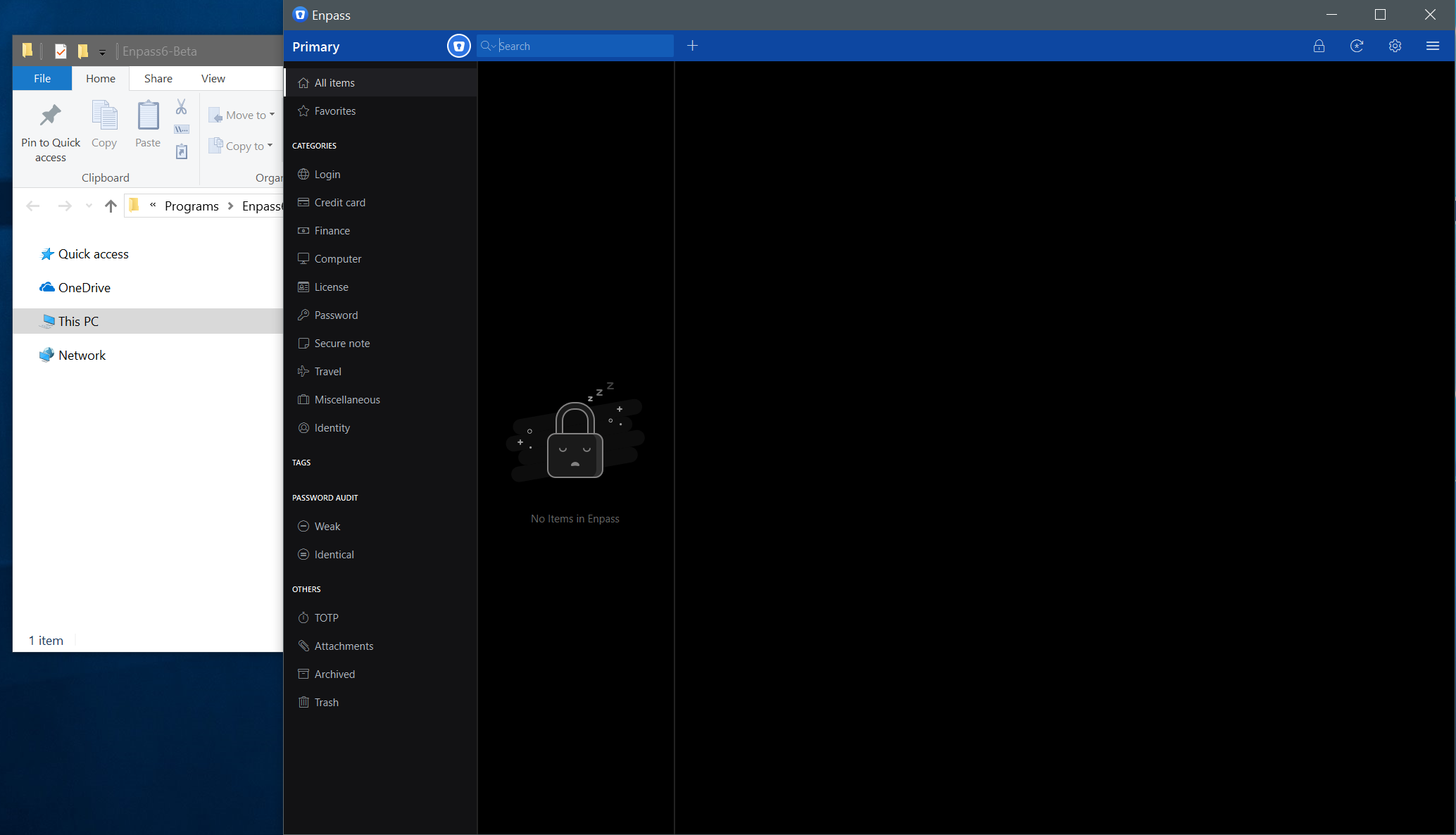
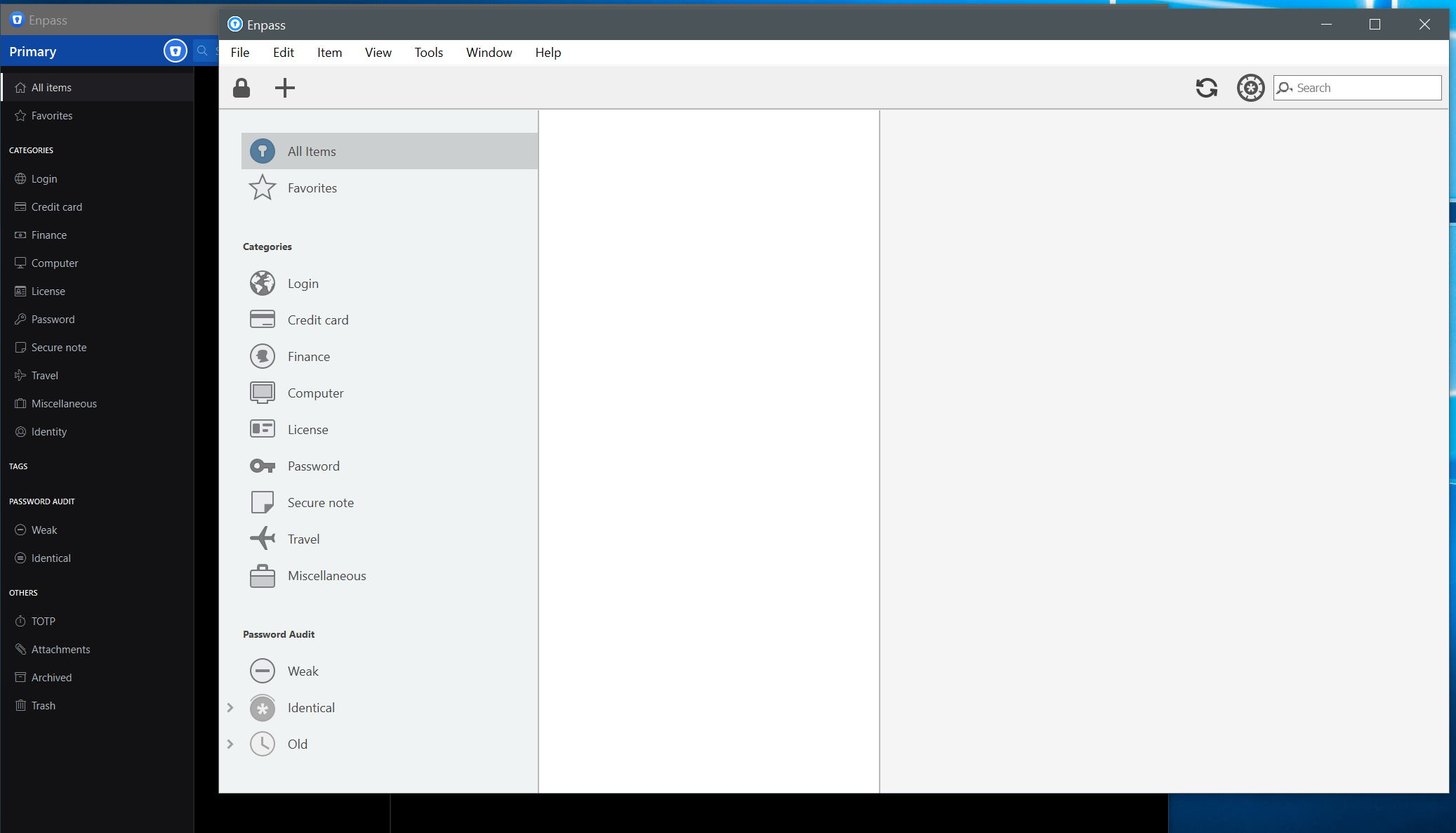
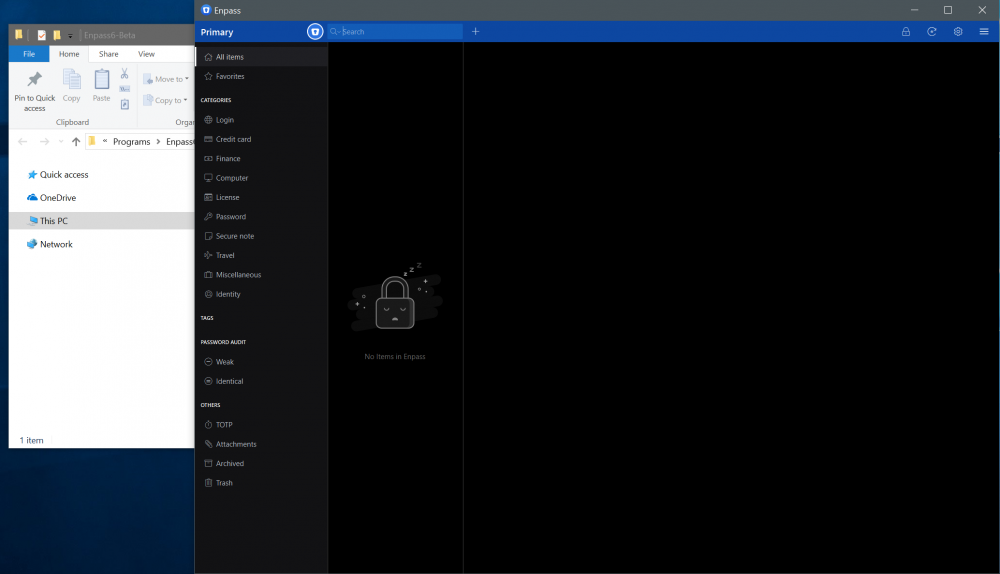
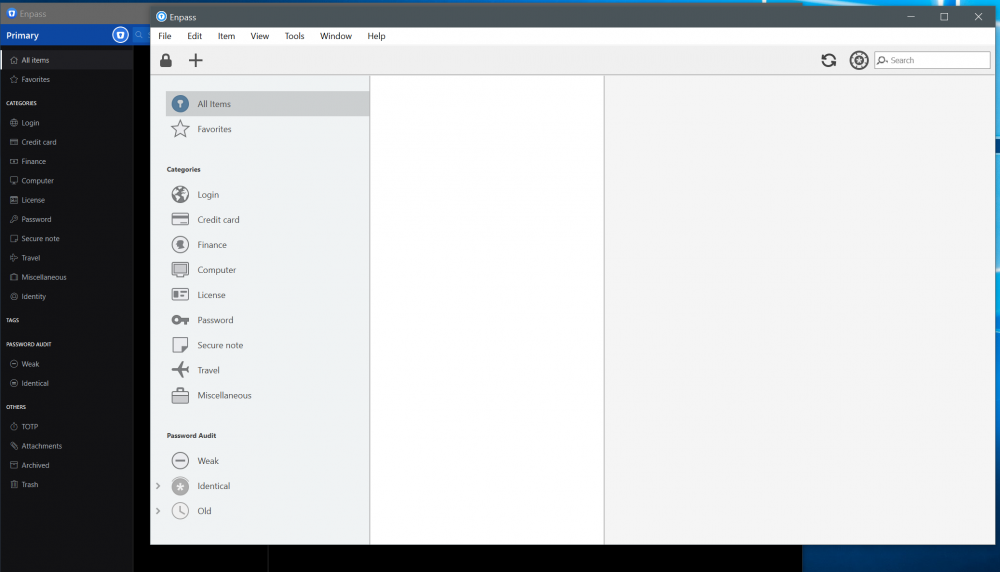
As title. Although it is still readable but they are still too small to read comfortably. I've attached screenshots side by side against v5 and explorer.
-
Hello, Which device (along with OS version) are you using Enpass? Windows 10 Pro ,Version 1803, Build 17134.165 Which Enpass version are you using? 5.6.19 (5548) Which cloud services are you using to sync? None Are you facing this problem while editing the credentials of any item? No, so far only delete.
-
Same here. Error occurs whenever I'm deleting an entry. This is happening even without Edge extension installed.
-
I second this request. Allow us to set days, like 10 days, 30 days. It's really annoying to enter long password.
-