Ronnie Munoz
Members
-
Joined
-
Last visited
-
Make sure you didn't have Enpass running when you installed the beta extension. Once I shut down Enpass desktop, then opened a brand new window/tab and launched the extension it looked for Enpass, found it, then prompted for a code from the browser to tie it to the extension.
-
Aaaannd now it's working. I tried a new tab in a new browser window and everything is working as expected! Thank you for a great product thus far!!
-
1. Windows 10 ver 1809 build 17763.134 2. Beta 6.0.0 (198) 3. Extension version 6.0.0.56 and Chrome version 70.0.3538.110 Official 64bit I was able to get the extension to finally respond by closing Enpass desktop, I had it open before I installed the beta extension. I was then prompted for a code from the browser to enter into the extension which now I can see my saved passwords, however, the extension will not auto fill my login credentials on the webpage.
-
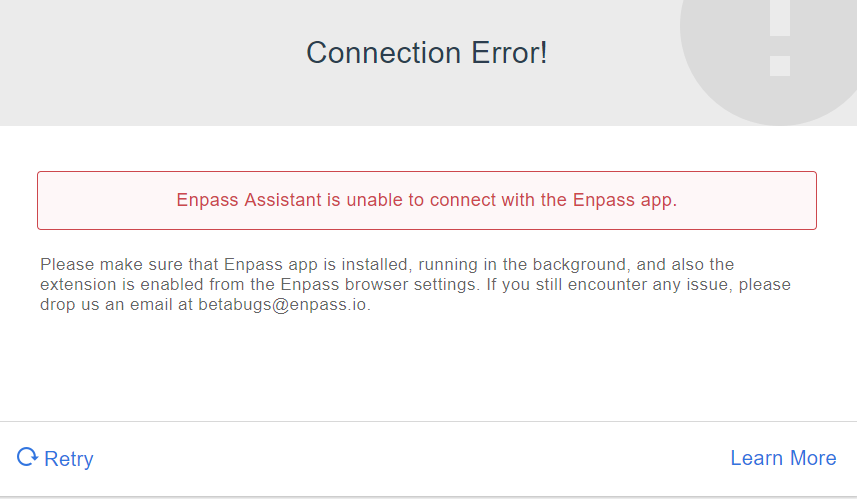
I have the same problem reported above. I installed the beta Enpass browser extension for Chrome as you instructed and this is the error message presented after trying to use the browser extension.