davbhunt
Members
-
Joined
-
Last visited
Everything posted by davbhunt
-
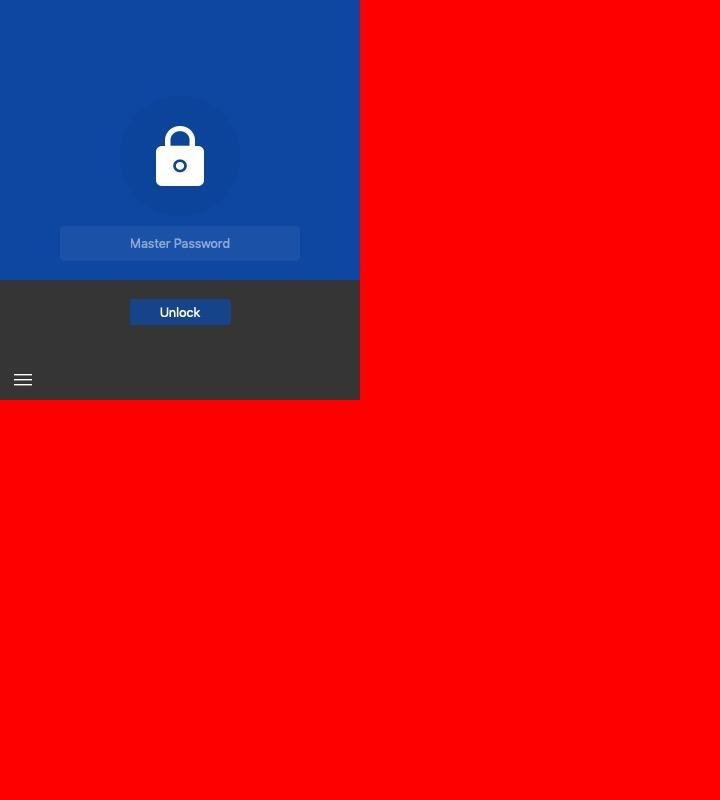
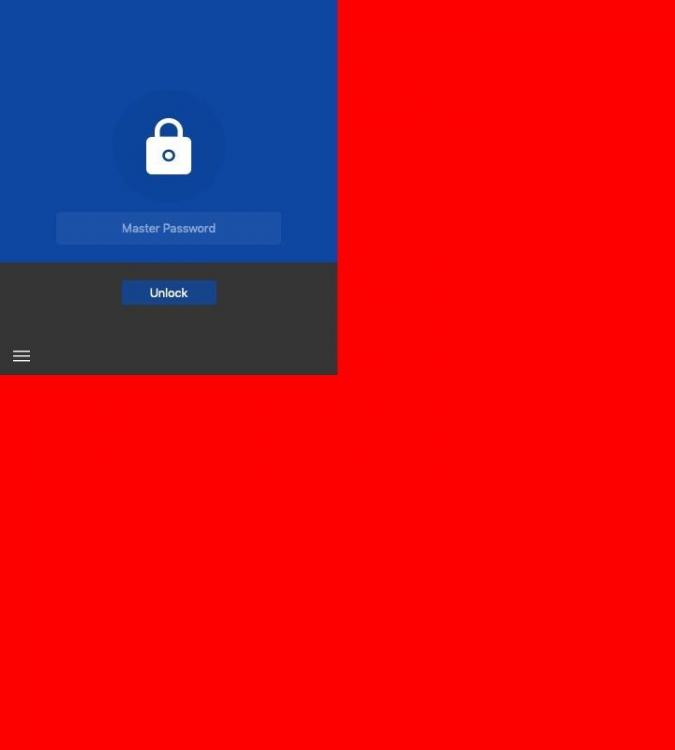
Hello, I am running Mac OS 10.14.4 on a 2018 MacBook Pro and Enpass 6.0.7. I frequently work connected to an external monitor. When I disconnect from the monitor and use my laptop on it's own, I often find that the graphics for the Enpass password window (accessible by right-clicking in a web form field and selecting "Enpass") is corrupted. Quitting and restarting the application will fix this. But the next time I then connect, or disconnect, essentially changing my video setup, the dialog will usually (80%) be corrupted again. This happened after the last update. I've attached a picture of the dialog as it appears, in this case, I would need to enter my password to continue, and the dialog is corrupted. Thank you
-
I have a Box account where I store the Enpass files for the Mac OS version. I tried to login with v6 of Enpass this morning and I am unable to. The issue seems to be that Box is sending me a text message with a 2nd factor authentication and there is no method to enter that token into the webdav login pane. Luckily, I have Enpass on my iPhone and can still access my passwords or this would be a very big problem (at least for now). I did try moving the Enpass folder from Box to iCloud, but no luck, Enpass says it can't find any data in my iCloud account, which interestingly redirects to a webpage to login for Enpass. So, not sure where it is looking there.