
GMPD
Members
-
Joined
-
Last visited
-
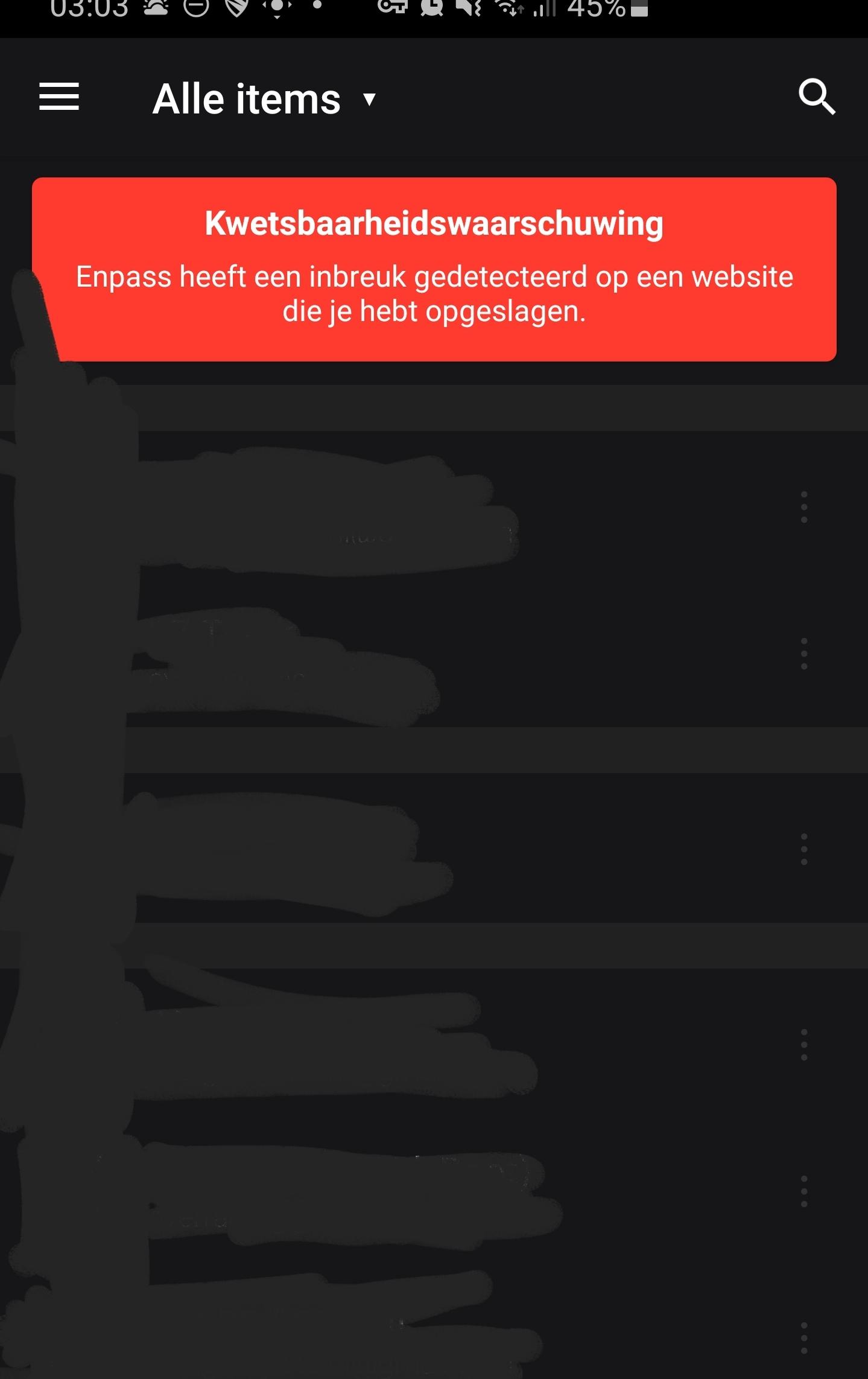
I agree with previous post! The RED banner is very annoying with my dark theme! And again and again password Audit messages, if I click it, I'll get the message to get an supscription.. I'm pro and not interested in every time the same question. And I'm a Lifetime Prouser, so I don't want to pay again! If Enpass decides in the future, no updates for Pro Users, I go an other Password Manager... And with double feelings. I really love this software from the beginning!! The people behind Enpass making promises but after a while they have other idea's and thats not good for thust.
-
GMPD changed their profile photo
-
As some other users already have said. They said "ALWAYS FREE for Windows" and now you have to pay for some features (like the dark theme for example) witch is nice, but I don't pay for my Windows version! For me it's time to look for an alternative for Enpass! And th3Chris, they said it was always free and now you have to pay for extra options: NOT free at All! So stop with your nonsense to other people!!!