

Skip to content
View in the app

A better way to browse. Learn more.

Enpass Discussion Forum

A full-screen app on your home screen with push notifications, badges and more.

To install this app on iOS and iPadOS
  1. Tap the Share icon in Safari
  2. Scroll the menu and tap Add to Home Screen.
  3. Tap Add in the top-right corner.
To install this app on Android
  1. Tap the 3-dot menu (⋮) in the top-right corner of the browser.
  2. Tap Add to Home screen or Install app.
  3. Confirm by tapping Install.

Petesmithy

Members
  • Joined

  • Last visited

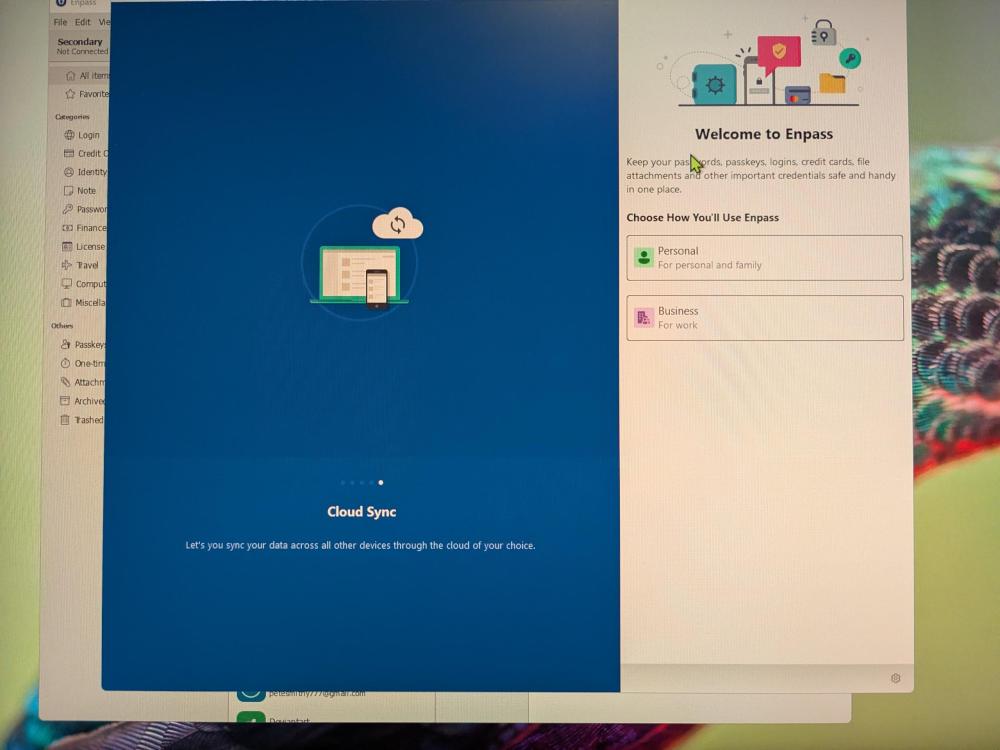
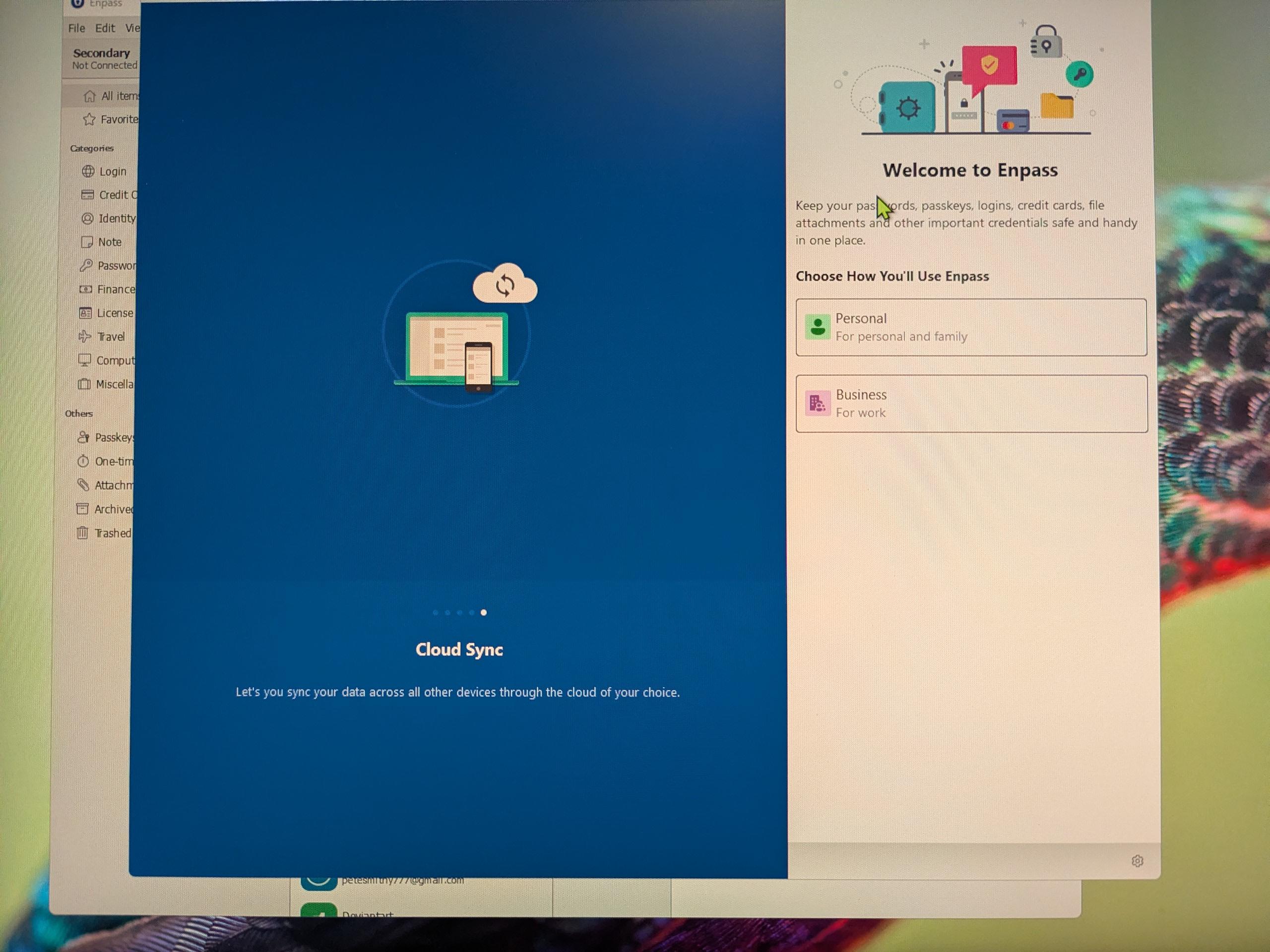
  1. I have created 2 new vaults. In attempting to connect them following the standard instructions "To add an existing vault" only takes me to open a fresh iteration of Enpass. All I want to do is connect and sync them.
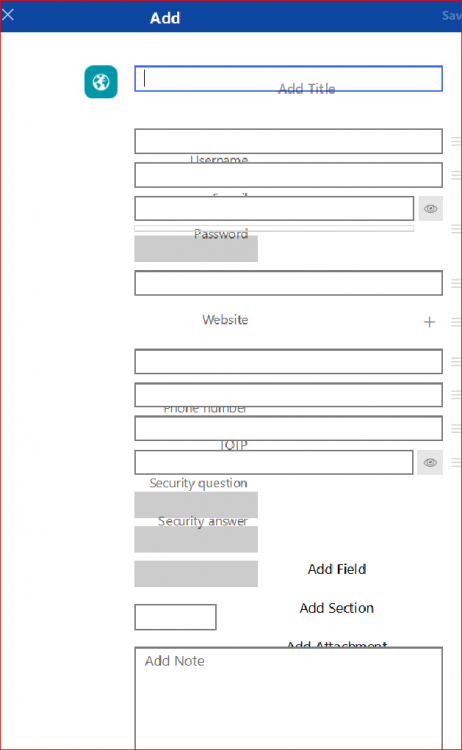
  2. Now unable to make a new item or new login as the fields do not match the labels; for existing items, the icon produces an edit screen for quite another item. The installation looks a total mess. Can I revert to perfectly functional version? See snip:
Account

Navigation

Search

Search

Configure browser push notifications

Chrome (Android)
  1. Tap the lock icon next to the address bar.
  2. Tap Permissions → Notifications.
  3. Adjust your preference.
Chrome (Desktop)
  1. Click the padlock icon in the address bar.
  2. Select Site settings.
  3. Find Notifications and adjust your preference.