aomobi
Members
-
Joined
-
Last visited
-
The bug is still in version 6.03 (260).
-
+1
-
-
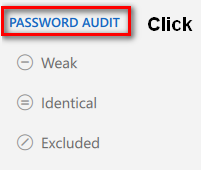
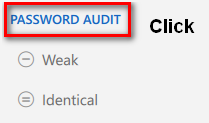
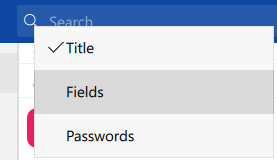
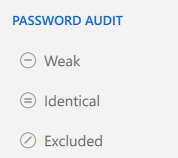
In the password audit list is a bug: A click closes the list. If you click again, the list is incomplete. You have to click on the search mask, so that the list appears completely again. --> -->--> --> Windows 10 64 bit (1809), Store Version 6.02 (241)

-
When Auto-Start of Enpass the window of the main program opens shortly (white background) before the icon disappears in the tray. Does not look good.
-
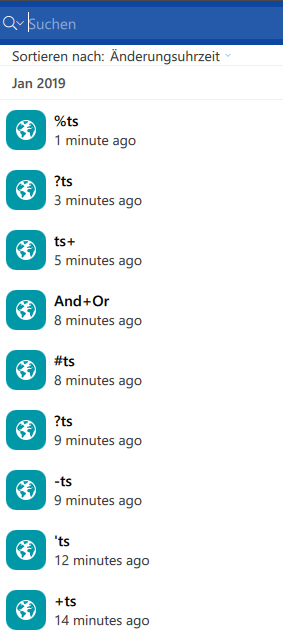
With certain characters Title can not be found: +, ',? and also determines others. with #, -,% it works. Please check all special characters. Thanks W10, 64 bit, 1809, EN 6.02 (241)
-
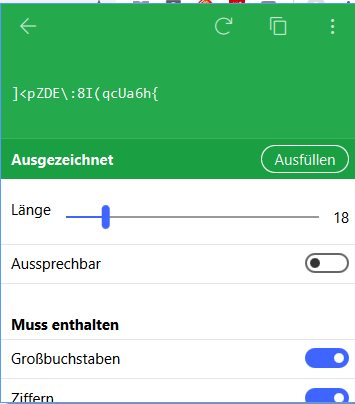
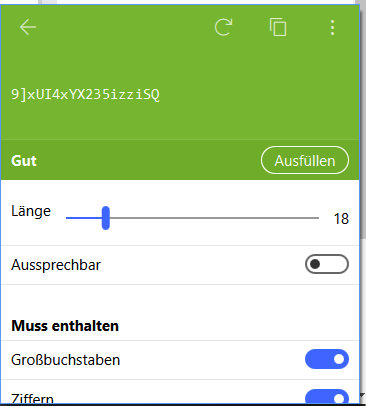
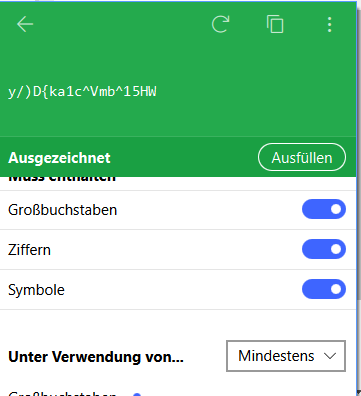
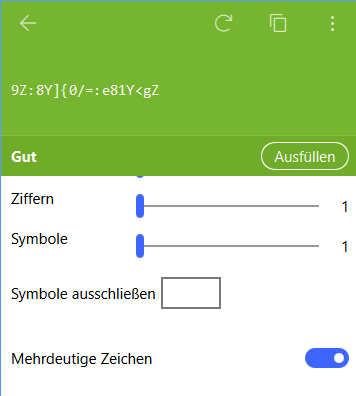
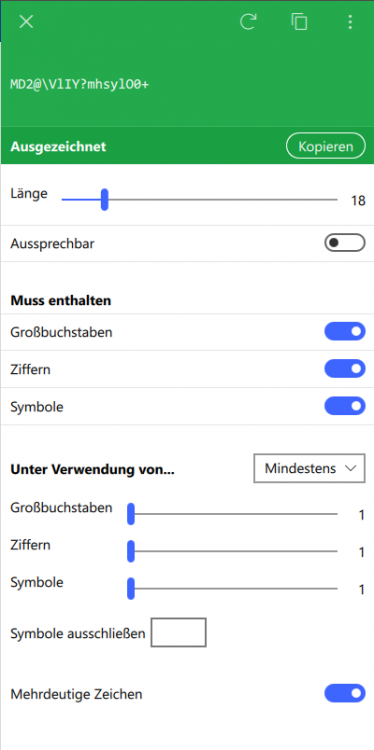
See Post in the Mac section: Is the same in Windows 10 64 bit (1809), Store Version 6.02 (241). Please make the windows scalable or automatically large enough like in the main program. See Screenshot. Thank you
-
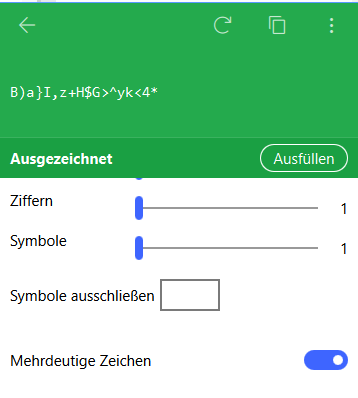
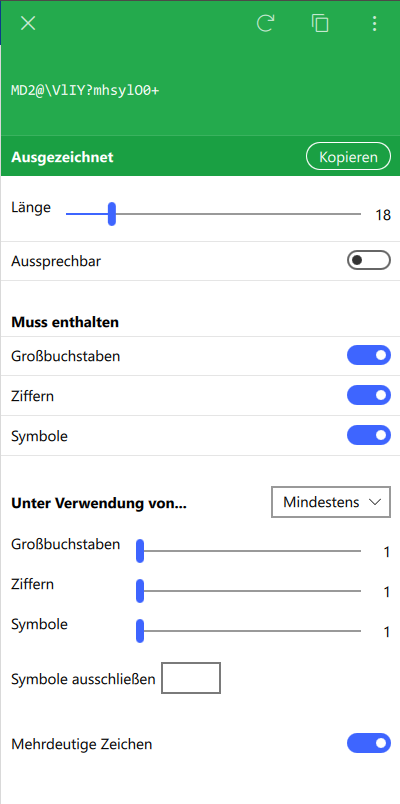
Is the same in Windows 10 64 bit (1809). See attached screenshots from the Chrome extension and the icon in the task line. Please make the windows scalable or automatically large enough. Thank you