Syd
Members
-
Joined
-
Last visited
Everything posted by Syd
-
Have tried both - same result. NO It's on a new Macbook Pro 16" M1 Pro chip
-
When the option "Open Automatically at System Startup" is selected, the app doesn't startup properly. The app starts and the login window opens and switched to "hidden". You need to manually select the app from the task bar to show the login window. This is different behaviour to Intel-powered Macs where the window stays open and not hidden so the master password can be entered. Is anyone else seeing this?
-
Hey Manish - this is not on a MacBook M1. Can you confirm that you've tested Enpass + Touch ID with the new MacBook Pro M1 Pro and M1 Max with your team.
-
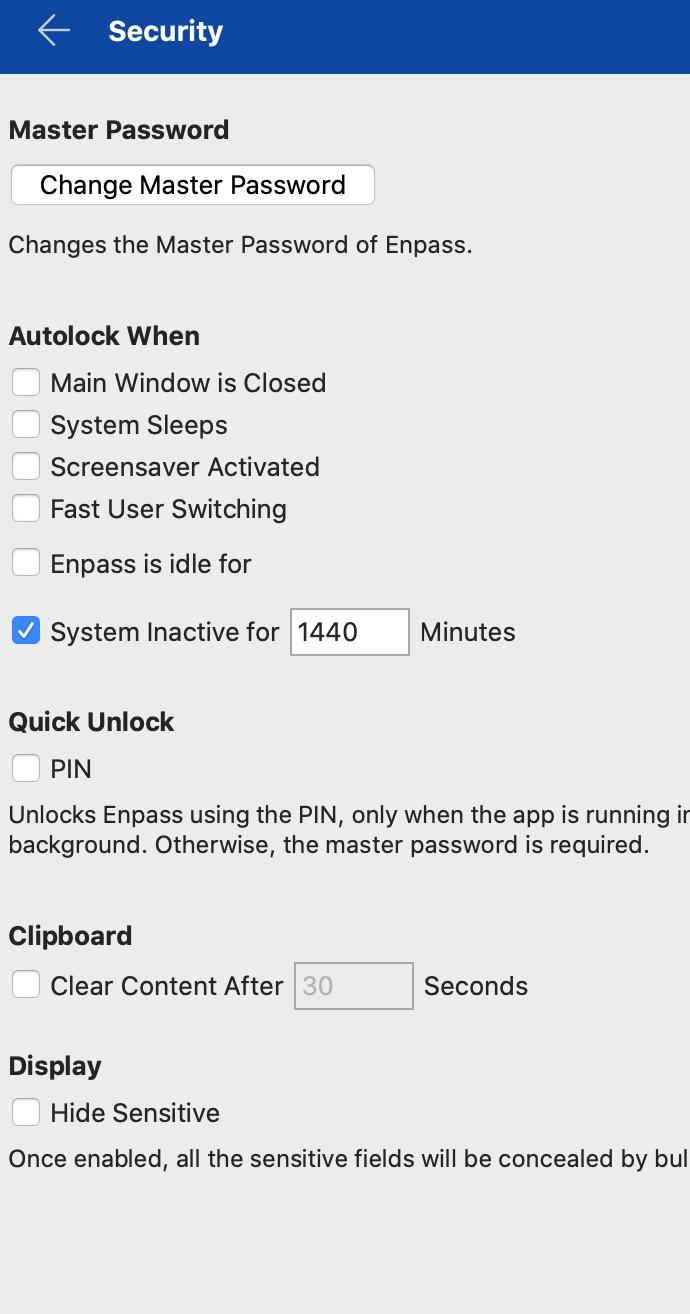
I'm having problems with enabling this on 6.7.3 Disabling and Enabling this in settings doesn't have any effect. Anyone else seeing this problem?
-
I'm using version 6.3.3 (584) It's working on 10.14.6 on the hardware - will check on 10.15.2 and report back
-
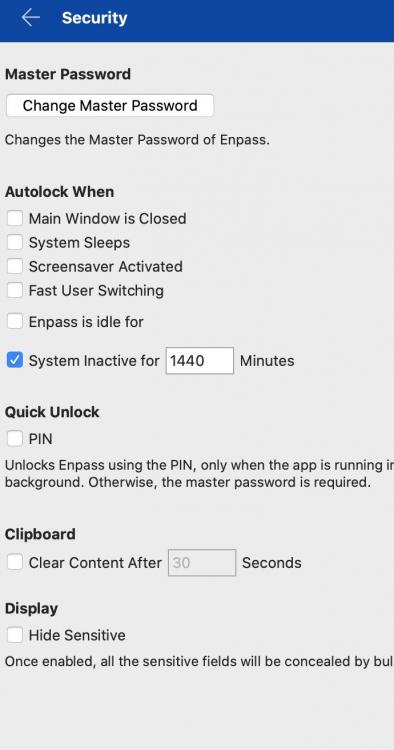
Lifetime Premium user. any ideas on how to enable or is this a bug?
-
I'm so confused - so when will Touch-ID be used if it asks for a master-password in these two situations?