Jump to content
View in the app

A better way to browse. Learn more.

Enpass Discussion Forum

A full-screen app on your home screen with push notifications, badges and more.

To install this app on iOS and iPadOS
  1. Tap the Share icon in Safari
  2. Scroll the menu and tap Add to Home Screen.
  3. Tap Add in the top-right corner.
To install this app on Android
  1. Tap the 3-dot menu (⋮) in the top-right corner of the browser.
  2. Tap Add to Home screen or Install app.
  3. Confirm by tapping Install.

Leaderboard

Popular Content

Showing content with the highest reputation on 10/11/16 in all areas

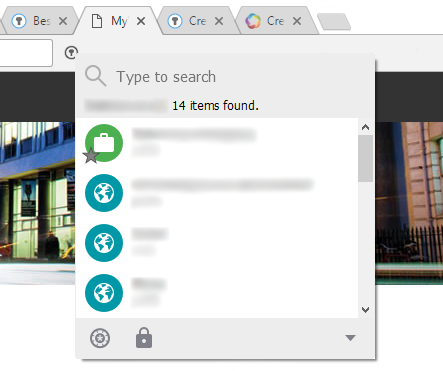
  1. When there are a lot of passwords saved for a particular domain, it can be quite difficult to scroll through the list in the Chrome Extension to find the one or two that you use most often (and have been made favourite). Please please please could you show favourite passwords first in the list? You could show they are favourites by overlaying the star icon over the top. I have attached a quick mock-up of how it could look. As you can see I have 14 passwords for this particular domain.
Account

Navigation

Search

Configure browser push notifications

Chrome (Android)
  1. Tap the lock icon next to the address bar.
  2. Tap Permissions → Notifications.
  3. Adjust your preference.
Chrome (Desktop)
  1. Click the padlock icon in the address bar.
  2. Select Site settings.
  3. Find Notifications and adjust your preference.