Search the Community
Showing results for tags 'windows desktop'.
Found 3 results
-
I would like to suggest removing the need to hit the Enter key when entering in a PIN, and possibly also Password, to unlock Enpass. Hitting the enter key here is a completely redundant step when entering a password into an application, especially the PIN option after having already unlocked Enpass with Password at least once since launching it.
-
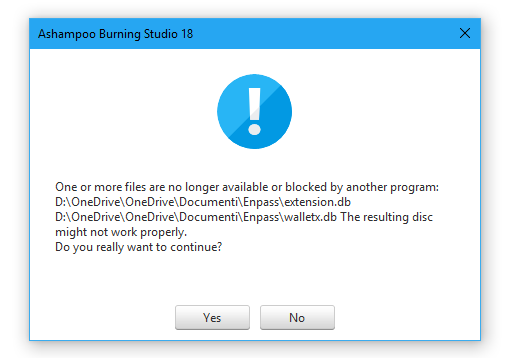
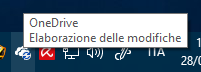
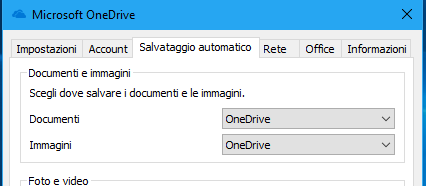
I'd like to report a bug in syncing with Enpass for Windows desktop in Windows 10. Here is how the bug occurs: -First of all, you have to use Enpass for Windows desktop -Then, in OneDrive settings, you have to select OneDrive as the folder for documents and images -Make sure to have OneDrive sync enabled in Enpass -Now, OneDrive will be stuck on "Processing changes", and to make it stop, you have to restart OneDrive client, or restart the computer; it continues to upload files despite this, but even if there are no files left, it stuck on "Processing changes" forever until a restart of the client or the entire PC I noticed that If I revert the OneDrive settings not selecting the folder target documents and images as OneDrive, so local, the bug doesn't occur anymore. In addition, I found that if this happen, if I try to copy files from OneDrive to other source, the Enpass files are not copied because Enpass block the file in OneDrive. In the first screenshot, Ashampoo tell me that the Enpass file in OneDrive are blocked by another program, Enpass itself, and in the second screenshot, there is OneDrive stuck on "Processing for changes". The last screenshot shows you that Documents and Pictures folder are being moved on OneDrive.
-
A long, long time ago (I couldn't even find the topic anymore) I asked if you could support logging in into Enpass using Windows Hello on the Desktop application, so it could also be used in the browser extensions (that's how your system works, right?). You replied that the Windows Hello APIs aren't available on the Windows desktop. I recently came across an article on the Windows Dev Center: UWP APIs callable from a classic desktop app. This article mentions that every UWP API which lists the DualApiPartition attribute in the Attributes section is also available for classic desktop apps. The API that's used for Windows Hello (KeyCredentialManager) actually lists this attribute, so it can also be used in classic desktop apps. As you might have guessed, I would really love Enpass to support this! It would make Enpass exactly what I want my password manager to be.