

Leaderboard
-
Tarun Singh Rawat
Enpass team member1Points328Posts -
Amandeep Kumar
Enpass team member1Points578Posts


Popular Content
Showing content with the highest reputation on 06/18/25 in all areas
-
1 pointWhile Enpass currently focuses solely on password management and does not offer alias or disposable email services, we truly appreciate the idea. Your input is valuable, and I’ve shared your suggestion with our product team for consideration in future updates. Integrating privacy-focused tools like this could indeed be a meaningful enhancement for many users.1 point
-
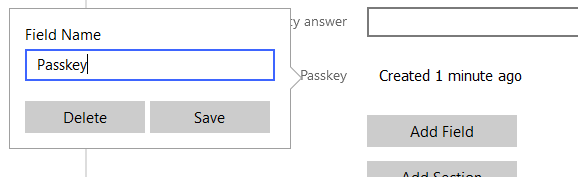
1 pointYou will need to edit the item for which you created the Passkey, click on the "Passkey" title, and then select "Delete." If the passkey is not appearing in the corresponding entry, please verify if the passkey was actually created for that item in Enpass.
 1 point