Amandeep Kumar
Enpass team member
-
Joined
-
The login suggestions are generally sorted based on the best match for the URL. This is why older logins or less frequently used credentials may appear lower in the suggestions list. Edit the login’s URL in Enpass to match the exact page you use most often. Enpass matches logins to URLs, so a more precise match can make it appear higher in suggestions. We appreciate your feedback regarding a feature to set a “default” login for specific websites. This is something our team can consider for future improvements.
-
To help us investigate this issue further, we’ll need a few additional details, as we’re currently unable to reproduce the problem on our end. Could you please share the following information with us? Total number of vaults in your Enpass account Whether any of your vaults are synced with a cloud service Size of your backup file Number of attachments stored in your vaults Your current Enpass version Please email these details to support@enpass.io, and also include a link to this forum post in your email, as it helps us identify the source of the issue. Our team will review the information and investigate it further from our side.
-
The recent addition of the PRF (Pseudo-Random Function) extension to FIDO, which enables symmetric encryption, is indeed a key milestone we were waiting for. With this in place, we are actively working toward adding USB security key / FIDO2 support, including YubiKeys, in Enpass. Our goal is to support hardware keys both as a master-passwordless authentication method and as a multi-factor authentication (MFA) option. While we don’t have an exact release date to share yet, our current plan is to introduce this support in Q2 of this year. We appreciate your patience and continued interest.
-
The recent addition of the PRF (Pseudo-Random Function) extension to FIDO, which enables symmetric encryption, is indeed a key milestone we were waiting for. We’re actively working on adding YubiKey support in Enpass, both as a master-passwordless authentication method and as a multi-factor authentication (MFA) option. As of now, our plan is to introduce this support in Q2 of this year. We’ll be sure to share updates through our official channels as development progresses. Thanks for your patience and continued support.
-
Enpass currently supports autofilling login credentials (usernames and passwords) as well as saved identities, which can include details like your name, address, phone number, and other personal information. To achieve this, you can create an Identity item in Enpass and add your name and address details there. Once saved, Enpass can autofill this information on supported websites when the relevant fields are detected.
-
To help resolve this issue thoroughly, could you please email us at support@enpass.io with all the relevant information? Our support team will definitely review your case and assist you in resolving the problem. Looking forward to helping you get this sorted!
-
Thank you for reporting this. We’ll forward the details to our development team for further discussion and investigation. We’ll share an update once we have more information. #SI-4623
-
@Ken Thank you for the detailed explanation and for outlining all the troubleshooting steps you’ve already tried. Since this issue requires more in-depth troubleshooting and diagnostics, could you please email us at support@enpass.io with these details? Our support team will review the case closely and guide you further to help get this issue resolved. We appreciate your patience and cooperation.
-
Thanks for sharing the details. It appears that you previously purchased a lifetime license via StackSocial, but the app is currently showing Enpass Lite instead of the paid version. To resolve this, please make sure that: You are registered in the Enpass app using the same email address that was used for the original purchase. If a different email or Apple/Google account is used, the license may not be recognized correctly. After signing in with the correct email, please use the Restore Purchase option from the app settings to reactivate your lifetime license across devices. If the issue still persists, please email us at support@enpass.io with your purchase details and receipt so we can assist you further.
-
Thank you for reporting this. We’ll forward the details to our development team for further discussion and investigation. We’ll share an update once we have more information. #SI-4622
-
This means Enpass has integrated Apple’s latest built-in password management capabilities that were introduced with recent Apple OS updates. As a result, Enpass can now: Suggest and create strong passwords automatically during sign-ups or password changes across apps and websites Detect new credentials and save them to Enpass automatically, reducing the need for manual saves I’ll check with the Enpass team to see if there are any plans to publish a detailed blog post explaining these changes and how they work in practice.
-
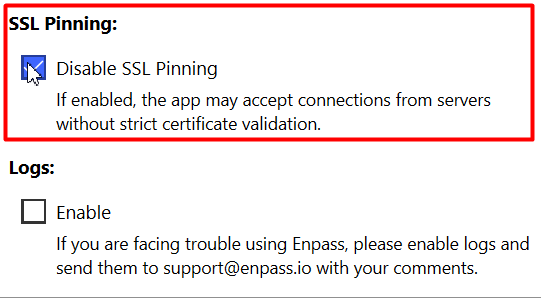
Here’s a suggestion that may help resolve the problem: Exit the Enpass application completely by pressing Ctrl+Q. Disconnect your internet connection. Reopen Enpass and set it up in offline mode. In the settings, navigate to the browser section and uncheck both settings as illustrated in the image below. Quit Enpass again, reconnect to the internet, and reopen Enpass. Upon entering the Enpass application, activate your license. Finally, reconnect all your vaults with the clouds. This should help resolve the problem you're facing. Let me know if you encounter any further issues or need additional assistance.
-
Just to clarify the current situation. At the moment, the Lifetime plan is not part of the active offerings anymore. The pricing page now only shows the 3-year subscription plan for new purchases, and the lifetime option isn’t available for new users right now. Existing users who already own a lifetime (Pro) license will continue to have access to it and it is honored, but you can’t buy a new lifetime license for someone else at this time. The 3-year plan is currently the longest available option for new customers. If the lifetime plan becomes available again in the future, the team will likely make an announcement.
-
Since the WebDAV credentials (URL, username, and password) are working in Cyberduck, the basic connection to your Synology NAS looks correct — but Enpass may still have specific requirements for WebDAV configuration. Here are a few suggestions to help troubleshoot and resolve the issue: Check the URL format: Make sure you are using the correct WebDAV URL format required by Enpass. For Synology, it generally follows: https://<your-nas-ip-or-domain>:5006/<webdav-share-path> Ensure the path and protocol (HTTP vs HTTPS) match what Enpass expects. Verify port and SSL settings: If your Synology WebDAV is using HTTPS, confirm that the SSL certificate is valid or try temporarily testing without SSL (HTTP) to see if Enpass can connect. Compare with support guides: Please refer to the official Enpass support articles for step-by-step instructions on WebDAV sync with Synology: • Connecting a vault with Synology using WebDAV: https://support.enpass.io/app/sync/kb/connecting_a_vault_with_synology_using_webdav_in_enpass.htm?rhhlterm=synology&rhsearch=synology • Setting up sync with WebDAV (general): https://support.enpass.io/app/sync/setting_up_sync_with_webdav.htm Check Synology WebDAV settings: On your NAS, make sure the WebDAV server package settings allow access to the specific shared folder you are targeting, and confirm there are no permission restrictions. Firewall / network checks: Confirm there’s no firewall or network restriction blocking Enpass from accessing the WebDAV port. If none of the above work, please share the exact WebDAV URL you’re using (you can partially mask sensitive parts) to support@enpass.io, and we’ll help verify it against the expected format.
-
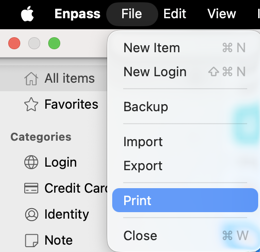
On macOS, the Print option isn’t available in the hamburger or three-dot menu. Instead, please use the macOS menu bar at the top of the screen: Click on File Select Print This is standard macOS behavior, where certain options are placed in the system menu bar rather than within the app UI.