halbot
Members
-
Joined
-
Last visited
Everything posted by halbot
-
-
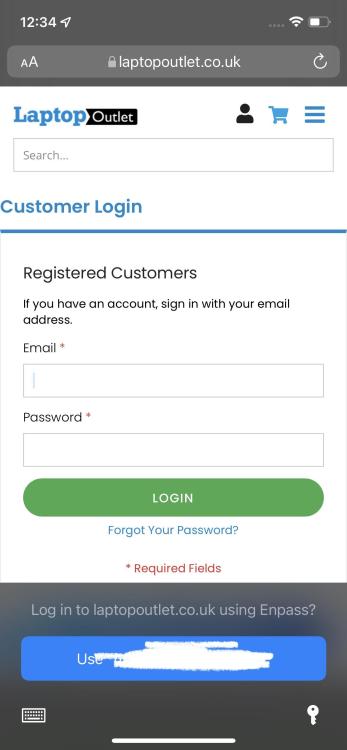
So for me the experience on iOS is not good, these issues are all with Safari: - It never offers to save any passwords, so the only way to add items is to add them manually. On Windows if you login to a website Enpass offers to add the item. - For some websites, enpass offers to login, but if you click it it does face id and doesn't actually fill out the form. Example below. This site works in Edge but not Safari.
-
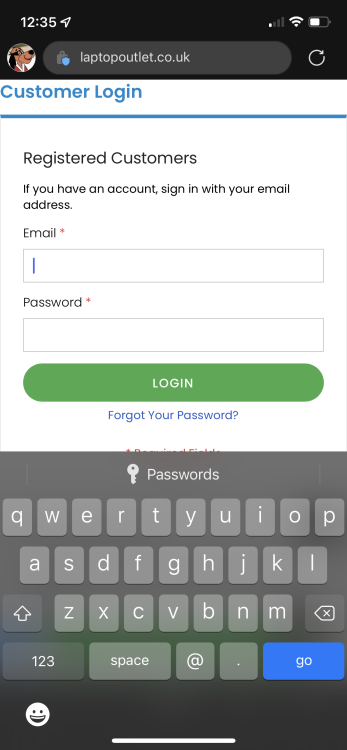
So actually, it is now working for me in Edge. The experience is different to Safari, it says Passwords at the bottom, tap on that and enpass opens and can then select the login, then you have to click the login button on the site. It's 3 taps rather than one in Safari, but at least it works. See image:
-
This is iOS, not the Edge extension.
-
Also wondering this...help is not much use, if you type in family it just shows how to add family members.
-
Hi, so just bought enpass family, tried it on iOS and it doesn't work in Edge, working in Safari. Any way to get this working or just not supported? I hate safari, I guess I could use Chrome (I was just using edge for syncing passwords with Windows PCs, which I don't need any more)...