Skip to content
View in the app

A better way to browse. Learn more.

Enpass Discussion Forum

A full-screen app on your home screen with push notifications, badges and more.

To install this app on iOS and iPadOS
  1. Tap the Share icon in Safari
  2. Scroll the menu and tap Add to Home Screen.
  3. Tap Add in the top-right corner.
To install this app on Android
  1. Tap the 3-dot menu (⋮) in the top-right corner of the browser.
  2. Tap Add to Home screen or Install app.
  3. Confirm by tapping Install.

Send Zero

Members
  • Joined

  • Last visited

Everything posted by Send Zero

  1. Send Zero replied to Ivarson's topic in Windows
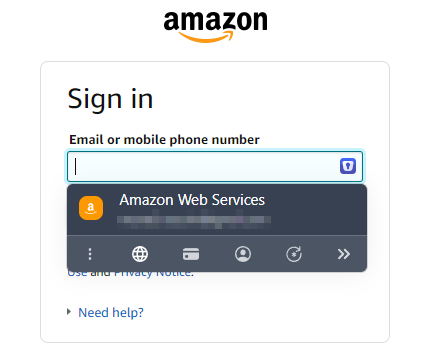
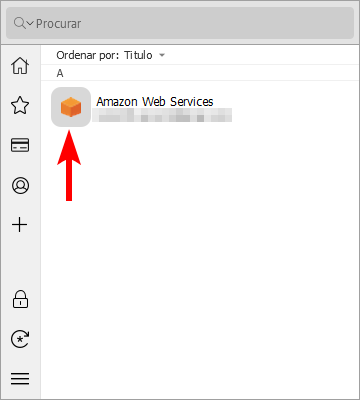
    I was about to start a topic on the same issue. This problem began right after updating from version 6.8.6 (1365) to version 6.9.0 (1465) of Enpass. Additional Information: Operating System: Windows 10 Pro 22H2 (Build 19045.3324) Enpass Version: 6.9.0 (1465) (website version) Browser Extensions: Chrome v115.0.5790.171 + Enpass Extension v6.8.6 Edge v115.0.1901.203 + Enpass Extension v6.8.6 Firefox v116.0.2 + Enpass Extension v6.8.3 Update: The issue was fixed in version 6.9.2 (1563) of Enpass. As noted in the release notes: “Fixed a problem with the browser extension’s inline menu misbehaving for Items with a custom icon in Enpass.”
Account

Navigation

Search

Search

Configure browser push notifications

Chrome (Android)
  1. Tap the lock icon next to the address bar.
  2. Tap Permissions → Notifications.
  3. Adjust your preference.
Chrome (Desktop)
  1. Click the padlock icon in the address bar.
  2. Select Site settings.
  3. Find Notifications and adjust your preference.