Send Zero
Members
-
Joined
-
Last visited
Everything posted by Send Zero
-
-
-
+1
-
Enpass already has a Security Audit screen, which appears automatically when you open the app. There you can see a summary of your overall password health, including items with compromised, identical, weak, or expired passwords, items that need to be secured because of recent website breaches, and items that could be upgraded to 2FA or passkey security. Clicking on any of these categories takes you to a filtered list of the matching items, so there's no need to search password by password manually. Source: https://help.enpass.io/personal/latest/all/password-health-audit Even so, if you want to search for a specific password directly, Enpass allows that through its standard search. Just click the search field and, in the options menu (the three dots next to the field), change the search parameter from "Fields" (default) to "Passwords". This way, the search will only consider the content of the passwords, returning only the items whose passwords contain the searched text. Source: https://help.enpass.io/personal/latest/all/searching-in-enpass
-
When editing an item, pasting a new password into the masked password field does not correctly replace the existing value. Steps to reproduce: Open an item that already contains a password. Enter edit mode while keeping the password masked. Select the password field and paste a new password. Save the item or click the icon to reveal the password. Actual result: Part of the previous password remains at the beginning of the field, followed by the newly pasted content. In addition, when the item is saved, the new password is not stored correctly, even if the user does not reveal the field before saving. Expected result: Pasting a new password over the selected content should completely replace the previous value, and the new password should be saved without any changes. Enpass version 6.12.5 (2659)

-
In my opinion, the most stable desktop version so far is 6.11.17. Starting with the versions released after it, the interface began to change and some inconsistent behaviors appeared. For anyone experiencing issues with the latest releases and looking for greater stability, I recommend completely uninstalling the current version and installing version 6.11.17. It is important to uninstall the current version first, as newer releases use a different installation path. Older installers may not remove them correctly, which can lead to conflicts. To ensure a clean installation, uninstall the application and delete the %appdata%\Sinew Software Systems Pvt Ltd folder before installing an earlier version. Download for Windows: https://dl.enpass.io/stable/windows/setup/6.11.17.2135/Enpass-setup.exe Download for macOS: https://dl.enpass.io/stable/mac/package/6.11.17.2135/Enpass.pkg I am still following and testing the latest releases in a virtual machine. Since Enpass is essential to me, I prefer not to install updates before evaluating them first. For now, I will remain on version 6.11.17, as the newer versions still need further adjustments and improvements, although they are gradually getting better.
-
-
You’re checking the wrong page. Those are the store build versions, not the website versions, so the version numbers are different. You can find the correct Mac (website) versions here: https://www.enpass.io/release-notes/macos-website-ver/ In this case, the version you’re looking for is 6.11.20 (2229).
-
You can download your desired version using the URL below, replacing VERSION with the chosen version number: https://dl.enpass.io/stable/windows/setup/VERSION/Enpass-setup.exe To check the available versions, visit the release notes: https://www.enpass.io/release-notes/windows-pc/ Example: to download version 6.11.21 (2311), the URL will be: https://dl.enpass.io/stable/windows/setup/6.11.21.2311/Enpass-setup.exe
-
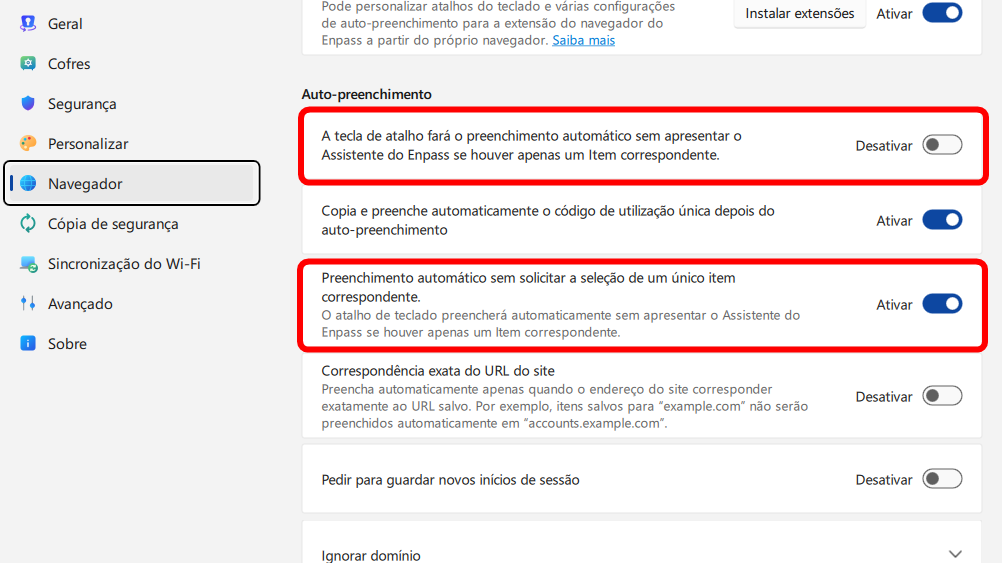
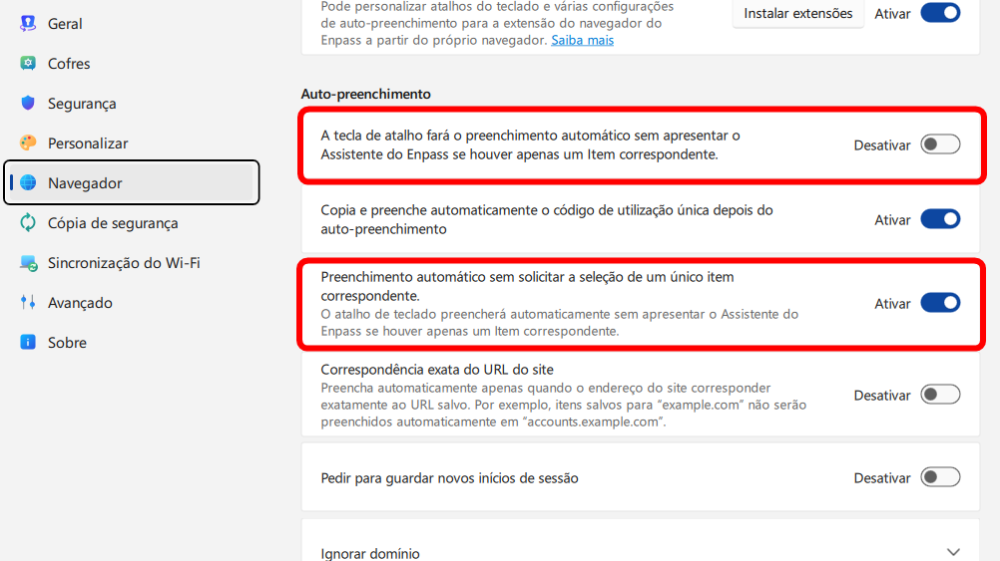
I found a small translation error in the Portuguese version of Enpass (version 6.12.0 x64.2413 for Windows). In Settings → Browser → Autofill, two distinct options display the same meaning: Automatically sign in after filling in login details Autofill without prompting to select for single matching item Both are translated as "O atalho de teclado preencherá automaticamente sem apresentar o Assistente do Enpass se houver apenas um Item correspondente". The error does not occur in English. While we're at it... The addition of Brazilian Portuguese would also be very welcome.
-
Every custom icon manually uploaded by the user is resized to 200×200 pixels (you can confirm this by navigating to %appdata%\Sinew Software Systems Pvt Ltd\Enpass\temp while Enpass is unlocked). Because of this, I believe this is simply a display issue introduced by the new version; icons that are already saved, as well as future ones, will continue to be stored the same way. Tip for other users: I recommend using images at 200×200 pixels or slightly above, as Enpass always resizes to that value. Images smaller than 200×200 will not only result in a final file with a larger size on disk after conversion, but will also have lower visual quality. On the other hand, there is no need to use very large files, such as 500×500, since they will also be converted to 200×200 and the visual result is identical to that of an image already at that resolution. Using a 200×200 image directly always results in a smaller file; in the long run, this helps keep your password vault more compact.
-
[DELETED]
-
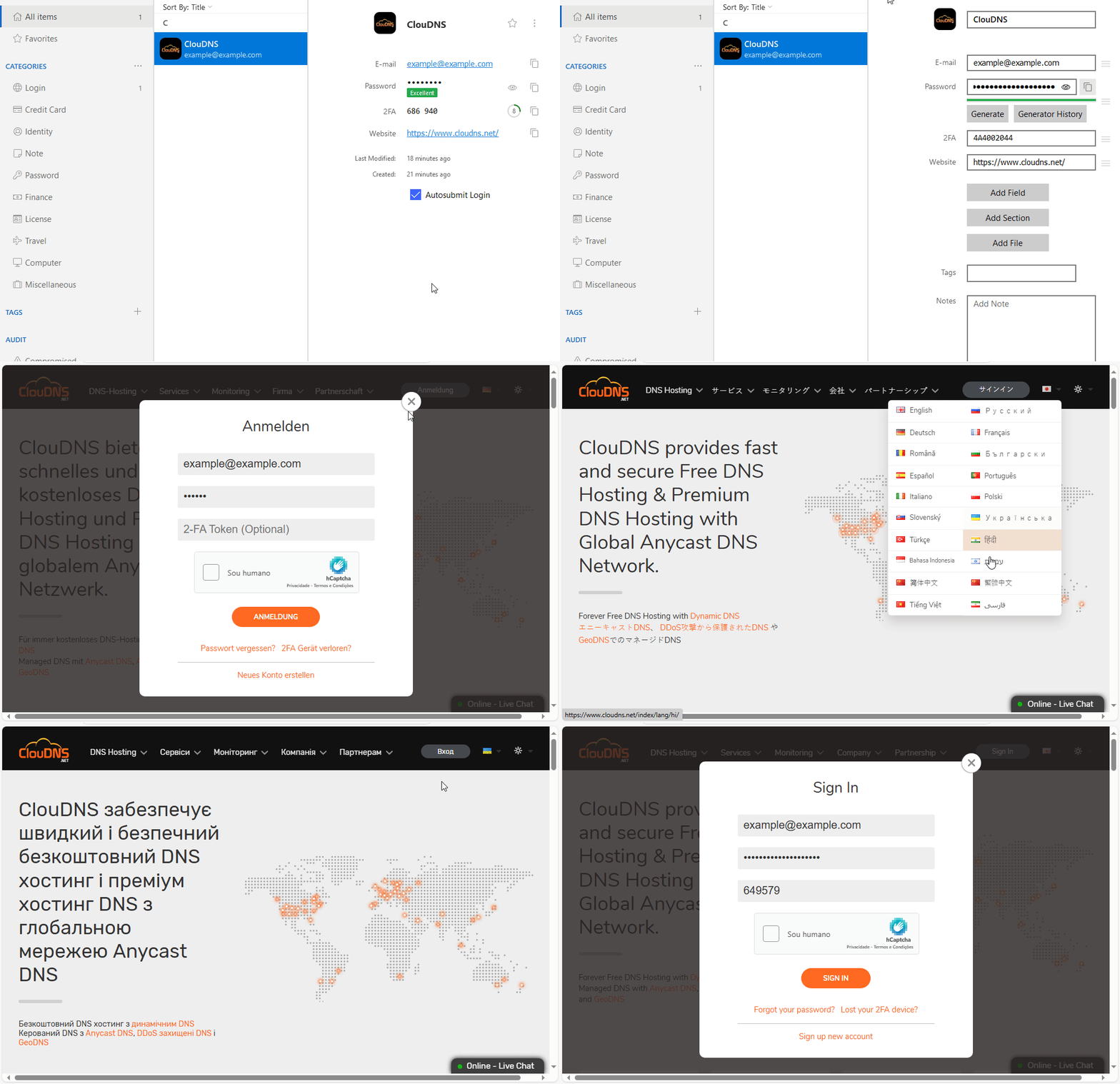
Oh, that's a shame. Apparently, the "Sign in with passkeys across related domains" in the update notes refers to a completely different context. Thanks for the update.Perhaps the latest version 6.11.20 has fixed this behavior?It's available again.Until last week, the lifetime plan was still available on the website. I had checked the price at the time, but now that option is no longer offered.This issue was fixed in the Jan 2, 2025 update (v6.11.2) for Chrome, Edge, and other Chromium-based browsers, and in the Jan 16, 2025 update (v6.11.3.2) for Firefox. Filling issues only need to be addressed on the extension side. The extension handles all the heavy lifting, while the Enpass app simply provides the necessary information. So for fixes like this, a simple extension update is all it takes.Enpass is not autofilling the password and 2FA fields correctly on the website https://www.cloudns.net/. The Email field is filled correctly, but: The Password field is being filled with the 2FA information. The 2FA field is not being filled (it remains blank). Additional Information: Operating System: Windows 10 Pro 22H2 (Build 19045.5371) Enpass Version: 6.11.7 (1859) (website version) Browser Extensions: Chrome v132.0.6834.84 + Enpass Extension v6.11.3 Edge v132.0.2957.115 + Enpass Extension v6.11.3 Firefox v134.0.1 + Enpass Extension v6.11.3.2 I hope the team can address this issue in a future update. Update: The issue was fixed in version 6.11.10 of the browser extension. As noted in the release notes: “This update includes minor bug fixes and improvements for a more reliable experience.”This may be related to this other topic. Auto-type would work in this case too.+1