


Bucanero
Members
-
Joined
-
Last visited
-
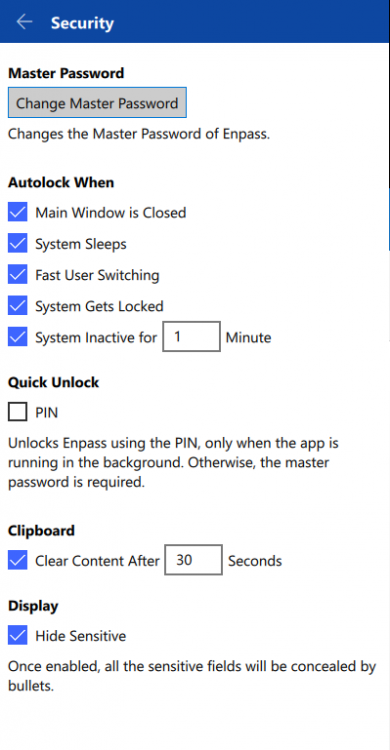
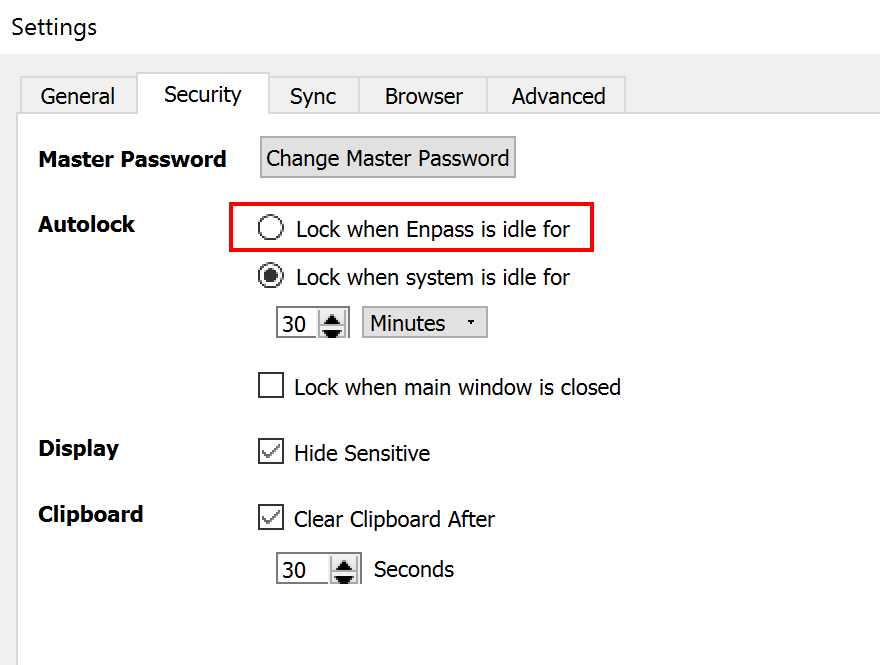
Note that the "Autolock when System inactive for X minutes" is not the same as "Autolock when Enpass is idle for X minutes". The latter is missing on the newest Enpass version.
-
Take a look at the security settings on new version vs. previous version (attached).
-
In v6 you have to click 3 times in order to bring the full Enpass GUI up. Please provide an option to set/modify this behavior. Thanks.
-
It was removed in v6. In my opinion, it's a huge setback and a huge SECURITY issue. I was horrified when I went to my system tray to open Enpass and I was already logged in! I mean, you can't remove such a key feature just like that, especially when people have had this setting configured for ages and are used to the application locking itself after being inactive for X amount of time. Many people might not even find out about this for some time, leaving their account data potentially exposed to anyone else who -even by chance- opens the application. Enpass Team, please do right by your users and fix this security issue.
-
The feature was removed in v6. In my opinion, it's a huge setback and a huge SECURITY issue. I was horrified when I went to my system tray to open Enpass and I was already logged in! I mean, you can't remove such a key feature just like that, especially when people have had this setting configured for ages and are used to the application locking itself after being inactive for X amount of time. Many people might not even find out about this for some time, leaving their account data potentially exposed to anyone else who -even by chance- opens the application. Enpass Team, please do right by your users and fix this security issue.
-
They removed the feature in v6. In my opinion, it's a huge setback and a huge SECURITY issue. I was horrified when I went to my system tray to open Enpass and I was already logged in! I mean, you can't remove such a key feature just like that, especially when people have had this setting configured for ages and are used to the application locking itself after being inactive for X amount of time. Many people might not even find out about this for some time, leaving their account data potentially exposed to anyone else who -even by chance- opens the application. Enpass Team, please do right by your users and fix this security issue.
-
They removed the feature in v6. In my opinion, it's a huge setback and a huge SECURITY issue. I was horrified when I went to my system tray to open Enpass and I was already logged in! I mean, you can't remove such a key feature just like that, especially when people have had this setting configured for ages and are used to the application locking itself after being inactive for X amount of time. Many people might not even find out about this for some time, leaving their account data potentially exposed to anyone else who -even by chance- opens the application. Enpass Team, please do right by your users and fix this security issue.

