Clamsy
Members
-
Joined
-
Last visited
-
Hello Enpass Support Team, I would like to report a bug that has been occurring for several months across multiple Apple devices. My Environment Enpass Pro / Lifetime license (I was upgraded from the former free version to a free Lifetime license years ago) Devices: iPhone 17 Pro iPhone 15 Pro iPad Air Operating systems and apps are up to date Browser: mainly Safari The issue occurs both in Safari and inside apps Problem Description The problem happens especially when using Passkeys. When I try to log in to a website or app (for example PayPal), the corresponding Passkey is often not shown in Enpass. Even if I manually search for the entry, it does not appear. At the same time, Enpass frequently displays the following message: However, this message is incorrect because I already have a Pro/Lifetime license. Regular passwords usually still work, although the issue sometimes occurs there as well. With Passkeys, however, the problem happens almost all the time. Workaround The only workaround that currently works is: Cancel the Passkey/password request Return to the iPhone/iPad home screen Open Enpass manually After opening Enpass, it seems to switch back into Premium mode Reopen the website or app Now the Passkeys/passwords are found and work correctly again Unfortunately, I cannot determine what exactly causes Enpass to suddenly switch into “Lite Mode.” The problem has been occurring repeatedly for months on multiple devices. Since the issue mainly affects Passkeys, using Enpass has become very unreliable. I would appreciate it if you could investigate this issue. If needed, I can also provide screenshots or additional information. Best regards, Clamsy
-
Another discovery regarding Safari on Mac: When the page for entering the TOTP appears, the code doesn’t autofill as expected. However, if I right-click on the input field and select “Paste,” the TOTP is filled in correctly. It seems that Enpass is at least copying the code to the clipboard, but it doesn’t autofill and submit it automatically as it does in Firefox. This might be a clue to what’s going wrong with Safari’s handling of the process. I just discovered something interesting: When I use Firefox on my Mac, everything works as expected. The one-time password is autofilled correctly. This suggests that the issue might be related to a specific Safari setting or possibly a bug in Safari itself. If anyone has insights into Safari-specific configurations that might impact Enpass functionality, please let me know!
-
I just discovered something interesting: When I use Firefox on my Mac, everything works as expected. The one-time password is autofilled correctly. This suggests that the issue might be related to a specific Safari setting or possibly a bug in Safari itself. If anyone has insights into Safari-specific configurations that might impact Enpass functionality, please let me know!
-
Hi everyone, I’m facing an issue with Enpass (Mac 15.0.1) in combination with Safari (18.0.1) and PayPal’s 2FA. Previously, I had SMS-based 2FA enabled, and everything worked seamlessly: Enpass autofilled my email and password, and Safari would recognize the SMS code and fill it in automatically. Now that I’ve switched to the one-time password (TOTP), the convenience is gone. The login process works, but handling the one-time password is frustrating: 1. Enpass correctly fills in the email and password. 2. I then need to switch to Enpass, search for the PayPal entry, copy the one-time code, go back to the browser, paste it manually, and continue. This is very annoying, especially on iPhone and iPad. Here’s what I’ve configured in Enpass: • Autofill login details automatically is enabled in the PayPal entry. • Browser settings: “Automatically copy and fill one-time code after autofill” is enabled. • Safari Enpass settings: Both “Autofill on page load” and “Show Inline Autofill Popup Menu” are enabled. Despite these settings, Enpass doesn’t autofill the one-time password. Does anyone know how to fix this? Unfortunately, I cannot switch back to SMS-based 2FA because PayPal doesn’t allow re-enabling SMS once it’s been disabled. Thanks in advance for your help! Questions: 1. Is this a known issue with Enpass? 2. Is there a setting I might have missed? 3. Does anyone have a solution to make this process more seamless, especially on iPhone/iPad? Best regards, Clamsy
-
It is always the same.... First you try for hours, days etc. and you don't get along. Then you write annoyed in a forum with screenshots etc. And then suddenly it works with the app password... It is to become crazy ;-)
-
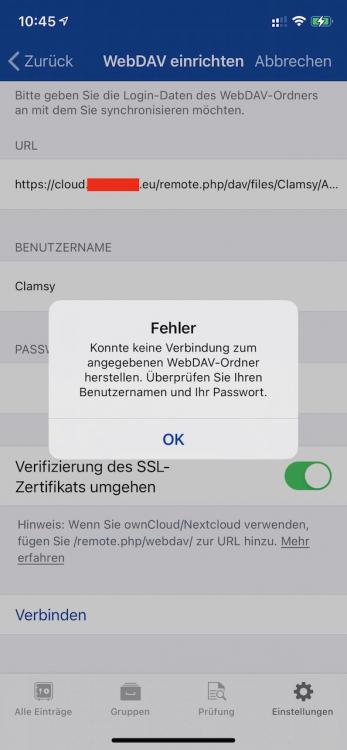
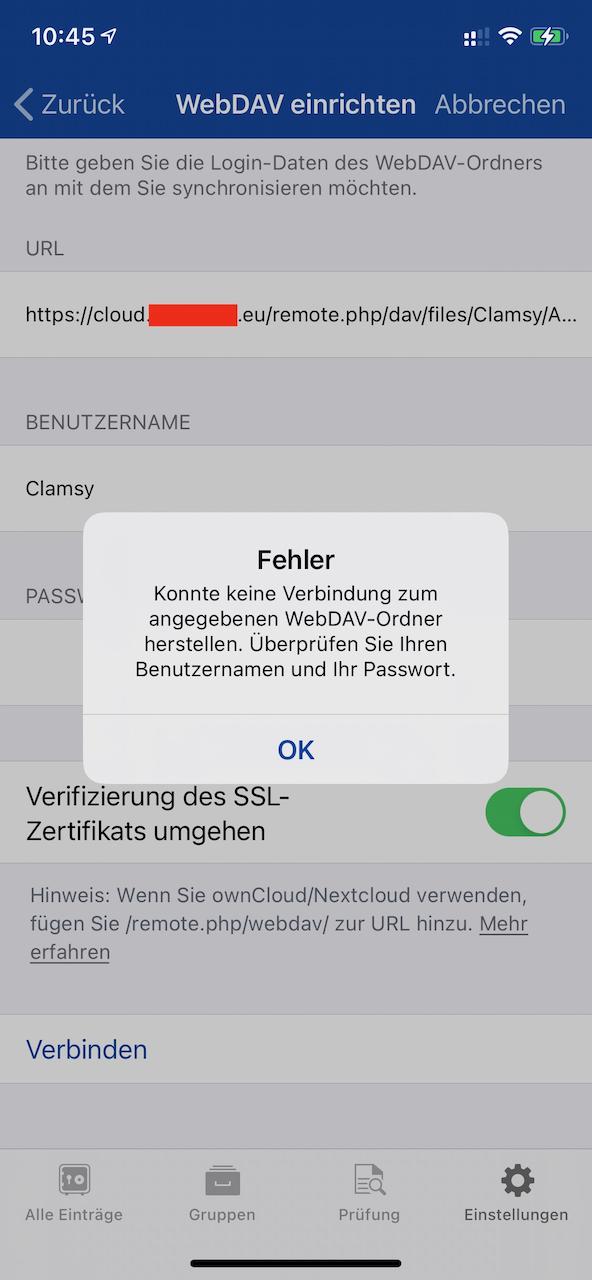
Hello, I am using version 20.0 of Nextcloud and I can't synchronize my database. On my 2 Mac I can set up the synchronization wonderfully. The address is: https://cloud.myserver.eu/remote.php/dav/files/Clamsy/Apps/ My username: Clamsy My password: secret There it works. But if I want to synchronize the iPhone I get the error: "Could not connect to the specified WebDAV folder. Please check your username and password". Bypass SSL Verification is enabled. Username and password is correct. I have also tried an app password. Unfortunately also without success. What can I do?