

mbrustad
-
Posts
6 -
Joined
-
Last visited
Posts posted by mbrustad
-
-
16 minutes ago, Anshu kumar said:
Hi @mbrustad,
Not for now!
Is it in pipeline?
Or can I help with the translation? -
20 minutes ago, Anshu kumar said:
Hi @mbrustad,
Thanks for your suggestion. I have noted down your suggestion and forwarded to concerned team.
Cheers!
Thanks

-
Hi,
Is any translation to Swedish in progress?
-
 1
1
-
-
Hi,
I would like to see an new menu item when you touch the password field.
Android Version 5.4.6Today where is Copy and the item I thinking of is "Large type", see attached images.
It will make it easier for me to read my passwordBest regards
Magnus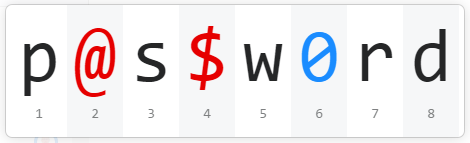
-
Hi,
I miss a feature where I can change the font size in the app.
This to make the inormation more readable.Regards
Mbrustad
Issues with Android app
in Android
Posted
Hi,
Item 2 in @gaetawoo post
2. SECURITY BUG: When entering Master Password on Android for the first time after installing the app (in order to sync the database), the typed characters show up on the keyboard prediction bar, which means that text entry field is NOT coded as a password field (which would not show the characters in the keyboard prediction box). It's just an obfuscated normal text. Some keyboards automatically saved typed words or entries. Or someone may be peeking and see the entire password typed out in the keyboard box even if it's obscured in the field.
Also exist when you choose to edit a password field of an existing record
Samsung Galaxy S7 Edge, Android 7.0