Skip to content
View in the app

A better way to browse. Learn more.

Enpass Discussion Forum

A full-screen app on your home screen with push notifications, badges and more.

To install this app on iOS and iPadOS
  1. Tap the Share icon in Safari
  2. Scroll the menu and tap Add to Home Screen.
  3. Tap Add in the top-right corner.
To install this app on Android
  1. Tap the 3-dot menu (⋮) in the top-right corner of the browser.
  2. Tap Add to Home screen or Install app.
  3. Confirm by tapping Install.
  • Search By Tags

    Search will match any tag entered
  • Search By Author

Content Type

Forums

  • General discussion
    • Hot topics
    • Enpass Support & Troubleshooting
    • Registration and Purchases
    • Autofilling and Desktop Browser Extensions
    • Data Security
    • Announcements
  • Help us improve Enpass
    • Feature requests
    • Enpass Beta
    • Localization
  • General discussion

Find results in

Find results that contain...

Date Created

  • Start

    End

Last Updated

  • Start

    End


Filter by number of...

  • Minimum number of replies

  • Minimum number of views

Found 2 results

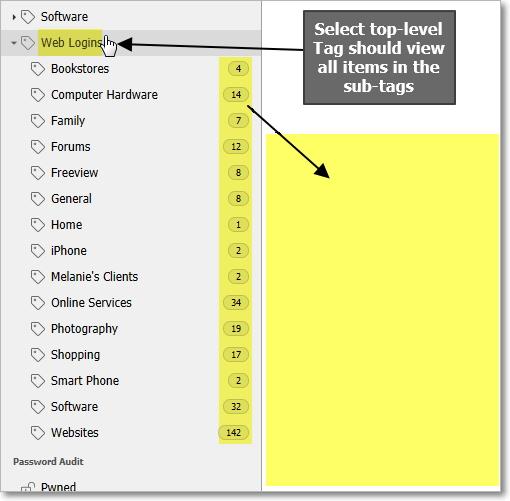
  1. It seems logical that when I click on a top-level tag, the items of all sub-tags should display in the item list. Without this, I need to click each sub-tag to view the items within. At times it would be great to view all sub-tag items in one list when a top-level tag is selected.
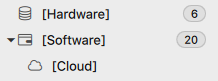
  2. This may be the case on the Windows version too. Don't have time to check it right now.
Account

Navigation

Search

Search

Configure browser push notifications

Chrome (Android)
  1. Tap the lock icon next to the address bar.
  2. Tap Permissions → Notifications.
  3. Adjust your preference.
Chrome (Desktop)
  1. Click the padlock icon in the address bar.
  2. Select Site settings.
  3. Find Notifications and adjust your preference.