

Kölle
-
Posts
8 -
Joined
-
Last visited
-
Days Won
1
Kölle's Achievements

Newbie (1/14)
4
Reputation
-
+1 This was possible in Enpass 5, would also love to have this behaviour back.
-
Copy paste directly from object without having to click it first
Kölle replied to Damasta's topic in Feature requests
+1 I also would appreciate to have that feature back. -
+1 I can reproduce this behaviour (on Windows as well as on Linux).
-
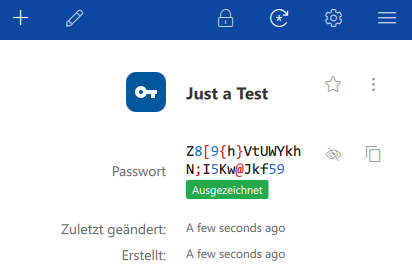
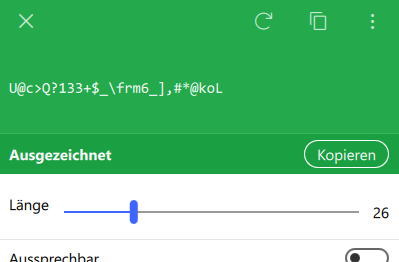
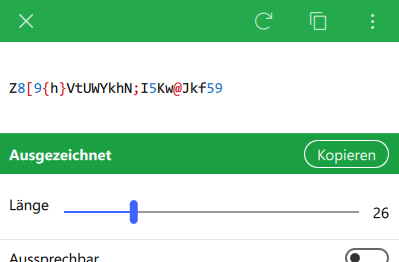
Hi OLLI, this is already the case. If you open an entry and show the password it is colorized: Only if you are in the password generation dialog it isn't colorized. I think that is because the generated password is display on a green background and mixing this with other colors could under some circumstances lead to hard to read passwords. @EnpassTeam: My only idea for this to work nicely would be something like the following:
-
I also think that the default search option should be to search in all fields except passwords and only passwords as a separate option.
-
Thank you Anshu, that helped! Now I have active Web-Protection with working Enpass Browser Plugin For the others: I took Solution 1 in the link above and it works like a charm.
-
Hey guys, thanks for the hint on Sophos. That was it for me. Here is the Solution (more of a Workaround): If you are using "Sophos Endpoint Security and Control" like me you have to disable "Web-Protection". Unfortunately it isn't possible to create exceptions in this module - very sad. But.. now I can auto-fill again - that's more important as I'm taking "web security" in my own hands anyway. Let me know if this helped you.
-
Same issue here, since 5.4.* (am on 5.4.1 right now). Using Chrome Version 55.0.2883.87 m
