

AnakinCaesar
-
Posts
136 -
Joined
-
Last visited
-
Days Won
25
Posts posted by AnakinCaesar
-
-
Seems like @Amandeep Kumar is not really suited to give support - such a shame the last guy was more capable…
-
You could maybe setup a local webDAV Server and sync to it.
-
3 hours ago, AnEnpassUser said:
You may want to let your support representatives know that the flatpak is NOT an official version. I just received this response from them:
While I do not understand what you are trying to imply let me clarify neither do I work for Enpass nor is my answer always right, I just quoted the official DL page.
-
12 hours ago, AnEnpassUser said:
Can you confirm that the Flatpak is NOT an official release from Enpass? If so, I feel I should change my master password ASAP.
All official releases are listed here aswell as how to obtain them: https://support.enpass.io/app/getting_started/installing_enpass.htm
-
1 hour ago, Amandeep Kumar said:
I totally understand your concern. Let me clarify: if you have a one-time premium lifetime plan, you'll continue to receive all future upgrades and updates for Enpass without any additional cost. This lifetime plan ensures that you get access to all features and benefits, just like users with the premium monthly or yearly plan. So, you won't miss out on anything, and you'll enjoy the full functionality of Enpass for as long as you use it.
I doubt that will be the case forever, like you screwd us Pro Lifetime users over when you made the change. Not even a possibility to upgrade into the Premium Lifetime, just a eat or die situation. Very poorly handled.
-
 1
1
-
 1
1
-
-
If I remember correctly, there will be no support from Enpass for older versions, as they told in other topics.
Which also raises the question, why use such and outdated version?
-
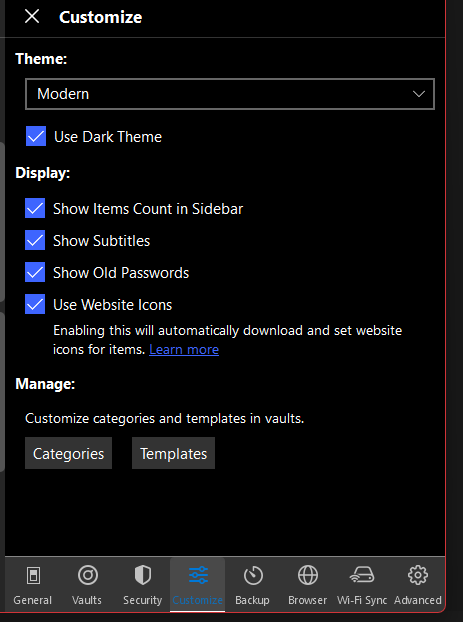
See, if your settings are set like this regarding your item count.
-
The issue lies within the login form handling, either Deutsche Bank has their order messed up or Enpass chooses the wrong order.
Order = which login button has a "higher" priority, comes next when pressing "TAB"
-
Enpass just pulls 25 entries randomly from your vault.
-
1
-
-
Did you also move the entire folder structure? "MyFiles" -> "Apps" -> "Enpass" -> "vault.enpassdbsync"?
"Apps" need to be the name in the language your OneDrive is set to, so I suppose in your case it would be "Anwendungen".
I just tested this with a newly created setup and moved the file from one OneDrive to another, without any issue.
Also, did you setup the new vault within OneDrive B before or after moving? And ofcourse you have to sign-in into OneDrive B to sync your data.
-
This is a iOS specific way of sorting, nothing out-of-the-box Enpass could fix. Look into the sorting at your contacts. Special characters also come last.
-
10 hours ago, bu11etpr00f said:
I'm wondering if they are even still here... The last post by any enpass team member was back on January 23rd, and November 2023 before that... Not good for business...
That's just not true lol. Last reply was yesterday.
-
I guess you don't. Thats the downside of using the free version.
-
Starter is a flatline price of 10$ for 10 people -> 1$/person.
If you need more than 10 licenses, you'll pay more $$ per user. Simple as that.
-
16 hours ago, cuco said:
I tried https://license.enpass.io/ and it just shows "not found". That's it. No certificate popup.
The popup doesnt show automatically. Depending on your browser you have to click on a specific part in the adressbar to get to see the certificate.
-
You are correct, vaults do not sync to other devices, rather you have to manually add them on each and every device. That's the perk of using an non-cloud based password manager. To add an existing account, you just "add" and "create" a "new" vault. If there's an existing vault with the credentials you enter then, it will be synced, not newly created.
-
- Mark all the passwords you want to migrate between the vaults (CRTL+A for all).
- Right-click on the marked entries and select "Add to Vault"
- Select the new vault and "Move"
- Be happy.
-
5 minutes ago, sepahewe said:
WindowsStore
Well, I'm using that one aswell and I haven't had this issues since the FF update to 120.0.1
Have you tried removing and adding the Add-On and see if this fixes it?
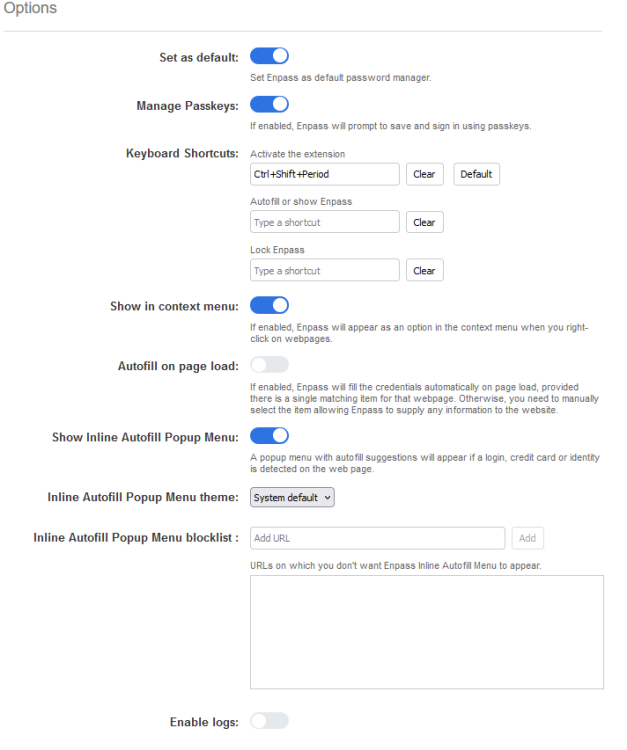
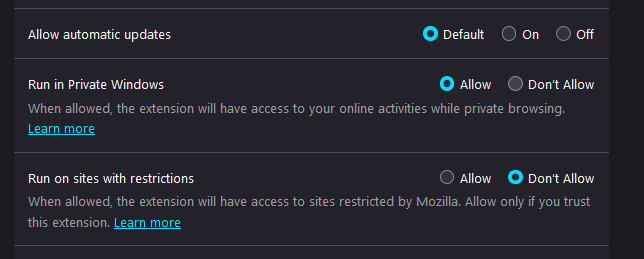
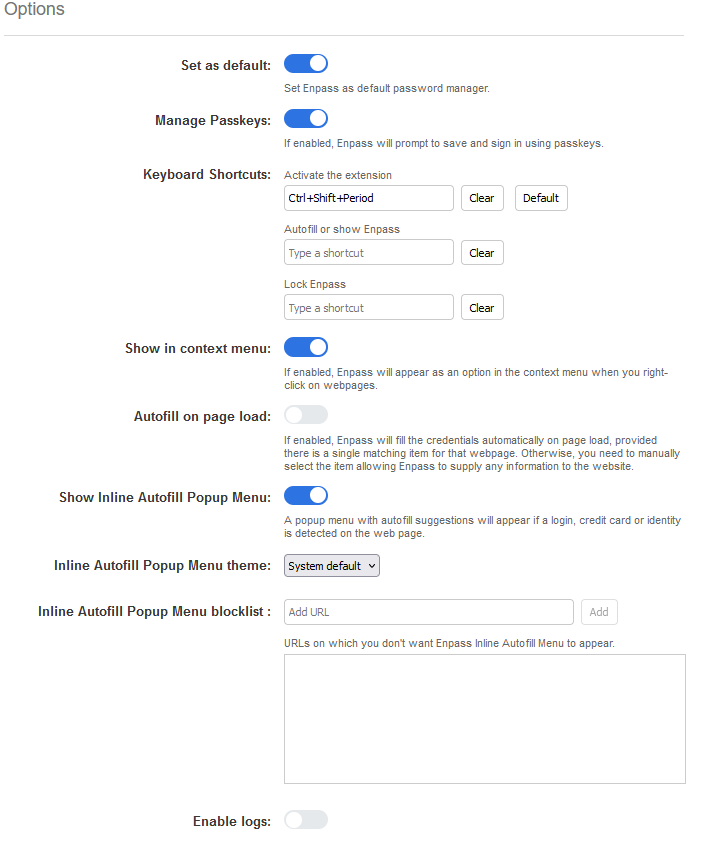
What are your extension settings? Here are mine:
-
Out of curiosity: Are you guys using the WindowsStore App or the independent installer?
-
In what way does this machine differ from your other machines, that are working? Maybe a program is blocking something? Or are there any updates missing, that might fix this problem? Maybe try the windows store version?
-
So I got the FF update to v 120.0 and haven't had the issue since.
Anybody else can confirm or deny?
-
take a look here. -
I had to face this issue yesterday for the first time aswell. Same software versions, besides me using Win 11 23H2. A quick restart of the browser fixed it at that point, but your post suggests, there is more going on.
-
1
-
-
I use Windwos Hello on an everyday basis at work - multiple other companies do it aswell, so I would suggest it is safe. As for a model, I can not recommend any, as I use the build-in from my laptop.
Facility to Add items to the SideTool Bar
in Feature requests
Posted
Open "Settings" navigate to "Customization", click on "Categories" and add your new categorie. Then under "Edit" you can select which shall be shown.