Leaderboard



Popular Content
Showing content with the highest reputation on 12/21/21 in all areas
-
Ok I did as you asked and the filling seems correct now, so that's good . But I still don't have the option "Show Webform" as in your screenshot (I do use firefox as browser). Is that something I need to fix?1 point
-
Update: Problem solved by myself First I had to delete the cache of my Chrome browser completely, then I had to delete all saved passwords in Chome in conjunction with the profeesional Microsoft account (Office, OneDrive etc.) and finally I had to disconnect and then reconnect the vault synchronisation with OneDrive. I was then prompted in the browser to enter an email address and thereby select the correct OneDrive account. Yippie!1 point
-
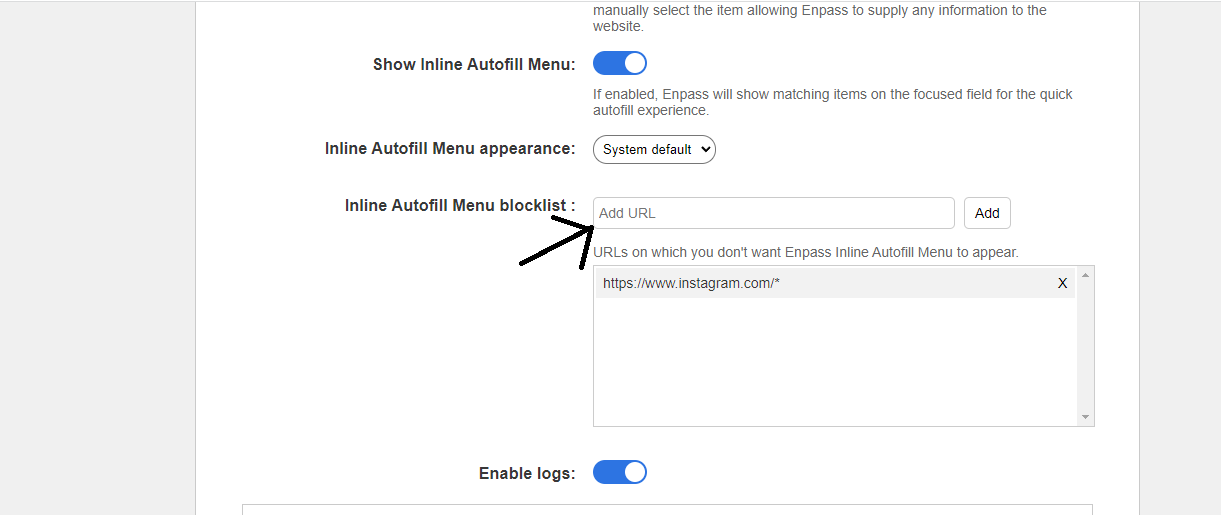
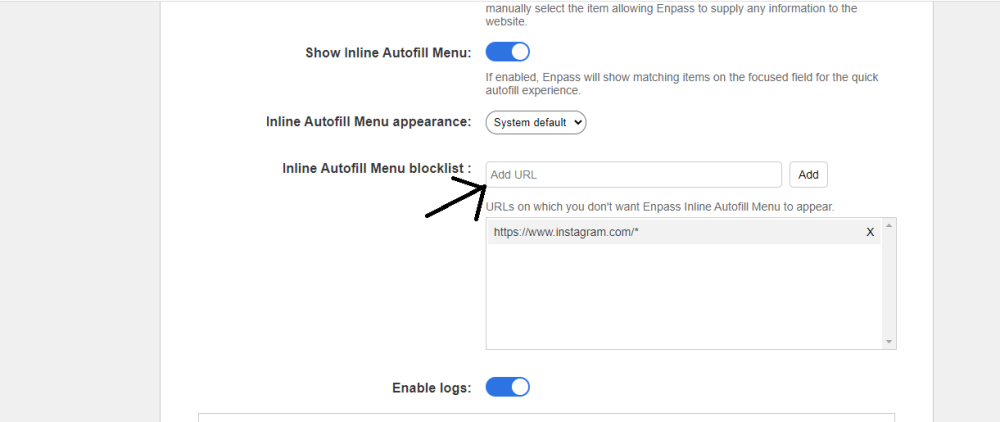
Hi @Deuntje, @drob, @stealth You will be glad to know that our dedicated tech team has reproduced the bug on their end due to which this issue is occurring, and they are now working on a possible fix (to be implemented in the upcoming Enpass versions). In the meantime, please add the web pages on which this issue is occurring to the block list of your Enpass Extension Settings page. Here is how you can do it - On your browser, go to its Settings → Extensions → Enpass Extension → Details. A new page will open. Please scroll down on that page and select “Extension Options“. On the Enpass Extension Settings page, scroll down to “ Inline Autofill Menu Blocklist“, copy the URL of the webpage where this issue is occurring and paste it in the “ Add URL “ field followed by an asterisk in the end. #SI-2505 Appreciate your patience and co-operation in the meantime.
 1 point