
Abhishek Dewan
Enpass team member
-
Joined
Everything posted by Abhishek Dewan
-
Hi @Matt52 Welcome to the Enpass community! You can change the shortcut "CMD+/" on your MAC. Please make sure that you have the latest version of the Enpass application installed and follow the steps in this link. Let me know if after changing the shortcut, is it still opening the Enpass Extension Setting page?
-
Hi @Monyker Thanks for the update. I'm happy to hear that the issue you were facing got resolved. In case of any further assistance regarding this issue, feel free to update this forum, and I'll get it checked for you. Cheers!
-
Hi @Fred05 Welcome to the Enpass community! To assist you better with your query, kindly share the below details with me, and I'll get this investigated for you - Version of the Enpass app on your iPhone, iPad, MAC and Desktop PC. A screenshot of any error occurring would also be helpful. #SI-2501
-
Hi @DenalB Thank you for the suggestion. It is definitely a feature that would be nice to have. I have duly noted your comment and shared it with the tech team so they may check its feasibility and implement it in the future Enpass versions. Appreciate your support and patience in the meantime! #SI-2500
-
Hi @parelius Welcome to the Enpass Forums. If you are using iOS 14 or above on your iPhone, please change the default browser and try again. Otherwise, if you are using an older version of iOS, you will need to log off that particular NectCloud and try again. In case the above does not help, please DM the below details, and I will get this investigated - Version of the Enpass app and OS you are using. The NextCloud URL for testing purposes.
-
Hi @jane, @DenalB You will be pleased to know that Sorting by recently used items for iOS is already in our development roadmap and will be implemented in the future Enpass versions. I have also shared your comment as feedback with the dedicated development team. We appreciate your continued support and patience in the meantime. #SI-1335
-
Hi @Monyker We have reproduced the bug on our end due to which this issue is occurring, and our tech team is now working on a possible fix. A patch addressing this issue will be released in the near future. Appreciate your support and patience in the meantime. #SI-2492
-
Hi @jaydee73 Our dedicated tech team has identified the bug due to which this issue is occurring, and they are working on getting it fixed. A patch will be released, which will address this issue in the near future. We appreciate your continued support in the meantime. #SI-2434
-
Hi @chris007 Once you have added your family members, they can log in to their Enpass application with their own login details. To access the Premium Enpass features, please ask them to register themselves with the same email address you added to the console. They can refer to the steps in this link on how to register.
-
Hi @Maurizio1313 Welcome to the Enpass Community! Windows Hello feature provides you with another means to open your Enpass application instead of entering your master password every time. It is secure to use Windows Hello to access your Enpass application however, it does not replace your master password completely, and you might be prompted to enter your master password in order to access Enpass occasionally.
-
Hi @Elmo Welcome to the Enpass Community! Our dedicated tech team is looking into the feasibility of the requested feature to implement it in the future Enpass versions. I have also shared your interest in this feature with the tech team as a feedback. Appreciate your patience in the meantime! #SI-1021
-
Hi @ng4ever Keeping a .csv file as your backup file is not recommended as it is not secured by your master password. The best way is to backup your data, and keeping it updated by setting up Cloud Synchronization. Here's how to Backup using Cloud Server and Restore from Cloud Server. Hope this helps!
-
Hi @ng4ever You must have received a ticket id when you emailed us your concern. Please share that with me, and I'll get this checked for you.
-
Hi @Monyker To get this concern investigated, could you please share the name of the app, along with any other apps where a similar issue is occurring? Awaiting your response
-
Hi @Ingrove I will gladly help you with the issue you are facing. Please share the below details with me once, and I'll get this cheked - Version of the Enpass app and Extension you are using. The cloud server you are using to synchronize your data. Are you facing a similar issue with other browsers as well. A screenshot of any error occurring would be helpful.
-
-
Hi @chris007 They can set the Vault name according to their preference.
-
Hi @ironylife I was able to find a support ticket you created and reverted on the same. To prevent duplication of efforts, please revert on the same if you have any concerns. Thanks!
-
Hi @mycom75 Welcome to the Enpass Forums. I'm glad to hear it worked for you. After synchronizing your data, you can delete the file oldvault.enpassdbsync.
-
Hi @michaeljcripps Enpass recommends updating from v5 to v6 through the steps I shared with you to avoid any data loss. Do let me know if you need any more help when upgrading to v6!
-
Hi @Mazy Autofill Pop-up covered by Google Chrome Password manager - It may happen if you have saved items in your Google Chrome browser manager. Google Chrome does not allow to disable its own password manager, that's why you may see the overlapping of password managers in some instances. We suggest exporting your Google Chrome passwords to Enpass and then clearing the chrome saved passwords to use your Enpass password manager optimally without hindrance. Autofill Pop-up covered by Safari Password manager - On Safari, you can disable the default password manager by following the steps below - Click the Safari menu and choose Preferences. Click the AutoFill icon. Turn off all the AutoFill settings: “Using info from my contacts,” “User names and passwords,” “Credit cards,” and “Other forms. #SI-2469
-
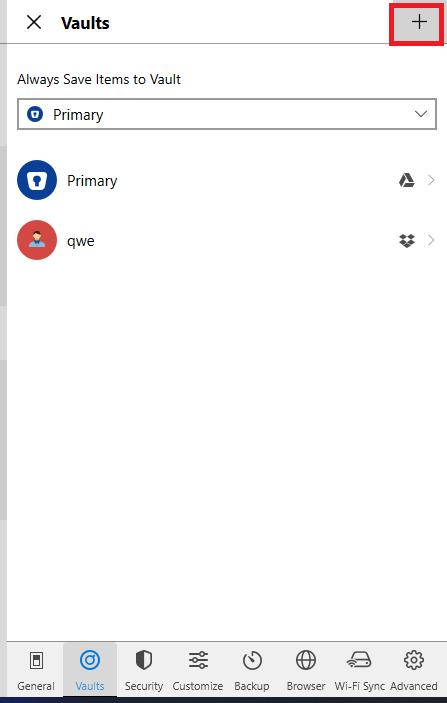
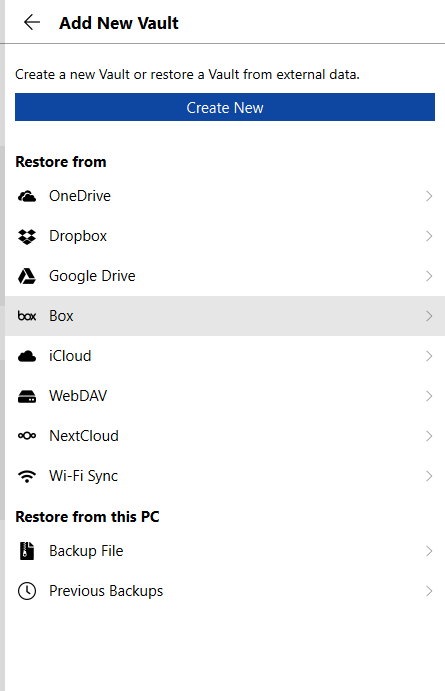
Hi @chris007 Once you have created a vault, copied all your items and synced it with a cloud server (Share the login credentials of the cloud account with members of your choice), please ask your family members to login into their own Enpass with their own master password and do the following steps - Creating a new Vault on their existing Enpass application - On your Enpass Desktop application, go to Settings -> Vaults -> "+" -> Enter any Vault Name. Syncing the newly created vault to the same cloud account - Now a screen similar to the below attached image will open. Please select the same cloud account to which you synchronized the vault you wish to share. It will ask for the cloud account details and password of the vault. After entering the details, all the passwords will be accessible.
-
Hi @michaeljcripps Welcome to the Enpass community! Once you have synchornized your data to a cloud server (Google Drive in your case), please follow the below steps on your new machine with Enpass v6 installed - Step 1: Downloading the Enpass v5 file from the cloud: Log in to your cloud account from a desktop and download the sync file present in the corresponding locations for your Google Drive cloud. The sync file will have an extension .walletx which you can find for Google Drive via Google Drive: My Drive ->Enpass folder –> sync_default.walletx –> Download the file. ii) Step 2: Restoring the v5 file in Enpass v6: On the welcome screen of Enpass v6, choose Restore existing -> Select Files -> locate the downloaded .walletx file. Enter the Master password to authorize and restore data successfully.
-
Hi @agent92 Thanks for the details. Could you please confirm the OS as well on which you are facing this issue? Awaiting your response
-
Hi @all For DropBox issue, please follow the below steps, and let me know if the issue get's resolved - Turn off the sync from all devices. Open Dropbox in any browser --> App --> Open Enpass Folder --> Select vault.enpassdbsync file --> Rename it as oldvault.enpassdbsync. Open Enpass and enable sync with the Dropbox on all the devices