Roger
Members
-
Joined
-
Last visited
Everything posted by Roger
-
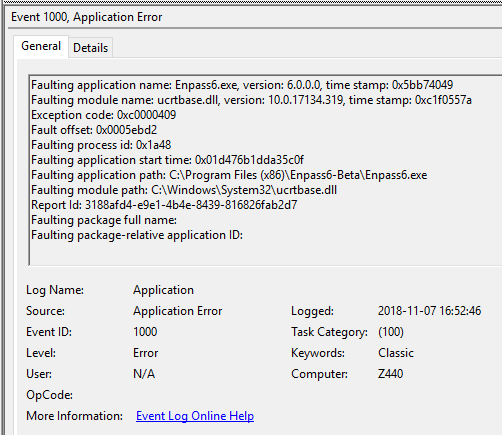
I live in Sweden and we use the characters å, ä and ö often. If i try to attach a file, image or text file, with either å, ä and ö in the file name Enpass 6.0.0 (149) crash when i attempt to save the changes i made. Steps to reproduce: 1. Download and unzip this zip file with four small png-files: https://1drv.ms/u/s!AtFsQF-l3dqLhMp5hpGTJgs2qjTs-g 2. Edit or add any item in Enpass 6 and click on the Add Attachement button. 3. Add one of the following files: Instållningar.png, Inställningar.png or Instöllningar.png 4. Click Save Actual result: Enpass 6 chrashes within seconds. Expected result: That i can add files with å, ä and ö in the file names, just the way i can do successfully in Enpass 5.6.9. Additional info: 1. If you repeat the steps to reproduce it abowe and attach the file named Installningar.png and click Save Enpass 6.0.0 (149) won´t crash. 2. Windows reports the error you can find in the image attached to this forum post.
-
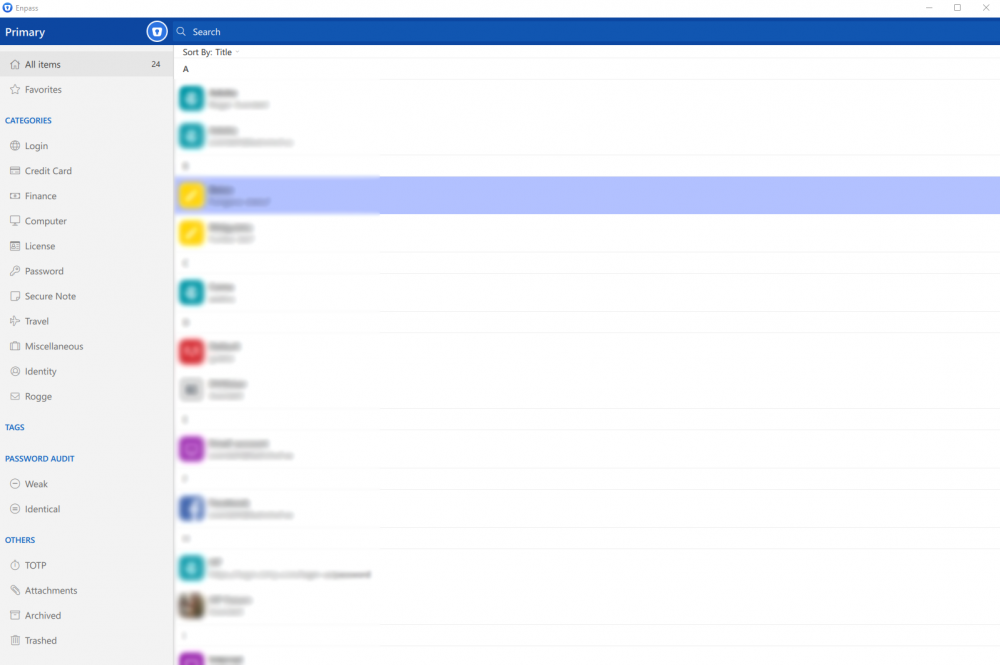
If i run Enpass 6.0.0 (149) at full screen on my 27-inch screen (2560x1440) and adjust the pane divider to the right and then Restore Down (Win+Down Arrow) the far right pane is lost. To get it back i must maximize Enpass and move back the right divider to the left and then Restore down. This is not the case with Enpass 5.6.9.
-
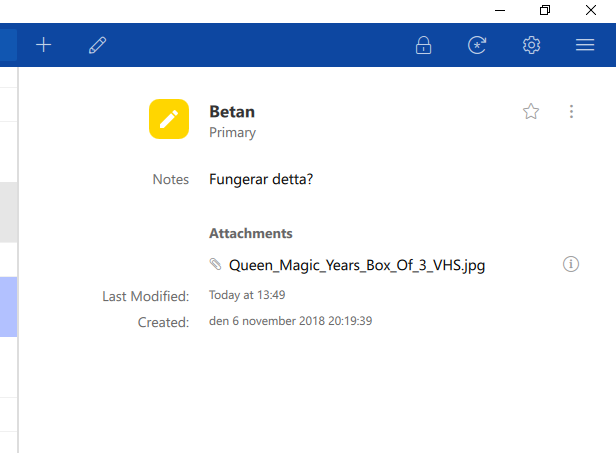
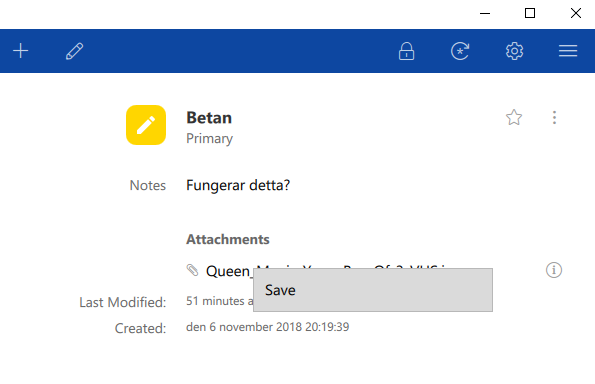
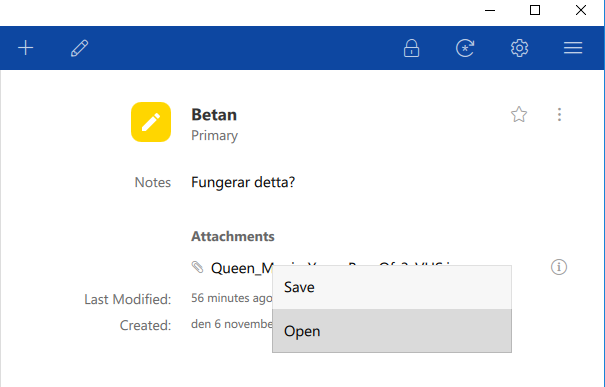
If i attach a image to a login most of the times i can right click on it and choose either Save or Open. But, many times i can only Save and am not able to open the attached image. As you can see in the attached image in this forum post Save is the only option i have. I have not yet found a way to reproduce it to 100%. To solve it when it happens i must under the Primary section click on Attacements to sort out the items that have files attached. When i have done this, i get both options again, iow Save and Open. This works without flaws in Enpass 5.6.9.
-
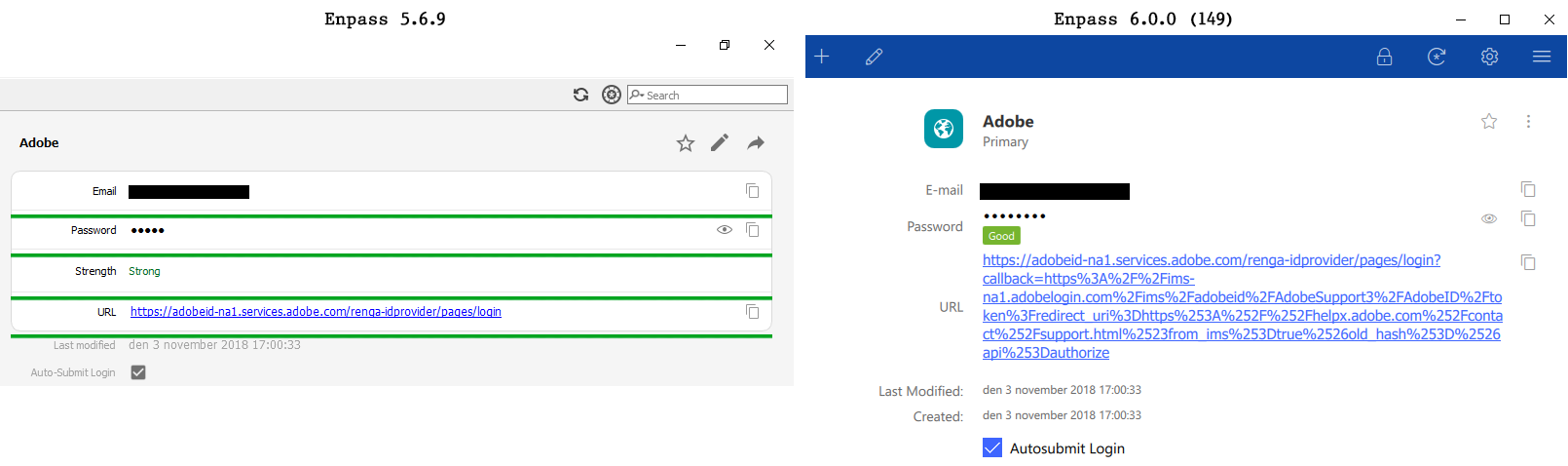
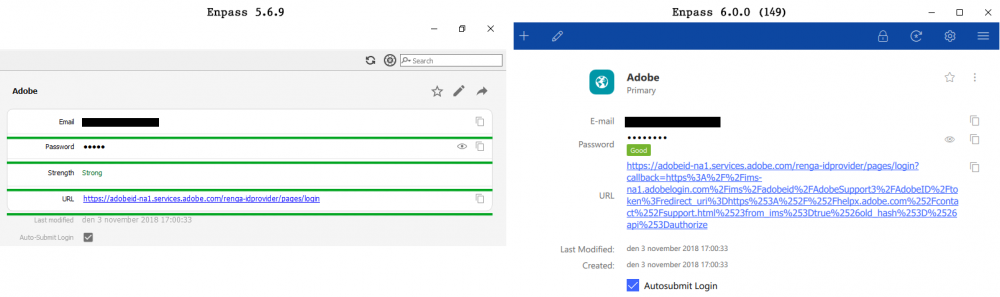
In Enpass 5.6.9 there are lines between each Field making it easier to find the correct Copy or Show/Hide button to the right of the username/password/url. See the attached image were i have marked those lines with green lines and compare it to how it looks for the same login in Enpass 6.0.0 (149). In the attached image the problem may not seem critical, but if i run Enpass 6.0.0 (149) in full screen mode on my 27 inch screen it becomes a problem since the UI by default move the Copy or Show/Hide button away from the Field. I want those lines between each Field in Enpass 6 since they are helpful to guide the end user. A side note: Note that the URL takes up much more screen real estate in Enpass 6.0.0 (149) compared to Enpass 5.6.9. Both version have the very same url in this login so i see no reason to why Enpass 6.0.0 (149) won´t show it as gracefully as Enpass 5.6.9 does.
-
-
I see similar things on Windows when i am trying to save attached images. If the image is named Enpass.jpg it will be saved as Enpass without the .jpg extenstion. If i manually rename the file by just adding .jpg the file is usable. On the attached image below one can see that Save as type is blank and thus will save the file without the correct extension. This is not an issue in Enpass 5.6.9.

-
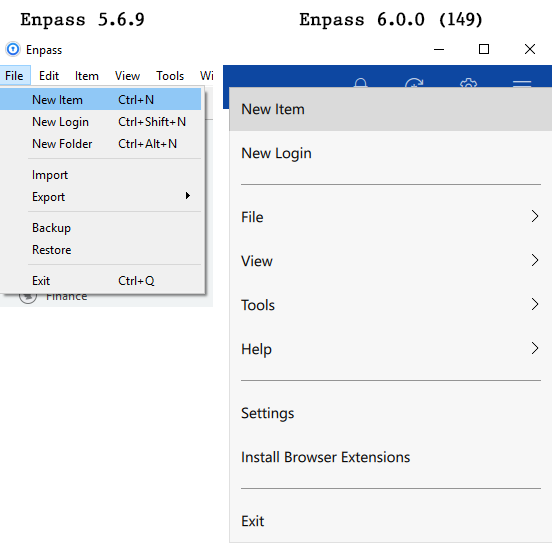
I use as many keyboard shortcuts as possible and the first thing i noticed in Enpass 6.0.0 (149) was that there are no keyboard shortcuts in the menues such as Ctrl+N for New Item. (See the attached images.) Will those be added in Enpass 6? Though they are gone from the menues they still work, iow i can press Ctrl+N to create a new item. But in the long run it makes it hard to keep track of all the aviable keyboard shortcuts. Please bring them back to the menues in Enpass 6.
-
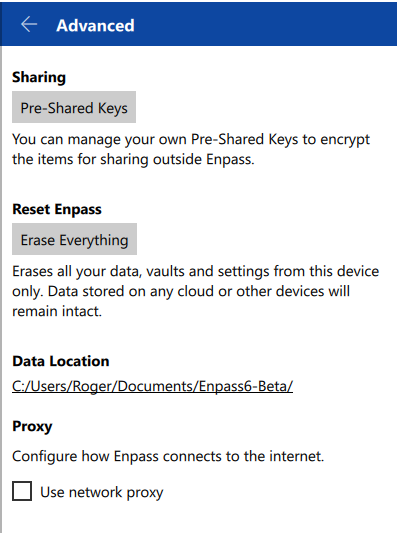
I prefer to store all my personal data on a separate internal hard disk, iow i don´t want to save anything private on the C-drive. In Enpass 5.6.9 it is easy and convinient to change from the default Data Location to any other drive. However, in Enpass beta 6.0.0 (149) i do only see Data Location but i have no Change Location button as i have in Enpass 5.6.9. Will this feature be added in Enpass 6?