Roger
Members
-
Joined
-
Last visited
-
#1 is already there but don´t work anymore for some unknown reason. I want it back as well. The setting can be found here: Settings > General > Run > Minimize app to system tray. I have seen posts about it but no one from Enpass replies, so when/if it will be fixed is unsure.
-
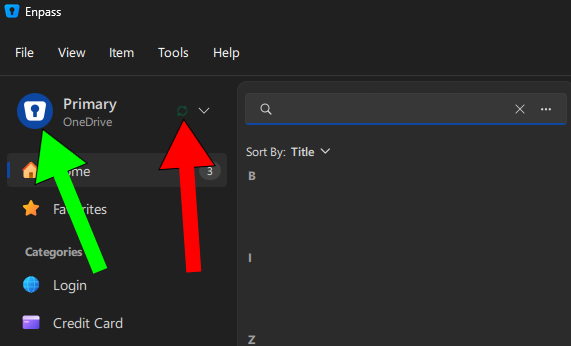
The sync icon in the new UI is very small and almost blend in into the background. See the red arrow to see the tiny, almost invisible sync icon in the new UI. If i remember correctly the icon with the green arrow animated when Enpass synced when one had done an edit or added/removed an item. This was great and clear. Please make the new sync-icon larger and give it a clear green color or restore the old sync-icon/behaviour to the animated icon. (green arrow on the image). I prefer the latter but am happy if the current icon gets bigger and change color to something that is easier too see.
-
Version 6.12.2 does not solve it here on Windows 11. If i open Enpass i must manually expand the Notes section to see the notes. What have been fixed is that if i expand the Notes they will stay expanded until Enpass is closed such as it is when one restart the computer or if you have set the Minimize to system tray in the settings to Off instead of the default On. This does hovewer not solve the issue of having to expand Notes over and over again. It would be ideal if the Notes fiels were always expanded. That´s what we had before and that´s what we want now as well. Or, at least have an option in the Settings so the end user can choose what they want regarding this. I would be ok with if this setting by default works as it does today as long as i can change that back to the old behaviour.
-
Yes, i see this as well when i add a Section. Yesterday i was trying to add POP3 but got Pop3 and IMAP became Imap. I also noted that if i have something written in the Notes section and add a Section it will by default be placed abowe the Notes during the edit, but when i save the Section is nowhere to be found... Edit again and move the Section up works but it was confusing first. Please fix!
-
I have problems with Enpass 6.12.1 and Edge browser with the 6.11.13 Extension on Windows 11. 9 out of 10 times the Extension wont load if i try to log in, iow if i click in a field to log in nothing happens. If the Enpass icon do show up i am promted to unlock Enpass eventhough it is unlocked in the background. Sometimes the Extension requires Enpass 6.12.1 to launch, with yet another unlocking. I could not even log into this forum, that comes with some irony... This happens on more than one computer and it happens when doing a clean install of Windows 11/Enpass. In previous version i just click in the field to log in and Enpass did the rest automagically. For some time now i must manually click on Log In for about 80% of the sites i visit. The beta is version 6.12.0 so it is older than the non-beta version i already have. Any fix for this or is changing to another password manager the solution?
-
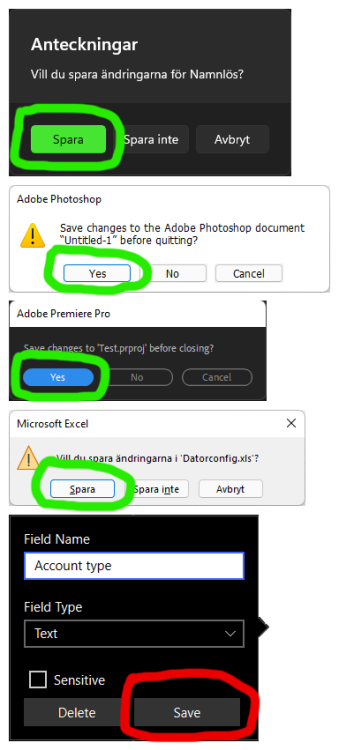
In all applications i use the Save button is placed to the left in the save dialog. However, in Enpass the Save button is placed to the right and the Delete button is the one placed to the left. So, when i edit a field in Enpass i have too many times just pressed the button to the left and instead of saving what i did i ended up deleteing the column. Is there a reason behind why Enpass have the Save button to the right instead of the standard left? So please, follow other applications and place the Save button to the left as one are used to. The attached image shows examples of app that have their Save button to the left while Enpass have it to the right. Please fix! :)
-
I have the latest version of Enpass from Microsoft Store installed on my laptop. I have pinned the shortcut to my Taskbar. When i click once i just see a white blank window pop up briefly and Enpass never launch. When i click a second time on the icon on the Taskbar Enpass do launch. All subsequent launches do only require one (1) click on the icon on the Taskbar until i reboot the computer. This does never happen with the desktop non-Microsoft Store version i have installed on my desktop computer. I can reproduce this issue on both computers with the Microsoft Store version. To reproduce: Install Enpass from Microsoft Store. Pin the shortcut to Enpass to the Taskbar in Windows. Re-boot the computer Click on the Enpass icon on the Taskbar once. Result: The first click won´t launch Enpass. Why is this issue not fixed yet?
-
Seems that a reboot of the computer solved the issue for me.
-
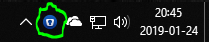
I see the same thing here and though i added the icon to the Taskbar nothing happen when i click it. To open Enpass i must double click on the icon in the tray: Please fix! :)
-
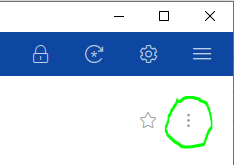
You can either select the item you want to duplicate and press Ctrl+D or select the item and click on the menu in the attached image and make a duplicate from there.
-
This is the best i found: https://www.enpass.io/introducing-enpass-6-crafted-with-the-spirit-of-himalayas
-
Got it! Favicons will be implemented in a future upgrade. They had it in the beta but it had some issues and were removed before release. Personally i hope we will see an upgrade soon as i miss favicons as well.
-
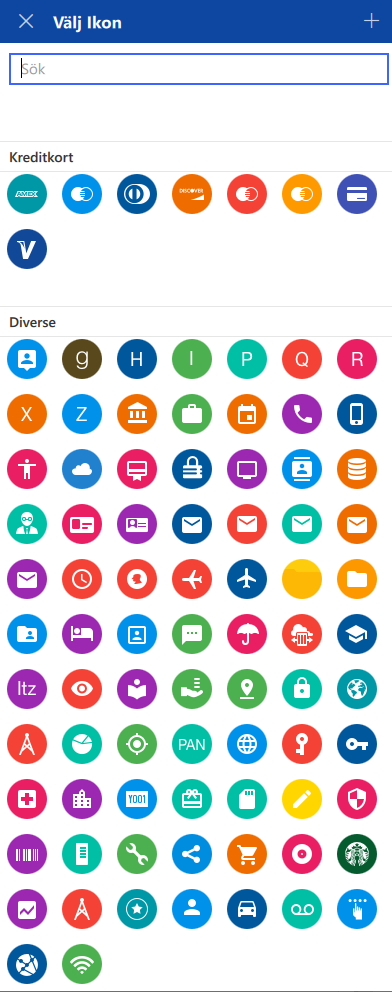
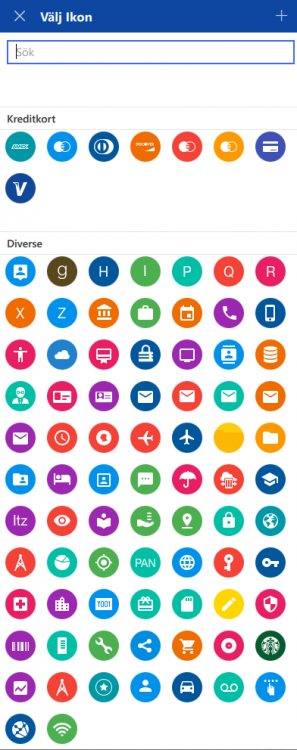
1. Double click on the item as you were to edit it. 2. Left click on the icon in the edit pane. (not right click) 3. Choose the icon that fits your needs. This will let you change the icon from the globe icon to another icon.
-
I just tested this and see the same thing. When i am logged out from Microsoft Store the Premium features in Enpass stops working. So to use Premium features we are forced to be constantly logged into our Microsoft account. Totally unacceptable.
-
I have pinned the Enpass icon to my Taskbar. I expect to click once to launch Enpass but if i click once i can see the UI brief and then it is gone like a flash. Next time i click, iow the second click on the Enpass icon, Enpass launches as expected. I saw this in build 220 and now in build 239. Important: This happens only when i have booted the computer. All subsequent launches of Enpass do require one (1) click. So to reproduce it, reboot the computer, warm boot or cold boot, and let Enpass start in the background and then click one on the icon you have pinned to the Taskbar. Additional info: If i install the desktop version Enpass launches at the first click. (as expected) I can reproduce this on two different computers. (HP desktop Workstation and ASUS laptop)