fermati
-
Posts
44 -
Joined
-
Last visited
-
Days Won
2
Everything posted by fermati
-
Never had this with Sequoia, or nay other macOS. What kind of speakers do you have? Are they wired, Bluetooth, etc? We need more information to try to help you.
-
I can't help feeling we've been duped
fermati replied to Egor K's topic in Registration and Purchases
Today, the extra 30% for Pro users is gone. The 25%, that was 40% for a few hours yesterday, is still there, though. At best, this company is incompetent, but we can always suspect that maybe there is a lack of honesty, enticing people with offers that never existed, and making them disappear as soon as customers expose them. It is unlikely I will ever give more money to Enpass, sorry. -
I can't help feeling we've been duped
fermati replied to Egor K's topic in Registration and Purchases
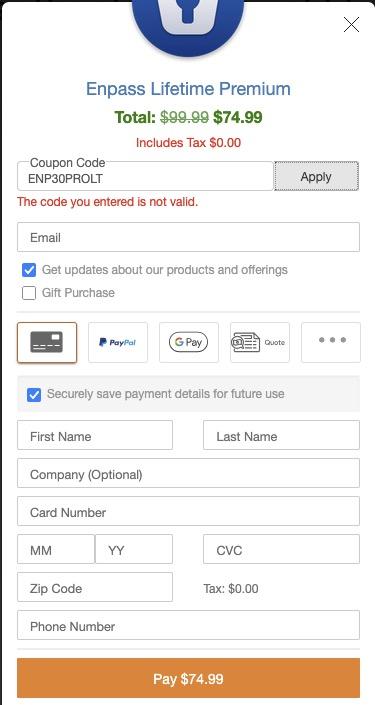
Just an update: a few hours later the offer went down from 40% to 25%, and the code is still invalid. This is turning into a sad joke.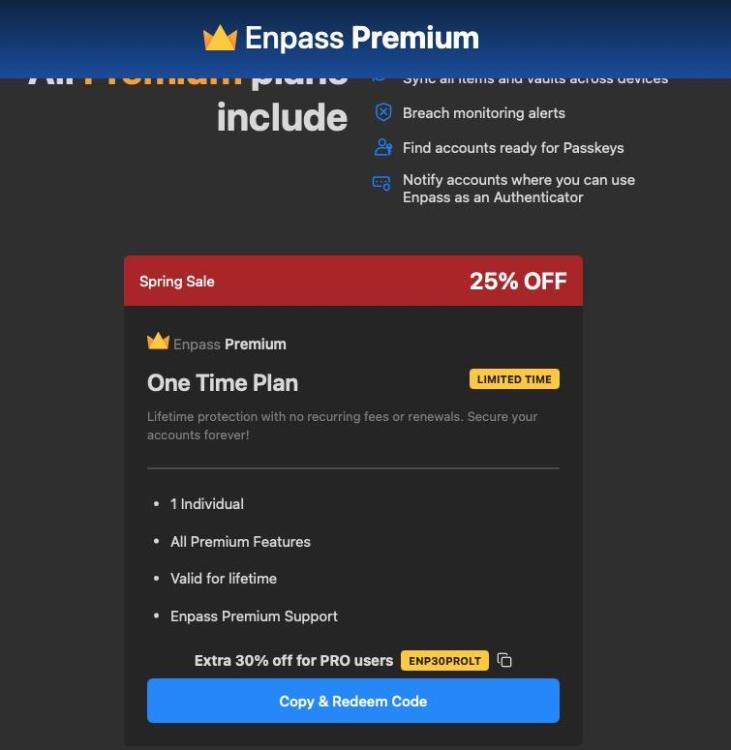
-
I can't help feeling we've been duped
fermati replied to Egor K's topic in Registration and Purchases
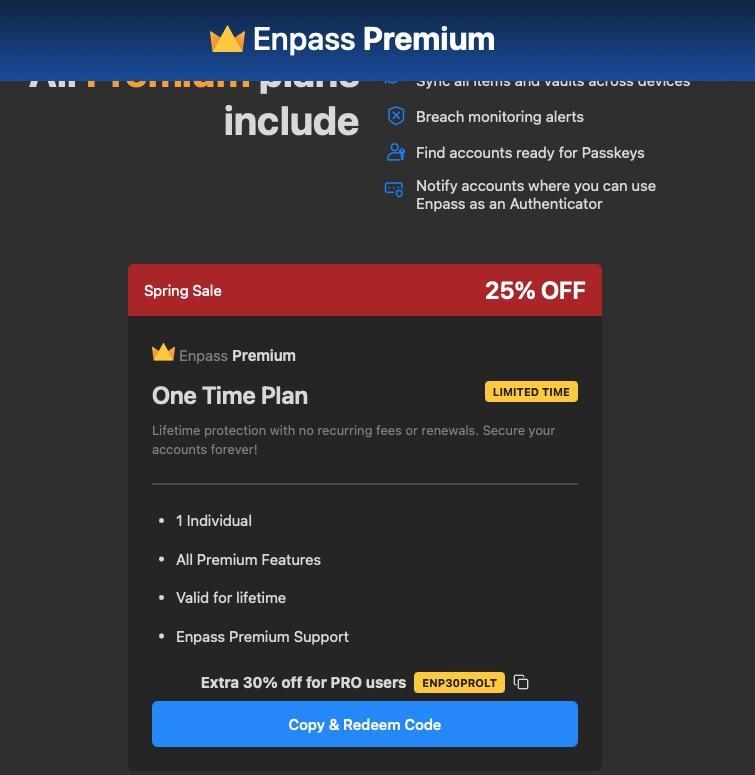
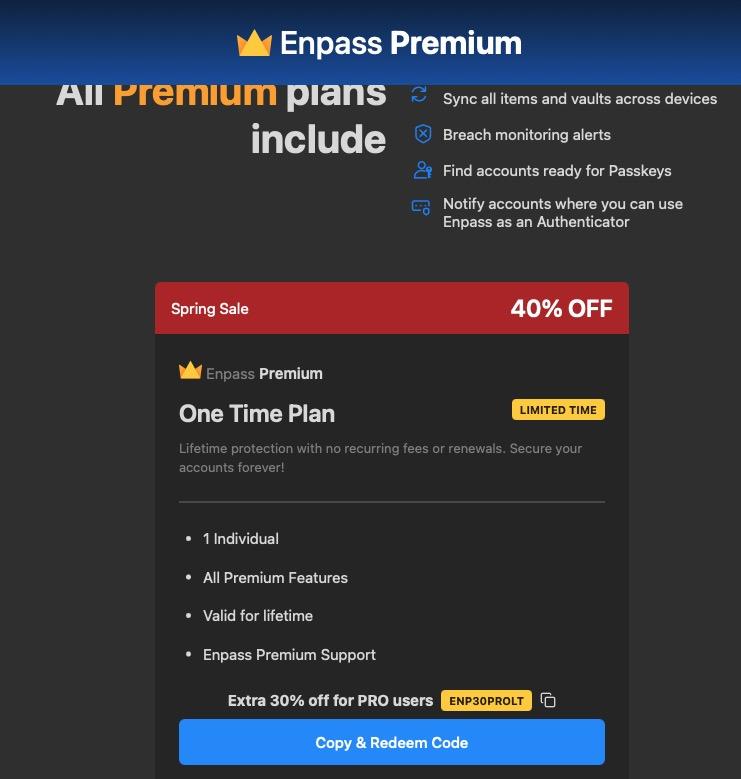
Today there is a new ad banner, on the top bar near the Preferences button: Explore Premium. I did not see this one appear until today here in the US, although LifetimePro saw something similar on 03/22/25 in Europe. It offer 40% off with a coupon to add 30% off for Pro users: ENP30PROLT. And when going to the purchase page, the coupon code is rejected as "invalid or expired", although there is a 25% discount already applied (on the US page it states that the original price is $99.99, and it is offered now for $74.99). Could we know what the enpass company is doing here?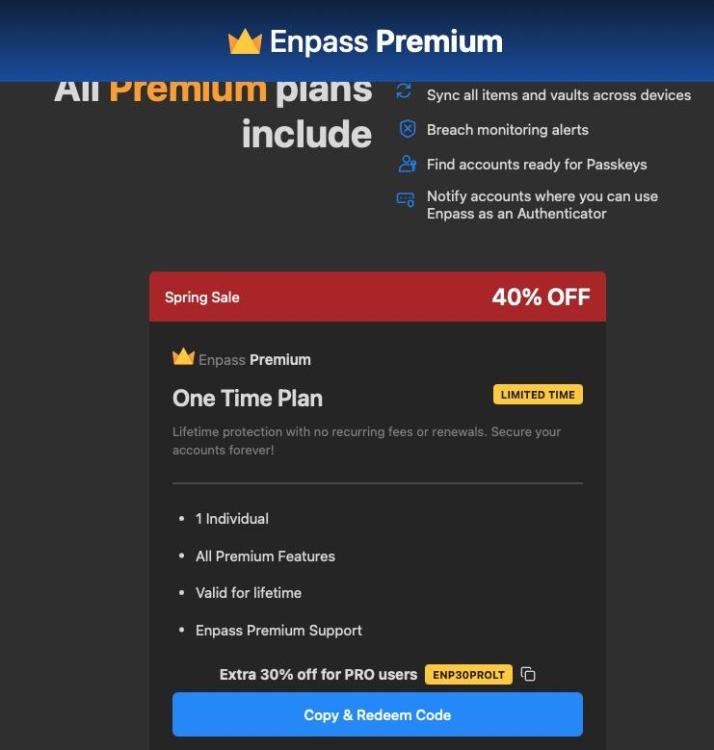
-
Problems autofilling Chase
fermati replied to paulsiu's topic in Autofilling and Desktop Browser Extensions
Some apparently very positive news: today (1/30/25), there were a few updates for the Firefox extensions, including the Firefox Enpass one. After updating that extension, the auto login for Chase.com is working again. I am not sure if it is working for other browsers, but it seems that the issue was with the extension, not the main Enpass software. Anybody else is having the issue resolved when updating the extension, in Firefox or in any other browser? Could we get more information from the Enpass staff regarding the apparent solution? Thank you very much in advance. -
Thanks for the info, Inkx. I will not take the risk of seeing that bug coming back here, so I'll skip that update.
-
Problems autofilling Chase
fermati replied to paulsiu's topic in Autofilling and Desktop Browser Extensions
And more than a month later, still no solution. Are you guys seriously working on this problem that is not affecting just Chase, but several other banks? -
macOS 15.1 is not causing the problem to come back here after the update yesterday (v6.11.4).
-
I saw the update for Enpass 6.11.4 when v6.11.13 was launched pn 10/14/.24. I clicked on update but nothing happened. I tried again with Menu/Check for update, but that did not work either. I'm using the website version, and downloading from your site allowed to launch the V6.11.4 update and everything went well after that.
-
Problems autofilling Chase
fermati replied to paulsiu's topic in Autofilling and Desktop Browser Extensions
Today Enpass 6.11.4 was released and it solved the problem of Enpass not being able to come back to the front when the application was closed with "Hide dock icon when the main window is closed". But the update did not resolve the login problem that several here have encountered with the Chase login. alleycat, are you still having the problem with your credit union? Any progress to report on resolving the issue, or any possible time frame to do so? It has been happening for quite a long time now. -
The update released today, v6.11.4 solved the problem here with macOS 15.0.1 Sequoia. The update could not be applied from within Enpass 6.11.3 so it had to be manually downloaded from the enpass.io site. Has anybody else been able to resolve that problem on their end? EDIT: after a few close/reopen of the Enpass window, I noticed that after a while the dock is full of Enpass icons again. The main issue has been resolved, but there is still a leftover problem, although relatively minor.

-
You can find more information related to your issue in the threads below:
-
Problems autofilling Chase
fermati replied to paulsiu's topic in Autofilling and Desktop Browser Extensions
I hope this may help the development team. I used 2FA with Chase, and the problem only happens on the Chase front page where you enter your username and password. The username is saved on the login page so it does not have to be entered each time, but the password has to be manually retrieved within Enpass. After that login you need to request a code from Chase. When the code is delivered as a text message, I enter it on the page and the password has to be re-entered for confirmation, which on that 2FA page is automatically filled in by Enpass. So the problem is only on the main page. It is likely that Chase and possibly alleycat's credit union have changed something that Enpass cannot properly deal with at this time. -
Interestingly, this is related to another and somewhat related issue detailed here: I tried what you recommend above: disable the setting "Hide dock icon when the main window is closed". Doing so allowed Enpass to come back to the front after closing its main window with command-W.
-
The same thing is happening on another volume where I had Sonoma installed. Afetr upgrading to Sequoia (no fresh install here), the same behavior described above started to happen. It never occurred with any previous macOS. Is a solution underway?
-
Problems autofilling Chase
fermati replied to paulsiu's topic in Autofilling and Desktop Browser Extensions
Same issue here for the last 2 months, and the latest Enpass update did not bring a solution. -
I have a similar issue in Sequoia 15.0, final release. The app installed fine, it opens without issues, the browser extensions are working properly (Firefox and Safari), but when the Enpass window is closed (command-W), the application cannot come back to the foreground when called again. It flashes very fast at a rate of 5-10 times a second and the app icon keeps showing up in the dock every time the app tries to come back to the front. This also happens if I option-click on the Desktop to send Enpass to the background. The only 2 solutions I found are: 1. click on the Enpass icon in the Menu Bar, then click open Enpass. 2. do not close the window app (command-W) but send it to the dock (command-M). It then reopen without a problem like with the command-W method before Sequoia. Mac Studio M1 Max macOS Sequoia 15.0 (fresh install)
-
It seems that Rosetta can be uninstalled. I found 2 links that give instructions how to do it: https://developer.apple.com/forums/thread/669486 https://iboysoft.com/news/uninstall-rosetta-2.html That said you may want to keep Rosetta on your machine. I have an Epson scanner and Epson has not, and likely will not upgrade the driver to an M1 version. Although VueScan is M1 native, if I want to use it with the Epson scanner it has to be running under Rosetta. So if you have a similar situation with a scanner, a printer, or a software that has plugins that are Intel only, you may need Rosetta.
-
That is what I suspected earlier today in my first post. You mentioned that you cannot install the application, could you explain why, as it may help us understand what is going on?
-
hofpad, if you installed the application, do you see the option to open it under Rosetta when you look at the info?
-
Interesting question by dahliamma. Here it's not the App Store version, the installer was downloaded from the Enpass site.
-
It could be that the installer needs Rosetta. Here the installed Enpass shows the "Open with Rosetta" option, while the previous version did not show that option. It seems that the software itself is Silicon native.
-
Trying to solve the Logitech issue I discovered that Enpass6beta is bypassing some macOS setups. Under Mojave/System Preferences/General I have the following choices: Show scroll bars: Always Click in the scroll bar to: Jump to the next page That works fine in the Finder and with other applications, but Enpass6beta is disregarding those choices. The scroll bar only shows when I click somewhere in the scroll bar column, and it disappears after a couple of seconds. And the cursor moves to the spots where I clicked instead of going down or up one page. Some, myself included are not really pleased with the Mac version of Enpass6beta appearance being imported from the Windows side. It seems that you may also have imported things under the hood at the same time. I hope you can fix this.
-
You're a welcome Anshu kumer. Just an update about the main window moving from the main screen to the secondary screen: after doing a fresh install of Mojave (I was on a testing partition earlier), the main window always reopen on the main screen, never on the secondary one.
-
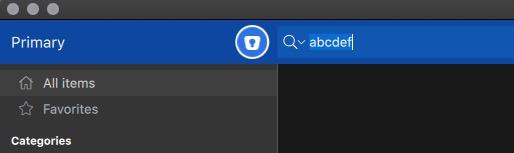
Another cosmetic issue similar to the dark blue color for the links (see Martva post above): when text in the search field is highlighted, it is in a blue color that is way too similar to the background color. Look at the screen capture below, it is almost impossible to distinguish the two colors.