
Anshu kumar
Enpass team member
-
Joined
Everything posted by Anshu kumar
-
-
Sorry for the trouble guys! The issue has been resolved and an update with the fixes has already been submitted to the App Store and will be available within few days. Till then please bear with us. Cheers!
-
Hi @rimbuk Thanks for writing in. Actually it is a default behaviour of Windows Hello dialog and currently there is no API to disable the OK button. Thanks for understanding!
-
Hi @Volker A Mönch, To investigate further in this issue, I might need to send a diagnostics tool with some more queries. Please drop us an email at support@enpass.io mentioning a link to this discussion and we will take it further. Thanks for your co-operation.
-
Sorry to hear about trouble @mikeg! Unfortunately, we are unable to reproduce this issue in our test lab. I would like to leave the thread open to find out if other users is experiencing the same issue. Actually this issue is related to browser as when you enable sync, Enpass open the respective cloud login page. After entering the login details it will show a landing page, while displays 'Continue with Enpass.' But the Internet Explorer and Edge browser will not redirect the user to the landing page. Although your sync will work as the issue arise only with the landing page.
-
Hi @Matteo, I'm sorry you are having issues with the Edge extensions. We just re-tested this issue in our lab and unable to reproduce it. Please share your Windows 10 build version (along with version of Edge). Also, let me know if you have recently updated your system or installed any software.
-
HI @Ronit, We have already given it a thought. The problem is that Edge extension can only run javascript, no native code support yet. SQLCipher, the opensource encryption engine used by Enpass, is a native library only. So, we won't be able to decrypt the Enpass data fetched from OneDrive.
-
-
Hi @doctork, Thanks for reporting these issues and I'm sorry for the inconvenience caused you. This issue has been fixed and will be available in next update. Till then we request you to please bear with us. It is a very cool idea! I have noted down your request . Cheers!
-
-
Hi @Nico Jack, It would be a great help, Please share the login details via PM .
-
Hi @Anton Thanks for your prompt reply! I would like to let you know, Enpass Autofill services is disabled by Android on some devices and we can not prevent that. Users of Samsung Galaxy devices (SG 5 and later) can check if the App Battery Optimizer in Samsung Smart Manager app is enabled. First disable this as it is known to disable Enpass Accessibility Service. Go to Settings > General > Battery > look under App Optimization and select Details. Then find Enpass and turn it off. Even on some specific devices, if the Accessibilty service is running, it doesn't mean that Enpass has received accessibility events so that Autofill service can work properly. Our developers are looking for the solutions to address this issue in future. So please toggle Enpass Accessibilty Service off and on. Then retry.
-
Hi @Eivind, Sorry to hear about your trouble. To disable the unlock sound in Enpass, update the following key in General section of Enpass-Desktop.conf. LoginFeedbackSound=false Cheers!
-
Hi @lezogeek! While syncing, Enpass sync all your database and the 20 items are shown randomly in trial version. Sorry to say, but we can't give this feature because of the policy of our business. Thanks for understanding!
-
-
-
Thanks for writing in. Currently Enpass app locks when Windows goes in sleep mode, but we have already implemented an option to manage this issue and will be available in any of coming release. Till then please bear with us. Cheers!
-
Thanks for your reply @chaoszwerg! We have this in our roadmap and will be there in some future release. Cheers!
-
Hi @mb, Sorry to hear about trouble. Unfortunately, we are unable to reproduce this issue in our test lab. I would like to leave the thread open to find out if other users is experiencing the same issue.
-
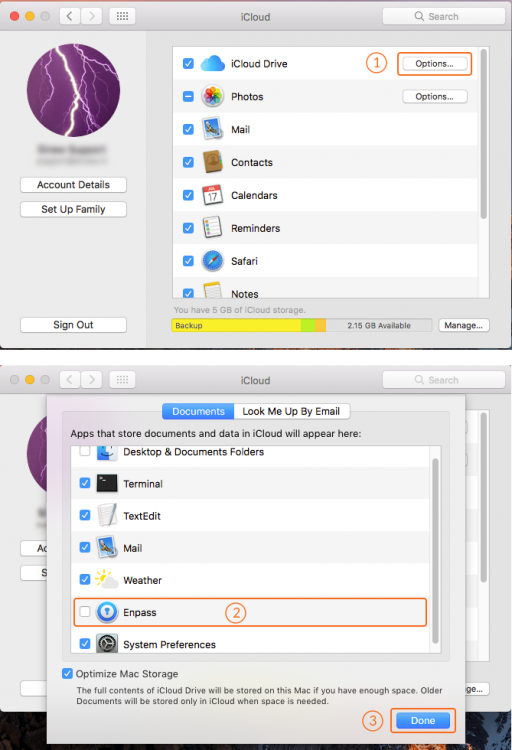
Hi all, Sorry to hear your trouble. Our dev team is aware of this issue and we are working on it. The best workaround at the moment is to disable iCloud sync. Before disabling sync, make sure Enpass is completely closed. You can disable sync via System Preferences ➝ iCloud ➝ iCloud Drive ➝ Tap Options ➝ Uncheck Enpass ➝ Click Done. Meanwhile you can also try using other available cloud options to sync. cheers!
-
Hi @Gordon Keehn, The best workaround at the moment is to create your own custom CSV by editing the iAccount/iBackup password exported file. Open that in a spreadsheet program and copy columns to a new CSV with format described in this FAQ. After that you will be able to import your passwords using Generic CSV importer. Cheers! P.S. - Though we are working on a better CSV importer but I can't confirm any ETA for that.
-
Hi @chaoszwerg, Thanks for writing in. Currently Enpass only connects to the default Microsoft account configured in the Windows Phone. In this case you can try using other available cloud options for sync. Cheers!
-
Hi @MaryGladys, That's really strange that you are facing this issue. Enpass doesn't delete the data by itself, until and unless you delete the data manually or by using the feature *Erase Everything*. Please let me know size of walletx.db file in Documents -> Enpass folder. As you are syncing the whole Documents folder to NAS also, please try installing the app freshly once again by turning off the NAS sync (to be sure that NAS sync is not corrupting/deleting Enpass data). And please refer to the given link also and check if the thread is related to your issue or not (the surface pro 4 keyboard issue) .
-
Hi @Sprankie, Sorry to hear about your trouble. We are already aware of this issue that in Mac OSX 10.12 iCloud sync causes the crash. Our dev team is working on this issue and will try to fix it asap. Meanwhile you can try using other available cloud options to sync. Thanks for your cooperation.
-
Hi @lucaboox, Thanks for your suggestion. Please have a look at our FAQ to know how Quick PIN works. Already being discussed here: Already being discussed here: Cheers!